Reviewing and resolving Auto-Checks
Last updated: May 20, 2026
Auto-Checks are automated verifications that confirm whether your connected cloud environments (e.g., AWS, Azure, GCP, GitHub) are configured according to your compliance requirements. Instead of manually checking every setting, Kertos runs these tests for you and flags anything that needs attention.
This article walks you through the Auto-Checks page under the Compliance section — your central place to review which checks have run, see what failed, and resolve misconfigurations.
Why this matters
Misconfigurations are one of the most common causes of compliance gaps and security incidents. The Auto-Checks page gives you:
Continuous visibility into the configuration state of your cloud environments, without manual review
Prioritized remediation through severity levels, so you know what to fix first
Suggested Fix with detailed informations so you can directly implement fixes
A single overview of all checks across all your integrations
Accessing and reviewing Auto-Checks
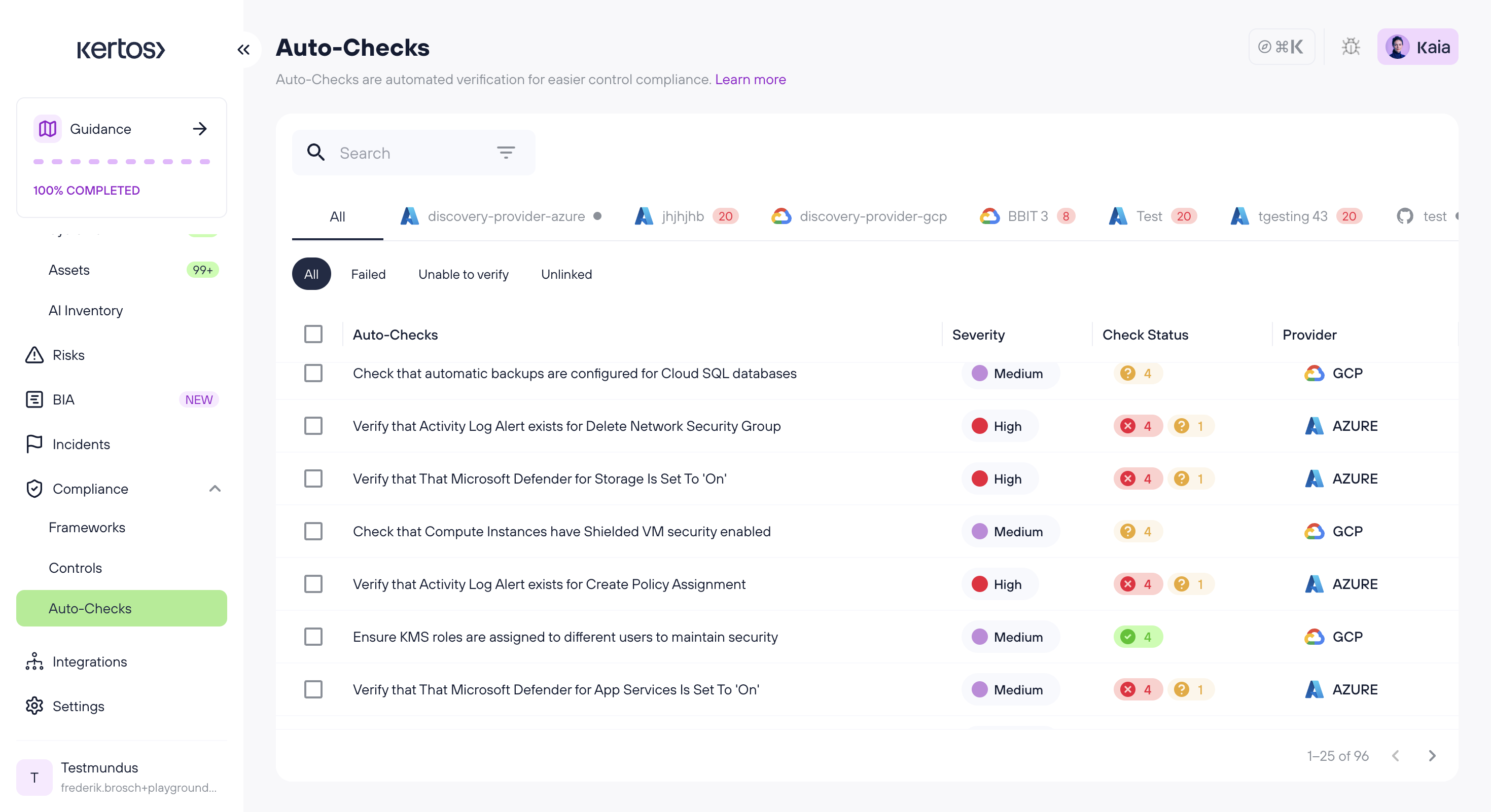
1. Navigate to the Auto-Checks page. In the left sidebar, expand the Compliance section and click Auto-Checks. You'll see the full list of checks that have been run across all your connected integrations.
2. Use the filter tabs to narrow down the view. The page provides four tabs to help you focus on what matters:
All: every check, regardless of status
Failed: checks that detected a misconfiguration and need remediation
Unable to verify: checks that couldn't run (e.g., the resource was unreachable or the service isn't in use)
Unlinked: checks that aren't yet connected to a control or implementation step
3. Review the table columns. Each row shows the Auto-Check name, its Severity (Low / Medium / High), the Check Status (Passed / Failed / Unable to verify), and the Provider (e.g., AWS, Azure, GCP)
4. Sort by severity to prioritize your work. We recommend starting with High severity failed checks, as these typically represent the highest compliance and security risk.
Resolving a failed Auto-Check
Once you've identified a failed check, the next step is to fix the underlying configuration in your cloud environment.

1. Open the failed Auto-Check. Click on any check in the list (for example, "Verify that Microsoft Defender for Storage is set to On") to open its detail view.
2. Review what was checked. The detail view is split into two tabs:
General: explains in plain language what the check looked for, why it matters, and includes a Suggested Fix(e.g., "Turn on Microsoft Defender for Cloud for this subscription"). Start here to understand the issue.
Findings: shows exactly what the test found in your environment, including which account or resource failed and what the current configuration value is. Use this to pinpoint where to apply the fix.
3. Follow the remediation guidance. The Suggested Fix on the General tab provides instructions on how to resolve the issue directly in your cloud provider's console.
4. Apply the fix in your cloud provider. Log in to AWS, Azure, GCP, or GitHub with an account that has the necessary admin rights, navigate to the affected resource identified on the Findings tab, and apply the change.
5. Wait for the next discovery run. Auto-Checks run automatically once a day, but you can trigger a new discovery run manually to verify the fix immediately. Once the check passes, its status updates to Passed and any linked control or implementation step is updated accordingly.
FAQs
How often do Auto-Checks run?
Auto-Checks run automatically once per day as part of the daily discovery run. You can also trigger a manual discovery run from the Integrations page at any time to refresh the results immediately.
What does the Severity level mean?
Severity reflects how critical a misconfiguration is from a compliance and security perspective. High severity typically indicates a finding that could lead to unauthorized access or a control failure during an audit, so we recommend resolving these first.
A check failed, but the configuration is intentional. What do I do?
You can mark the check as Not Applicable on the control level and document the reason (e.g., the service is replaced by an equivalent third-party tool). This keeps your audit trail clean and prevents the check from being treated as an open finding.
Why don't I see any Auto-Checks for one of my integrations?
Auto-Checks only run for services that are actively in use within the connected environment, and only for integrations that support the feature. If you connected the integration before Auto-Checks were available, you may also need to reconfigure it to grant the additional read-only permissions required.