What is Kertos Device Monitor?
Last updated: September 15, 2026
The Kertos Device Monitor (KDM) helps your company keep laptops and desktops compliant with security requirements. It collects key, non-sensitive device information and shows you whether each device meets your company's standards.
KDM is designed for smaller companies that don't have a Mobile Device Management (MDM) solution in place. Employees install the device monitor themselves - no IT infrastructure or centralized deployment needed.
If your company already uses an MDM like Intune, you can connect it directly to Kertos as an integration instead. See the section below for guidance.
Currently only available for macOS and Windows.
Key benefits for your company
Save time by avoiding manual asset updates
See compliance status per device and per user at a glance
Support common standards like ISO 27001 and SOC 2 with clear, basic checks
Keep data private: the device monitor does not read sensitive information like passwords, emails, or browsing history
KDM vs. MDM - which one do I need?
Not sure whether to use KDM or an MDM integration? Here's a quick guide:
Use KDM if your company doesn't have an MDM solution and employees can install software on their own devices. KDM is ideal for smaller teams (roughly 5–30 employees) without dedicated IT infrastructure.
Use an MDM integration if your company already has an MDM (e.g. Intune, Jamf, Kandji), needs to silently deploy monitoring across all devices, or has locked-down devices where users can't install software themselves.
⚠ KDM does not support silent or company-wide mass deployment. If you need centralized rollout without employee involvement, an MDM is the right path - and you can connect it to Kertos to get the same compliance visibility.
How to set it up
1) Admin: Enable the Kertos Device Monitor
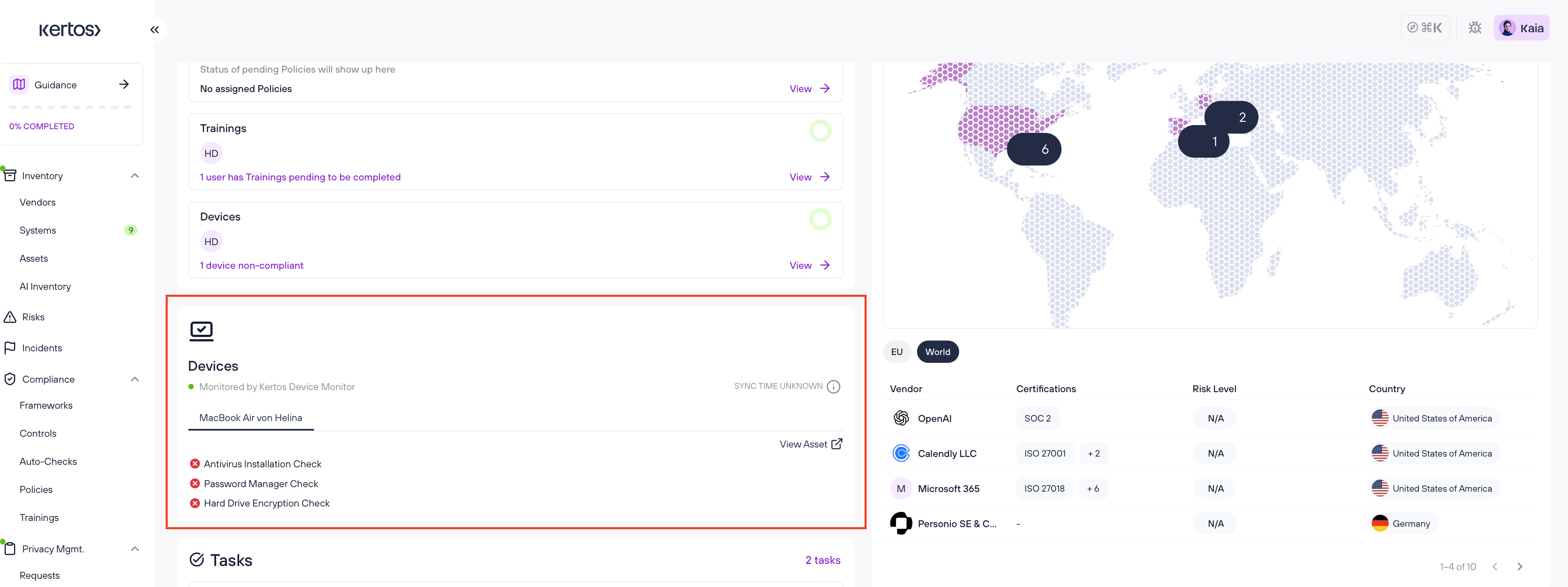
Go to Integrations in Kertos or to the tile on the dashboard
Select Kertos Device Monitor
Download the installer for your operating system
💡 The key is also available in the dashboard link for users.
🔗 Already using an MDM? If your company manages devices through an MDM like Intune, Jamf, or Kandji, you don't need to install KDM. Connect your MDM to Kertos as an integration instead - it provides the same compliance monitoring. The KDM download may be disabled when an MDM integration is active.
2) Distribute to employees
Once the device monitor is enabled by an admin, each user will be able to download it
Users can find the download directly on their Kertos dashboard (also available to basic users)
3) Employee: Install the device monitor
Run the installer for macOS or Windows
When prompted, paste the provided key
The device monitor will finish setup in seconds and start checks automatically
How it works after installation
What the device monitor checks
The device monitor performs lightweight, read-only checks and syncs results to Kertos approximately every 1.5 hours. Typical checks include:
Device owner and device ID
Operating system version
Disk encryption enabled
Antivirus installed
Password manager installed
Last updated or synchronized timestamp
The software updates itself automatically when a new version is released.
Supported antivirus and password managers
KDM recognizes the following antivirus and password manager solutions today. If you use a solution not listed here, please let Kertos support know so we can evaluate adding support.
Antivirus
Windows
Windows Defender, Sophos, Symantec, McAfee, Kaspersky, CrowdStrike, Carbon Black, Avast, AVG, ESET, Trend Micro, Bitdefender, Malwarebytes, Norton
macOS
Sophos, Symantec, McAfee, Kaspersky, CrowdStrike, Carbon Black, Avast, AVG, ESET, Trend Micro, Bitdefender, Malwarebytes, SentinelOne
The built-in XProtect is also detected.
Password managers
Windows
1Password, LastPass, KeePass, Bitwarden, Dashlane, Keeper, RoboForm
macOS
1Password, LastPass, KeePass, KeePassXC, Bitwarden, Dashlane, Keeper, NordPass, RoboForm, Enpass, ProtonPass, Strongbox, MacPass, AuthPass, Password Depot, Sticky Password, Zoho Vault
Apple’s built-in Passwords app is also supported.
Check schedule expectations
KDM currently runs checks automatically on a schedule. Manual or on-demand checks are not supported at this time, and devices need to be active for checks to run.
The software updates itself automatically when a new version is released.
Where you see results in Kertos
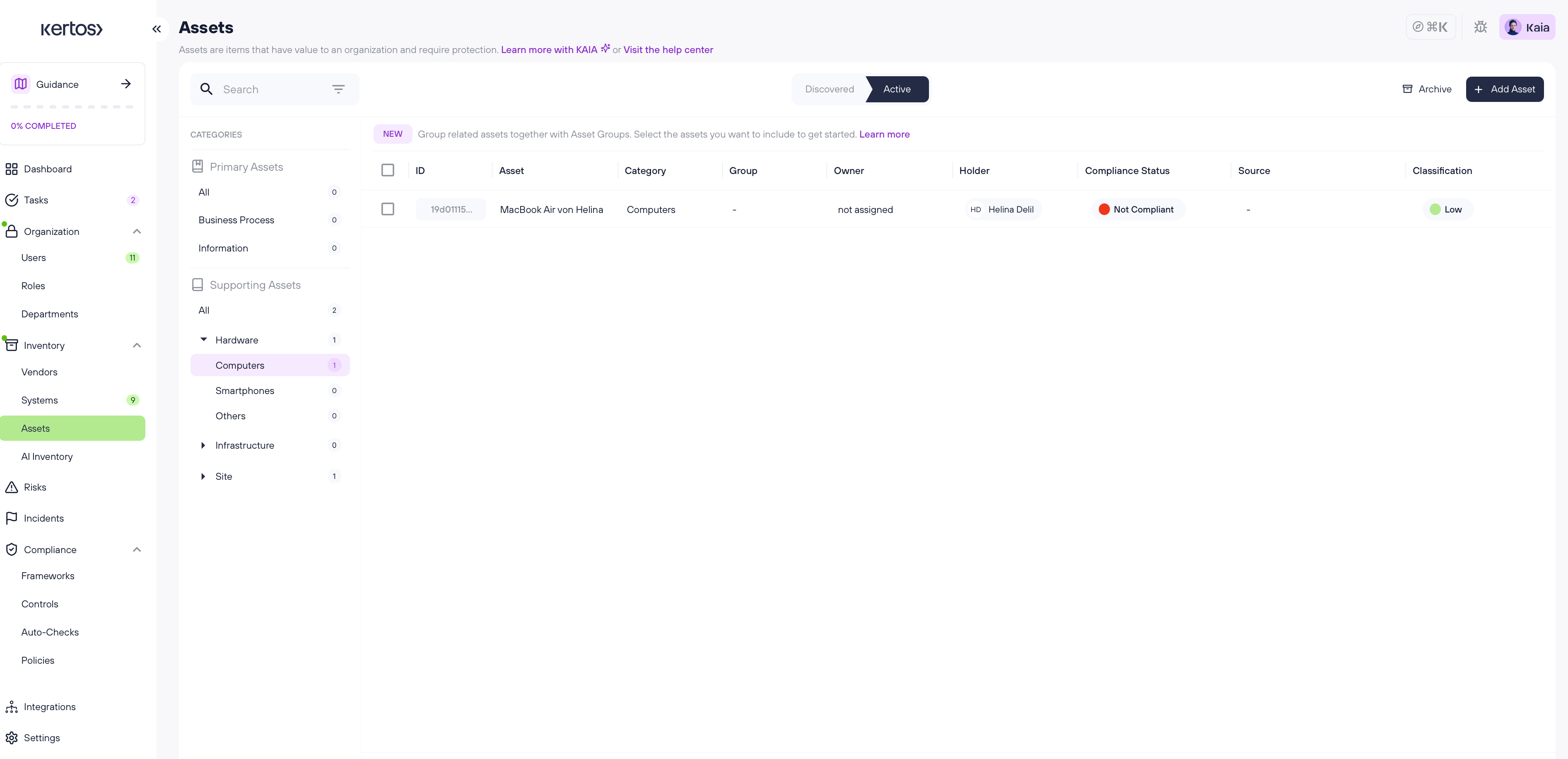
Assets page
Each device appears as a supporting asset with source "device monitor"
A Compliance Status column shows whether the device is compliant, non-compliant, or not applicable
Sort or filter by status to focus on devices needing attention
The device details view lists each check and the most recent sync time
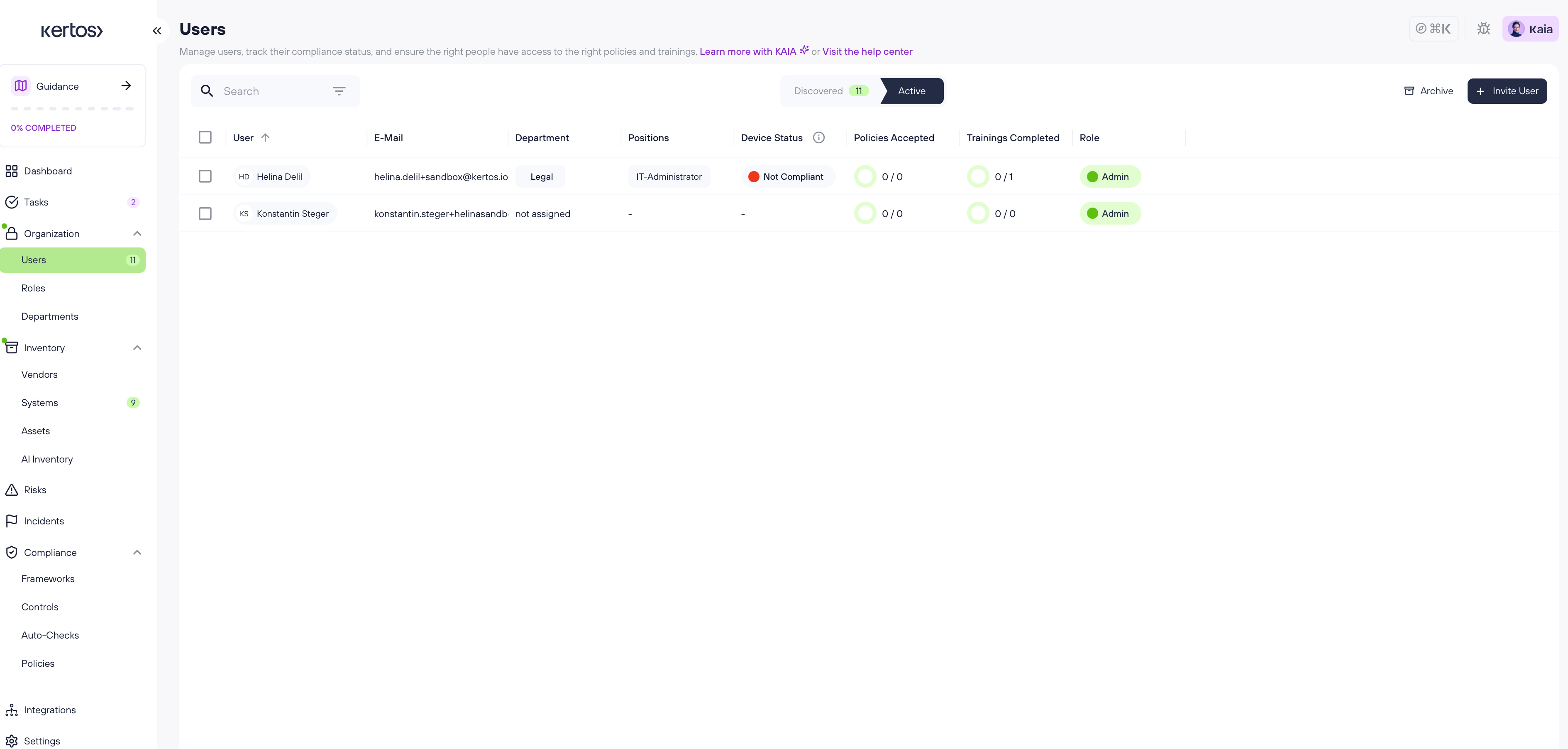
Users page
Shows the device held by each user and its compliance status
Clicking a device opens the device's asset entry
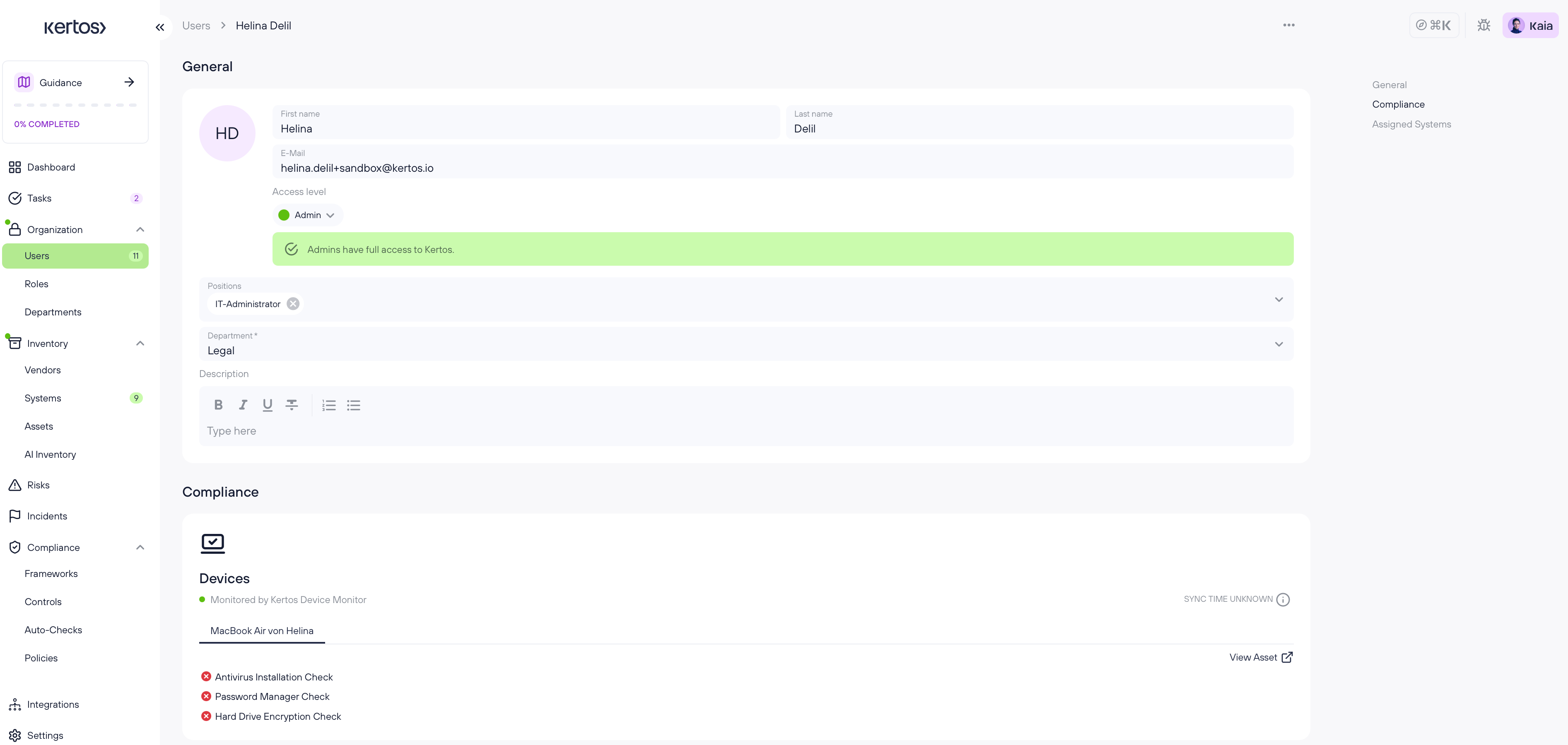
Compliance statuses
✅ Compliant - all checks pass
❌ Non-compliant - at least one check fails
➖ Not applicable - no connection yet or the device monitor is not reachable, not monitored by device monitor (or MDM if you use an MDM instead of the device monitor)
Privacy and security
Read-only by design
Does not collect sensitive content like passwords, emails, or browsing history
Intended to minimize risk while enabling practical compliance monitoring
Uninstalling the Kertos Device Monitor
If you need to remove the device monitor from a device:
On the device
macOS: Quit the device monitor if running, then use the provided uninstaller
Windows: Open Apps & Features, find the device monitor, and select Uninstall
In Kertos
No extra steps are required to remove the device entry, but note:
The device's status may change to Not applicable once the device monitor stops syncing
If you want to fully remove a device record, delete the asset in Kertos. If the asset is tracked by the device monitor, Kertos will remind you about the sync connection before deletion.
Handing over a device to another employee
Uninstall the device monitor or install it again using the new user's key so the device associates with the correct user
Delete the device from the assets section
The new user installs the device monitor with their own key - the asset is created automatically
Troubleshooting basics
I installed the device monitor but don't see my device yet
Wait a few minutes. Syncs happen roughly every 1.5 hours, and the first checks are quicker than that.
Ensure you used the correct key during installation.
My device shows as "Not applicable"
The device monitor might be offline, not installed, or uninstalled. Reinstall with your key and ensure the device is online.
A check shows as failing
Open the device's asset page to see which check failed and what to fix, for example enabling disk encryption or screen lock.
I need to deploy the device monitor to many devices at once without user involvement
KDM does not support silent mass deployment. If you need centralized rollout, consider connecting an MDM integration to Kertos instead. MDM provides the same compliance visibility and supports company-wide deployment.
Technical Transparency
This section is for technical reviewers (CTOs, Lead Engineers, security teams) evaluating Kertos Device Monitor. It covers privilege level, the exact data KDM reads, how telemetry is stored and encrypted, and how updates are delivered.
KDM is built on the open-source projects osquery (Apache 2.0, originally developed at Meta) and Fleet's orbit updater (MIT). Both are independently auditable:
osquery source: github.com/osquery/osquery
orbit source: github.com/fleetdm/fleet
1. Privilege level
Platform | Process | Runs as | Kernel components |
macOS | LaunchDaemon | root (userspace) | None - no kernel extension, no Endpoint Security extension installed by KDM |
Windows | Windows Service | LocalSystem (userspace) | None |
Elevated privileges are required because the compliance checks read OS-managed state (FileVault/BitLocker status, installed software inventory, etc.) that is not accessible to an unprivileged user.
KDM does not install any driver, kext, kernel module, hook, or filter.
The agent is read-only by design: osquery is a read interface over OS data and exposes no mutating tables for the data KDM uses.
2. What KDM reads - explicit attribute list
KDM only runs the queries the Kertos backend pushes to it. The current production query set, applied to every customer, is three boolean compliance checks:
Key | What it checks | Returns |
| Whether the system root volume is encrypted (FileVault on macOS, BitLocker on Windows) | 0 or 1 |
| Whether one of a known list of AV/EDR products is installed | 0 or 1 |
| Whether one of a known list of password managers is installed | 0 or 1 |
Each query result returns a single boolean column.
Decoration values (attached to every result)
Alongside each compliance result, the agent attaches these values so the backend can identify the device and OS:
uuid- device hardware UUIDcomputer_nameos_name,os_version,platform,platform_like,arch
Enrollment data (one-time, at first contact)
At enrollment time only, KDM additionally reports:
host_identifier(UUID),computer_name,os_name,os_versionplatform,platform_raw,hardware_model,hardware_serial
Tables KDM is forbidden from reading
Even if a future configuration attempted it, the following osquery tables are explicitly disabled at agent startup and cannot be queried. The list is enforced per platform.
macOS disabled tables:
keychain_items, keychain_acls, mdfind, curl, user_ssh_keys, browser_plugins, safari_extensions, chrome_extensions, firefox_addons, user_interaction_events, process_envs, es_process_events, wifi_networks, location_services, certificates, ssh_configs
Windows disabled tables:
curl, process_envs, ie_extensions, edge_extensions, prefetch, userassist, explorer_recent_docs, windows_crashes, user_ssh_keys, certificates
In particular: keychain contents (macOS), browser extensions and history, SSH private keys, Wi-Fi SSIDs, location services, and process environment variables are all blocked at the osquery layer regardless of any configuration push.
The full per-platform lists are available in the osquery.flags configuration files shipped with each installer.
Distributed query capability - full disclosure
osquery supports a distributed query mechanism that lets a server issue ad-hoc reads on demand. The KDM agent has the corresponding endpoints enabled. In production, the Kertos backend currently returns an empty set on every distributed-read poll - the feature is wired but not used.
If we ever activate it, queries would still be bounded by the disabled-tables list above and by osquery's read-only guarantee.
3. Telemetry storage and encryption
In transit
All communication between the agent and the Kertos backend uses HTTPS/TLS via osquery's TLS plugins for enrollment, configuration, logging, and the (currently unused) distributed channel. The agent validates the server certificate against the system CA store.
At rest - Kertos backend
Property | Value |
Region | AWS eu-central-1 (Frankfurt). Storage, key management, and email services are all configured to this region. |
Encryption at rest | Telemetry is encrypted with AWS KMS using a per-company envelope-encryption key (each customer organization gets its own KMS key alias). |
Database | PostgreSQL, hosted in the same AWS region. |
At rest - on the device
KDM writes only:
The osquery configuration file containing the enrollment token, with restrictive file permissions (root-only on macOS, SYSTEM and Administrators only on Windows)
Local agent operational logs
osquery's local state database, used for bookkeeping
KDM does not add a second encryption layer on top of the OS disk-encryption it monitors.
Authentication of agent to backend
Enrollment tokens are single-use with an expiration timestamp.
The long-term agent credential is generated server-side with cryptographically secure entropy and stored on the backend only as a one-way hash. A backend database compromise does not yield usable agent credentials.
Every log batch the agent submits is server-side validated against the enrolled host UUID and platform. Mismatches are rejected and logged as security events - this defends against a stolen credential being used from a different machine.
The agent enrollment, config, and log endpoints are rate-limited per-agent and per-company.
4. Updates and supply-chain handling
Agent binaries
The agent code is osquery + Fleet's orbit, packaged with fleetctl. Updates are delivered through Fleet's standard TUF-signed update channels (stable channel for both osquery and orbit).
TUF (The Update Framework) is the same signed-update mechanism used by Docker, Datadog Agent, Notary, and others; it provides cryptographic verification and rollback protection.
KDM does not override or disable this update mechanism, and does not introduce its own binary update channel.
Installer signing
Platform | Signing | Verification |
macOS | Apple Developer ID Application (binaries) + Developer ID Installer (PKG) + Apple notarization with stapled ticket |
|
Windows | Authenticode signed via SSL.com cloud HSM (EV code-signing certificate). Both the inner MSI and the outer EXE bootstrapper are signed. | Right-click → Properties → Digital Signatures |
Configuration channel
The compliance query schedule is delivered from the Kertos backend over TLS at runtime (refresh interval: 600 seconds by default). This means:
The set of queries can be inspected by anyone who controls the device, by reading the agent's config response
Behavior changes do not require a new installer
Changes are bounded by the disabled-tables list above and by osquery's read-only guarantee
5. Guarantees vs. operationally managed behavior
Property | Guarantee level |
Userspace only, no kernel components | Guaranteed by build scripts and osquery/orbit upstream |
Disabled tables list | Guaranteed by code in |
Read-only operation | Guaranteed by osquery design (no mutating tables for queried data) |
Currently-zero distributed queries | Operationally managed: backend currently returns empty set; could change without an installer update |
Compliance query set | Operationally managed: delivered from backend; current set is the three checks listed above |
At-rest KMS encryption, eu-central-1 region | Guaranteed in production configuration |
Installer signing and notarization | CI-gated. Verifiable on each released artifact using the OS's native tools |
6. Verifying for yourself
Inspect the agent config the device receives: it's a JSON document returned by the backend's config endpoint (visible in agent logs).
Inspect the disabled-tables list on a running agent by reading the
osquery.flagsfile installed on the device.Verify installer signatures using the platform-native tools listed in section 4.
osquery itself can be queried interactively (
osqueryi) to see exactly what each compliance query would return on your machine.
For a deeper review or a security questionnaire, contact Kertos support.