Personio
Last updated: September 22, 2026
Integrating Personio with Kertos helps automate user onboarding and updates, ensuring a streamlined approach to managing user profiles for compliance and privacy operations.
To connect Personio to Kertos, you’ll need API credentials, specifically a Client ID and Client Secret, from your Personio account
Requirements & additional Information
You need to have administrator access in Personio or are able to obtain the necessary credentials from someone with these permissions.
Step-by-Step Setup
Step 1: Create API Credentials in Personio
1. Log into your Personio account.
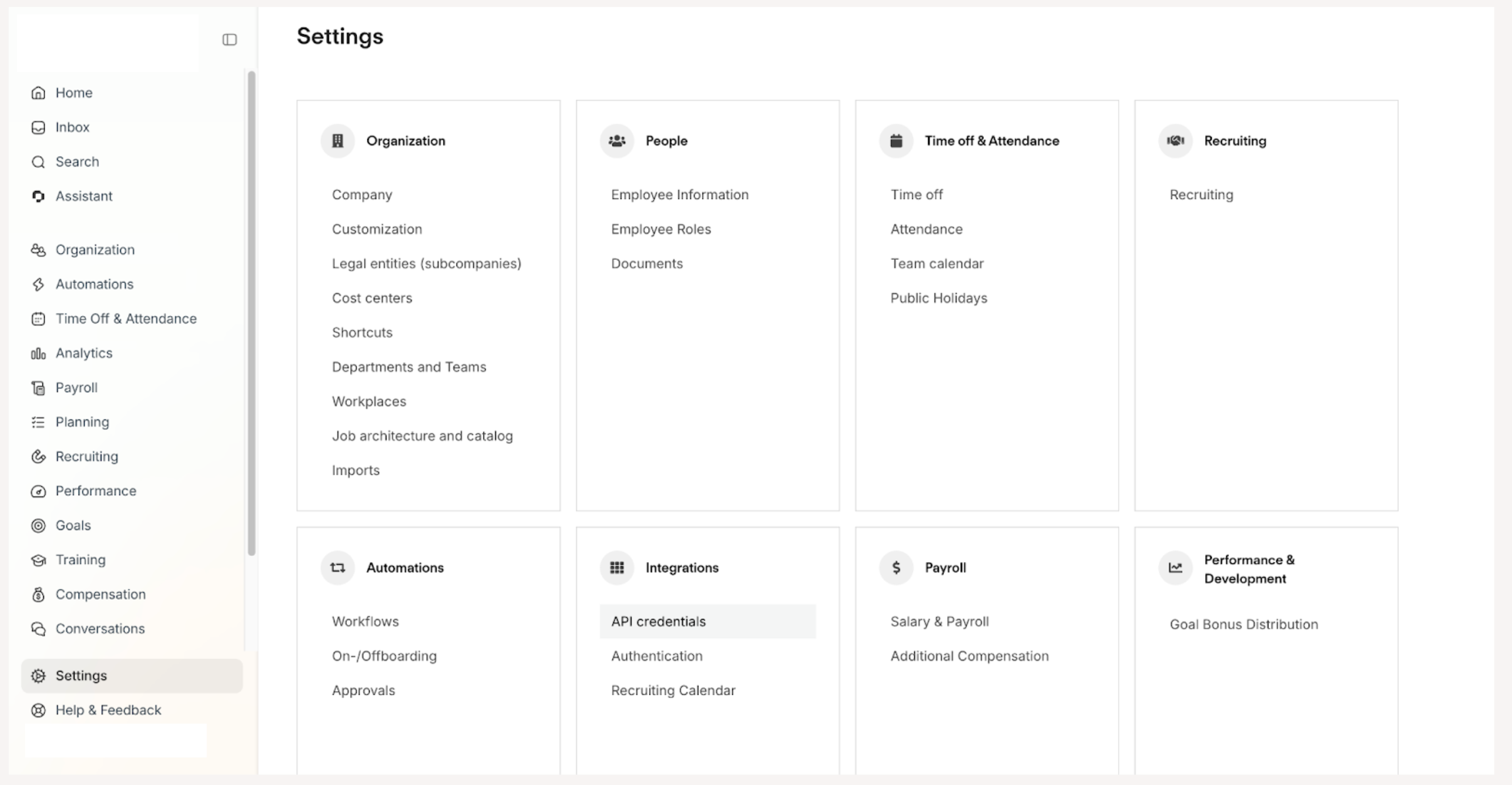
2. Go to Settings then select API Credentials.
3. Find Kertos in the Marketplace section.
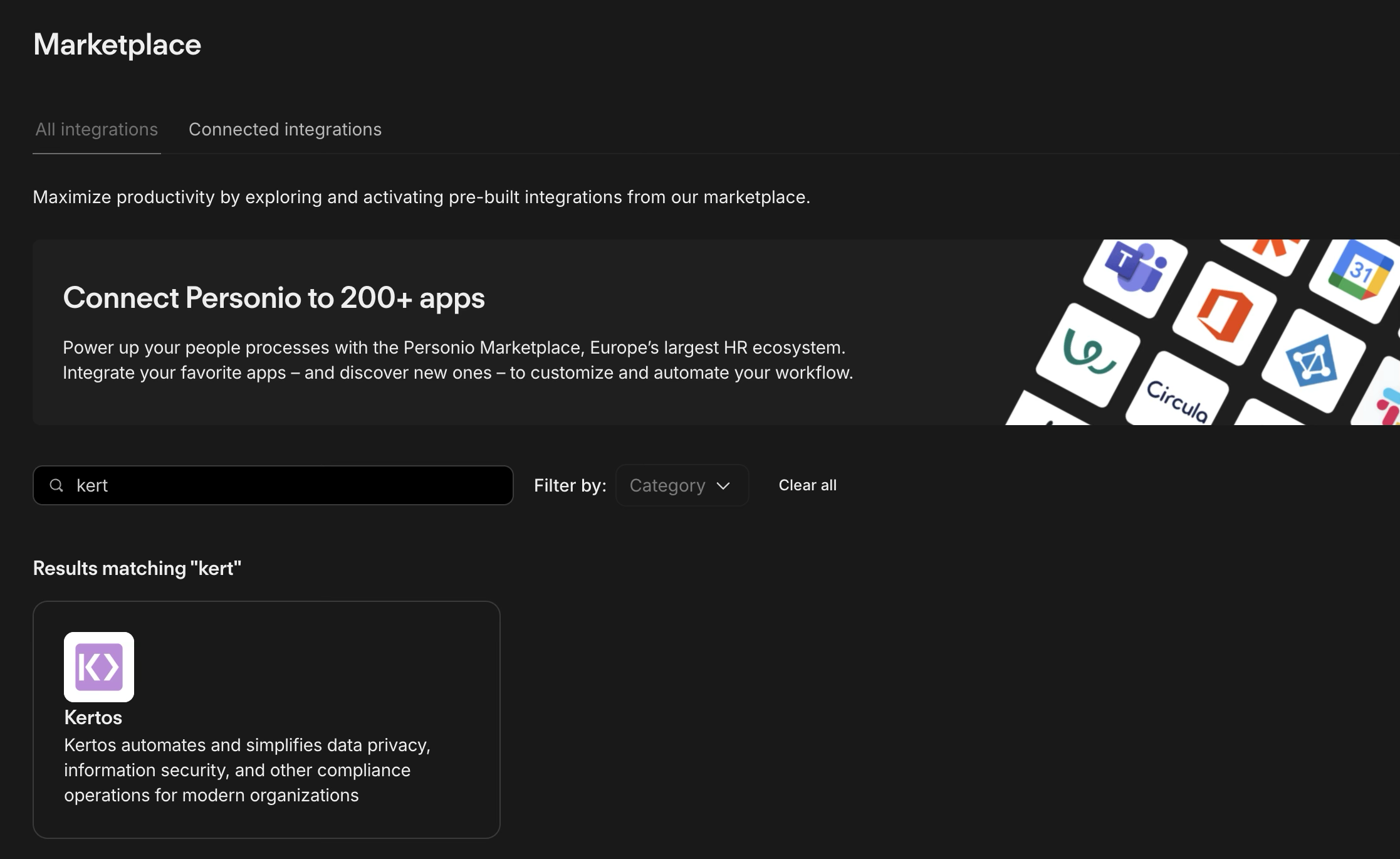
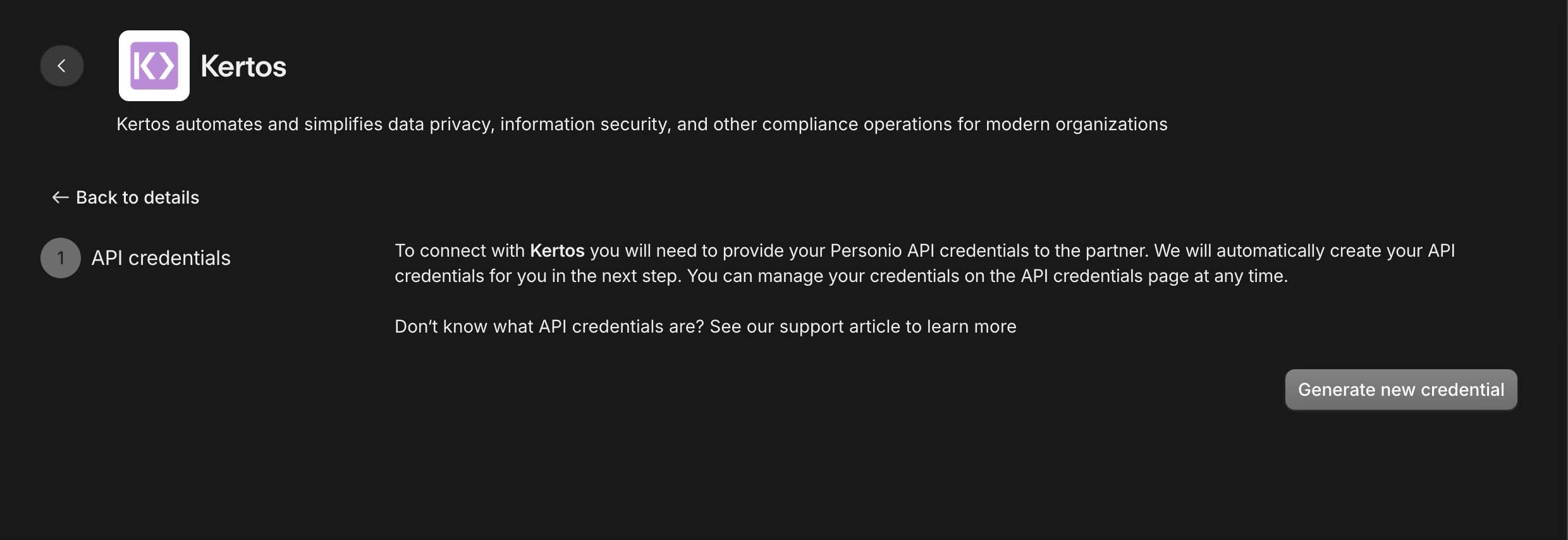
4. Click the button "Connect" to start the integration
5. Select "Generate new Credentials"
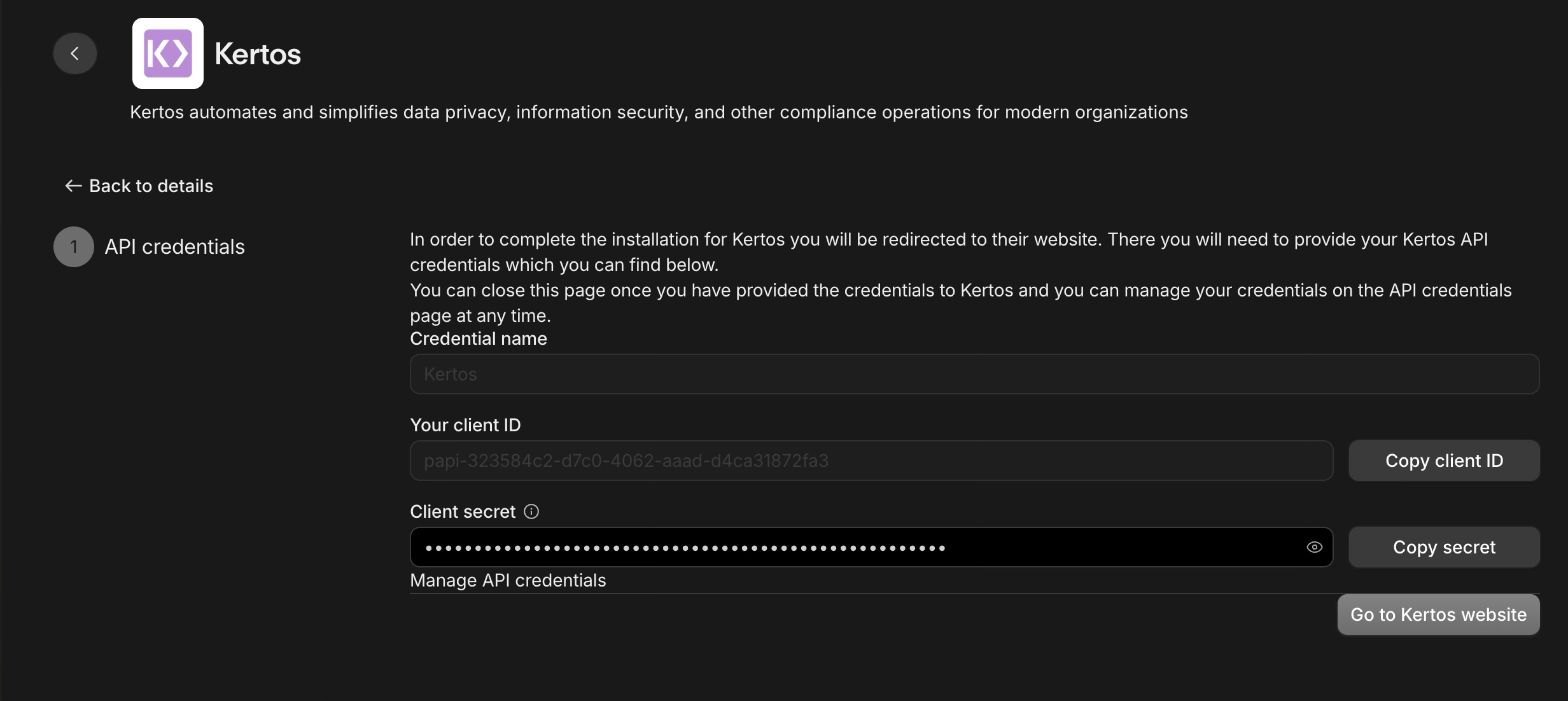
6. See now your "Client ID" and "Client Secret"
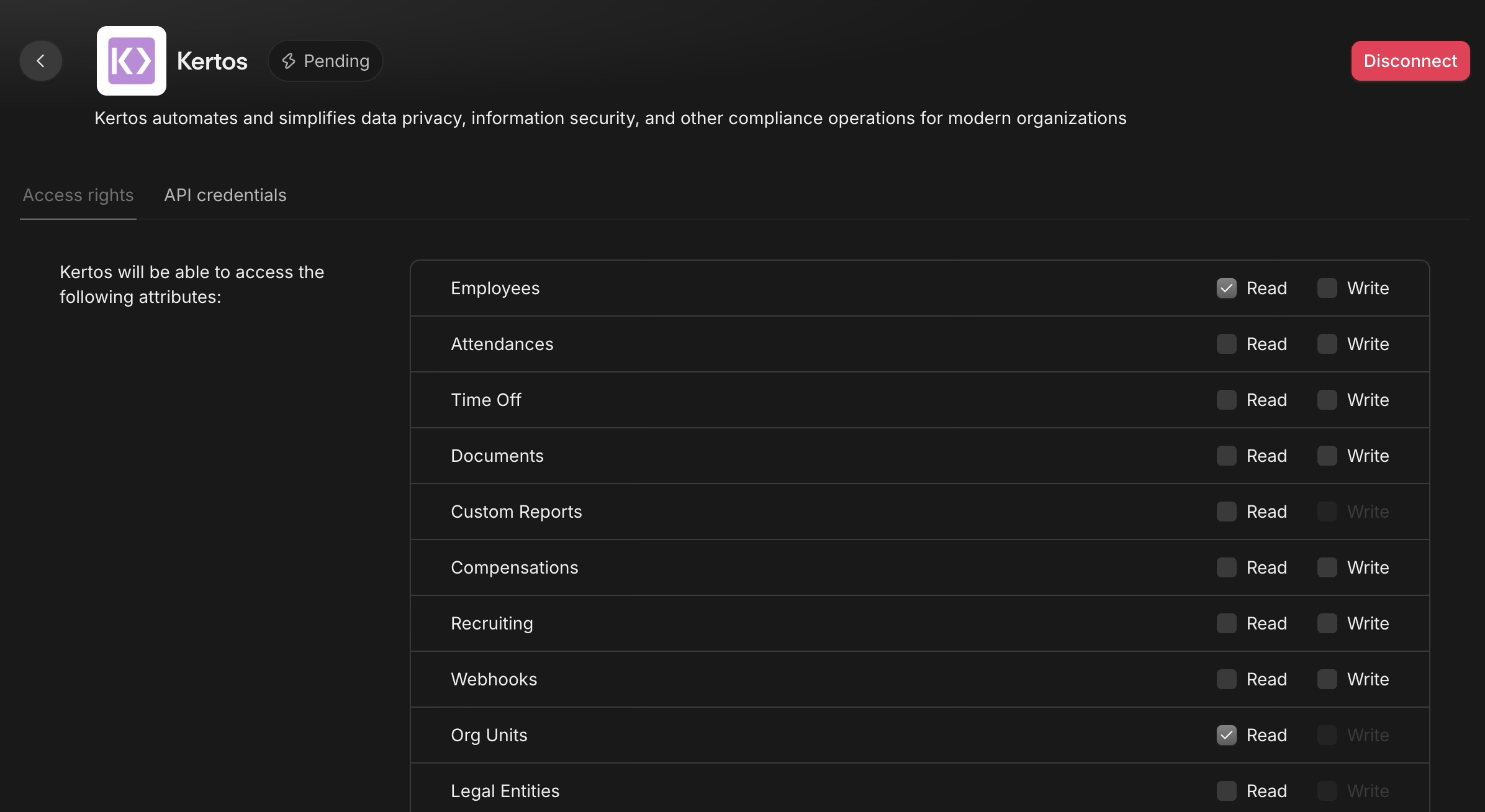
7. Go to Kertos App Settings in Personio

8. Ensure that "Org Units" is selected inside the App Settings
Step 2: Connect Personio to Kertos
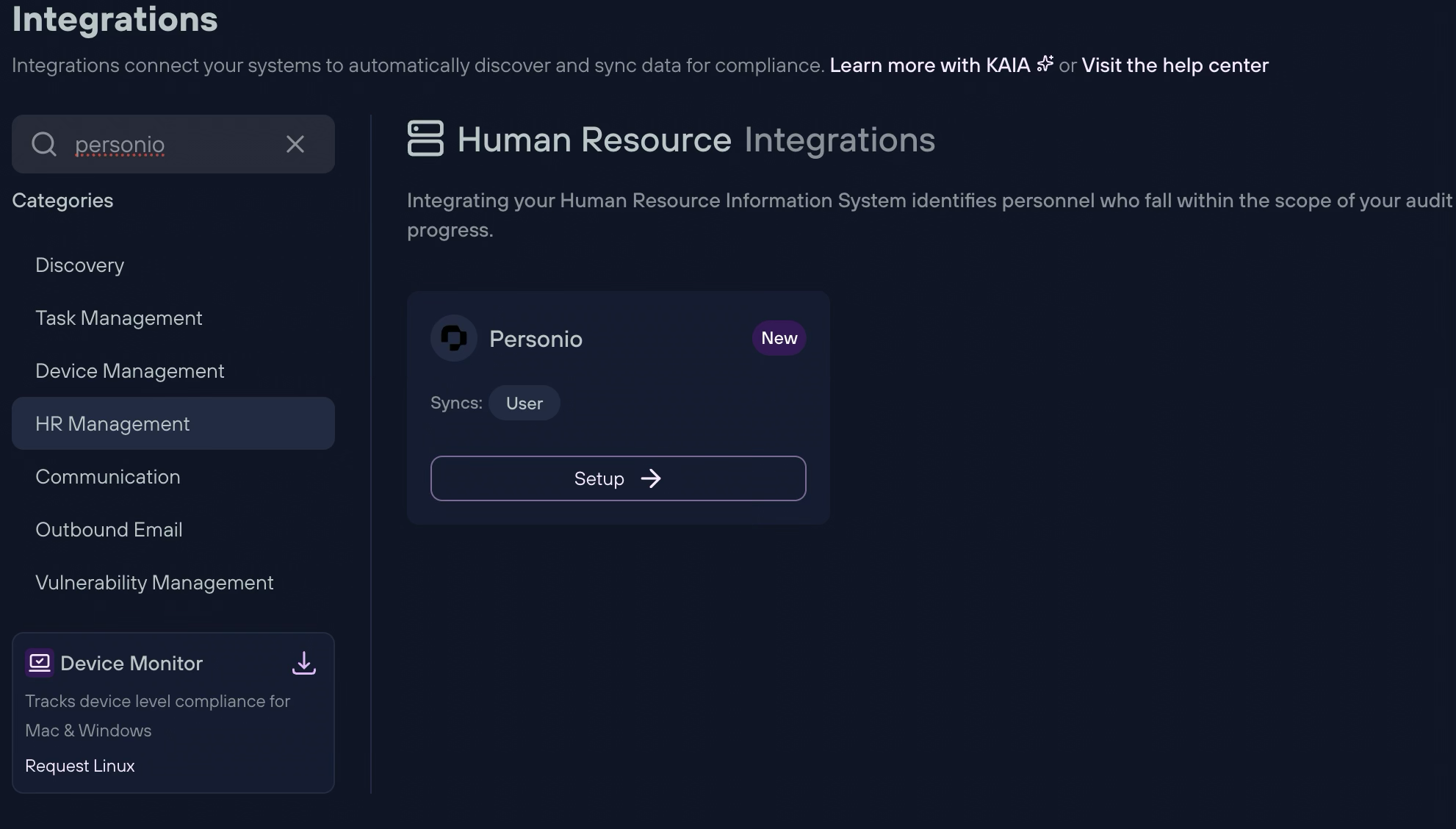
1. In Kertos open the Integrations section.
2. Choose Human Resource Integrations and select Personio.
3. Enter your Client ID and Client Secret when prompted.
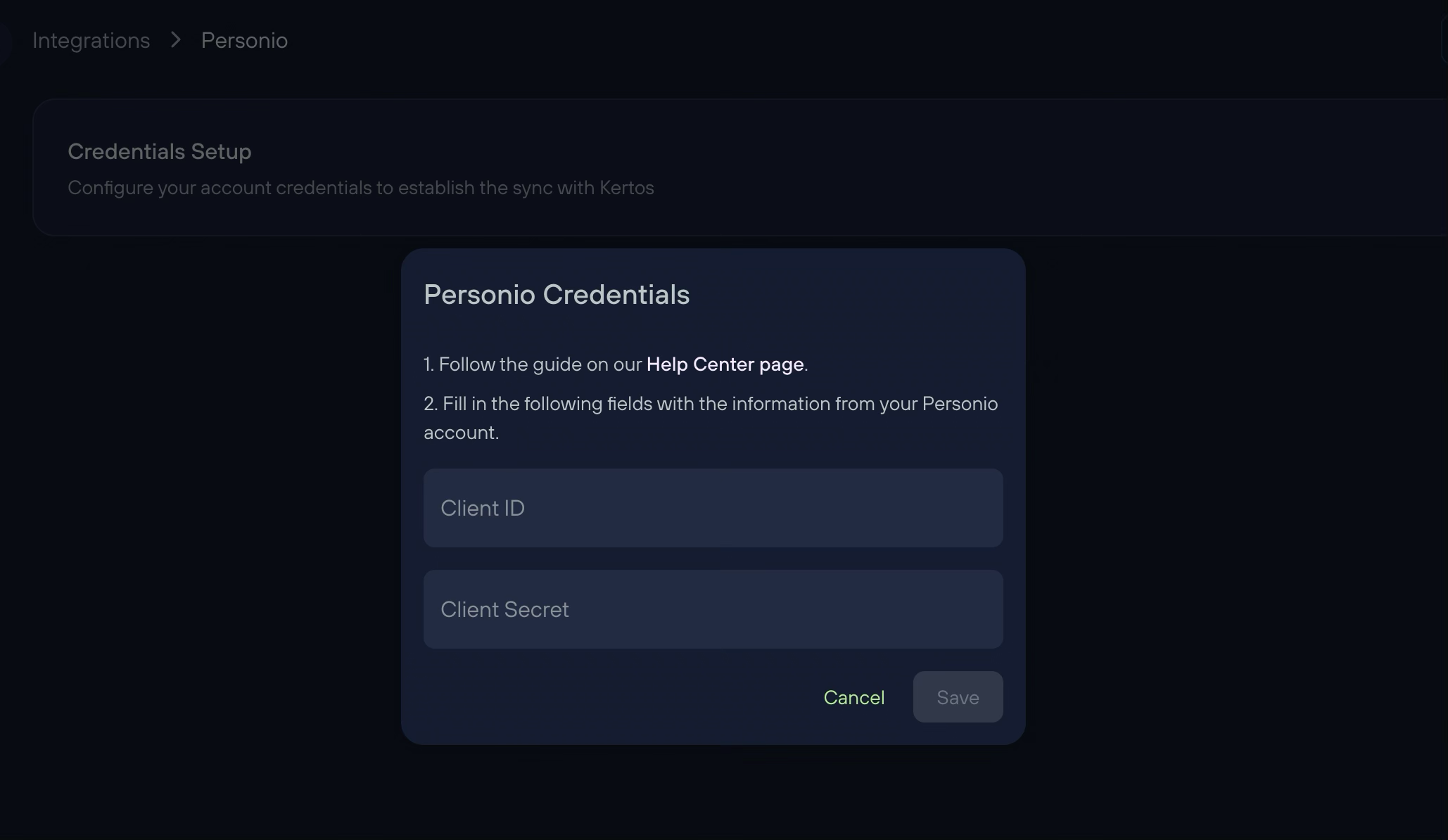
4. Click Save and run the Sync.
Permissions
Kertos only accesses the following data from your Personio account:
Kertos will be able to view:
Employee names and contact information
Job titles and departments
Employment status and dates
Kertos will be able to do:
Read-only access (no actions or edits permitted)