Resetting Discovery
Last updated: May 20, 2026
In Kertos, Discovery is the umbrella term for integrations that automatically detect compliance-relevant data objects such as systems, vendors, assets, and users. Over time, your "Discovered" tabs may accumulate outdated, irrelevant, or duplicated objects that no longer reflect your current IT landscape.
The Discovery Reset clears all currently discovered objects in a single action, providing a clean slate.
Why the Discovery Reset is Useful
Over time, the list of discovered objects can become cluttered with items that are outdated, no longer relevant, or were never applicable. The Discovery Reset helps to:
Wipe the slate clean in one action instead of dismissing items individually.
Ensure the next discovery run reflects the current state of the connected integrations.
What Discovery Reset does
When you trigger a Discovery Reset, Kertos clears all data objects currently sitting in the Discovered tabs of your inventory pages (Vendors, Systems, Assets, Users). After the reset, your discovery integrations will repopulate the Discovered tabs based on the most recent data pulled from your connected sources.
Importantly, a reset only affects discovered objects, meaning items that have not yet been activated. Any vendors, systems, or assets that you have already moved to Active remain untouched, including all the documentation, ownership, and compliance information attached to them.
When to use Discovery Reset
A Discovery Reset is most useful in the following situations:
Your Discovered tabs contain a large number of outdated or irrelevant entries from past integration runs.
You have recently disconnected or reconfigured integrations and want to refresh the discovered baseline.
You want to start over with a clean discovery view, for example after major changes to your IT infrastructure or vendor landscape.
If you only want to remove a few specific discovered items, we recommend archiving them individually from the Discovered tab instead of running a full reset.
Step-by-step guide
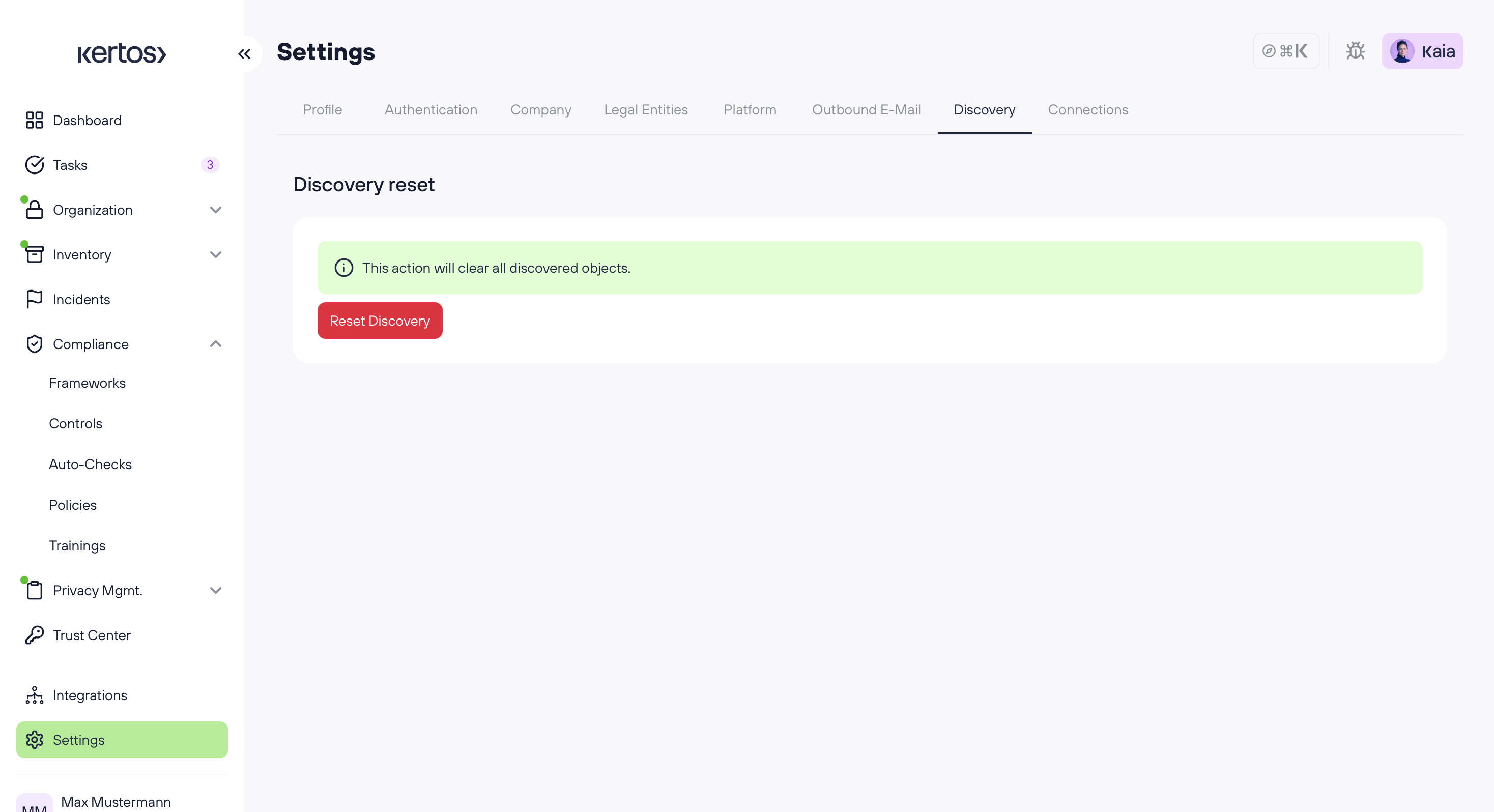
1. Navigate to Settings. From the left sidebar, click on Settings at the bottom of the navigation menu.
2. Open the Discovery tab. In the Settings header, select the Discovery tab. You will see a section called Discovery resetwith an informational banner explaining the action.
3. Click "Reset Discovery". Click the red Reset Discovery button to start the reset. A confirmation dialog will appear so you can verify your decision before proceeding.
4. Confirm the reset. Confirm the action in the dialog. Kertos will then clear all discovered objects across your inventory (Vendors, Systems, Users).
5. Wait for the next discovery run. After the reset, your active Discovery Integrations will gradually repopulate the Discovered tabs the next time they sync. Depending on the integration, this may happen immediately or on the next scheduled run.
FAQs
Will a Discovery Reset delete my active vendors, systems, or assets?
No. The reset only clears items in the Discovered tab. Anything you have activated or archived, along with its documentation, remains intact.
Can I undo a Discovery Reset?
The reset itself cannot be reversed, but it is non-destructive in the sense that your integrations will rediscover relevant objects on their next run. Any unreviewed discoveries that were cleared will reappear if they still exist in your connected sources.
How long does it take for discovered objects to reappear after a reset?
This depends on each integration's sync frequency. Some discovery integrations sync in near real time, while others run on a scheduled interval. You can check the status of each integration in the Integrations section.
Who is allowed to perform a Discovery Reset?
Only users with Admin permissions can trigger a Discovery Reset, as it affects discovery data across the entire workspace.