Connecting External Tools
Last updated: May 12, 2026
The Connections page in Settings lets you securely link external tools, such as AI assistants, automation platforms, and ticketing systems to your Kertos workspace. Once connected, these tools can read from and act on your Kertos data on your behalf, so you can query compliance information, generate reports, or trigger automations without leaving the tool you already use.
The Connections page shows the status of every integration at a glance, including which ones are active, which have failed, and what each one is being used for.
Kertos supports two connection methods:
- MCP (Model Context Protocol) connections: for AI tools and automation platforms that authenticate via OAuth
- Integrations via API token: or third-party systems that connect with a static API key
Connecting a Tool via MCP
The full walkthrough can be found in our dedicated article: Use Kertos MCP with Claude.
Connecting a Tool via API Token
For systems that don't support MCP — such as ticketing tools or older integrations — Kertos provides static API keys you can paste into the third-party system.
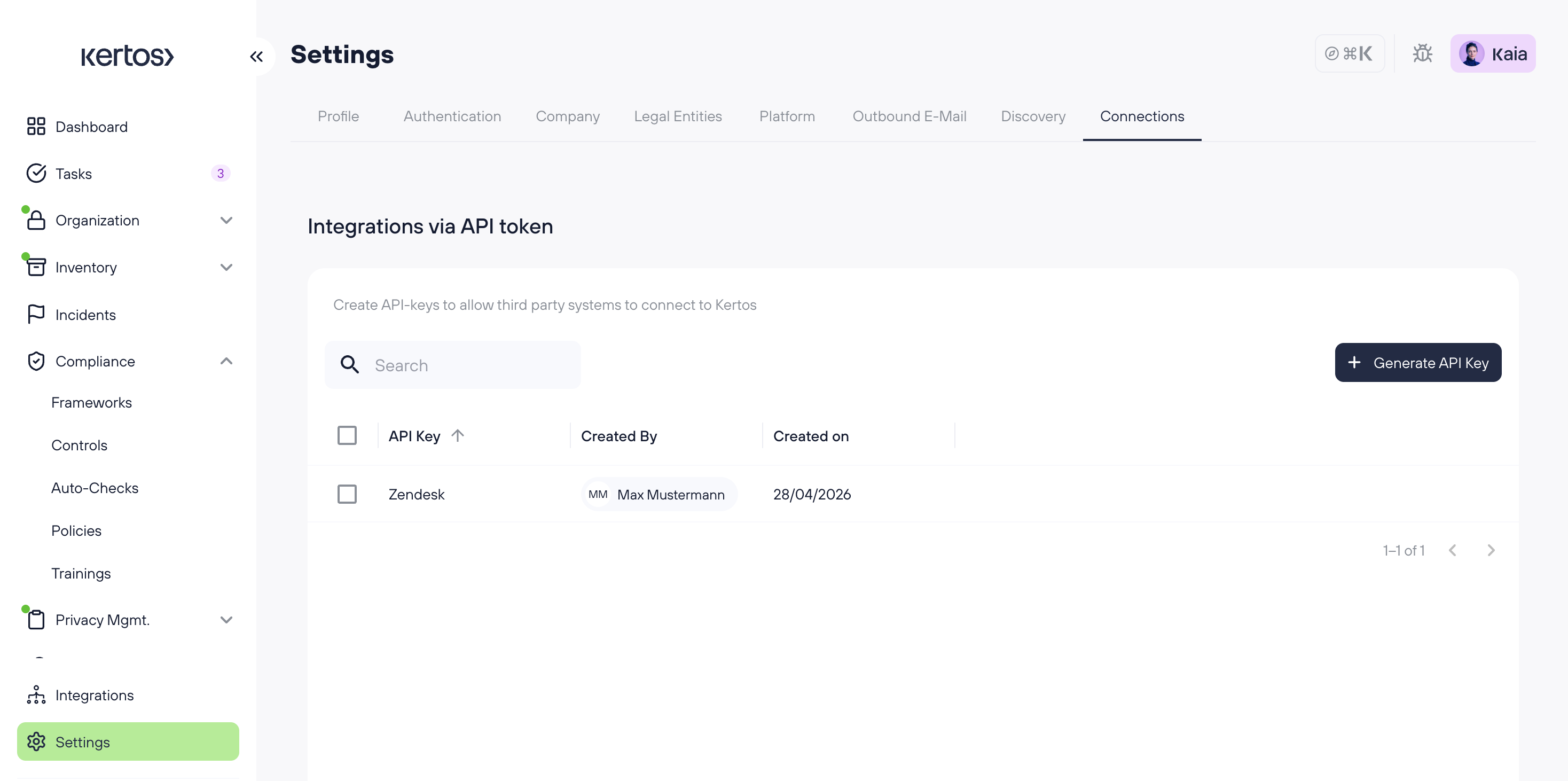
1. Scroll down to the Integrations via API token section.
2. Click + Generate API Key.
3. Assign the key a recognizable name (e.g. Zendesk) for later identification in the list.
4. Copy the generated key. The full key is shown only once. It should be stored in a secure place such as a password manager.
5. Paste the key into the API or credentials field of your external tool to complete the connection.
The new key appears in your list along with the user who created it and the creation date. To remove an integration, select the checkbox next to its name and delete it. The third-party system will lose access immediately.
Additional Information
Read-only: The MCP server today is read-only. Connected tools can query Kertos data but cannot modify it or trigger actions in the workspace.
Security: MCP connections use OAuth, so Kertos credentials never leave Kertos. API tokens are bearer credentials — they should be treated like passwords and rotated if exposure is suspected.
Multiple tools, one workspace: Several tools can be connected at once. Each connection is tied to the user that created it, and revoking one does not affect the others.
Permissions: Connected tools can only see what the user account can see. Records restricted to other users or another company will not be visible.
Session expiry: If an MCP session expires during use, re-authentication from the tool is sufficient — there is no need to recreate the connection from scratch.
Related: Data access for each connected tool is controlled by role permissions under Settings → Authentication.
FAQs
Why don't I need a client secret for MCP connections?
Kertos uses a public-client OAuth flow that relies on the interactive Kertos login for authorization. The MCP URL and Client ID, combined with the browser sign-in, are sufficient — there is no static secret to manage or leak.
How long does an MCP connection stay active?
It depends on the tool. Claude CLI sessions, for example, expire 2 hours after they're started. n8n connections expire after 24 hours of inactivity. The exact expiry for each connection is shown on its card.
What happens when I revoke access?
The external tool loses access immediately, and the connection moves to Archived connections. To reconnect the tool, the OAuth flow needs to be repeated.
Can the usage of an API token be tracked?
The Connections page shows when each key was created and by whom. For a detailed history of API calls, the Kertos audit logs can be consulted.