Managing risks
Last updated: October 15, 2026
The Risks section in Kertos enables organizations to identify, assess, treat, and document risks in a structured, compliant, and repeatable way. Whether you're aiming for compliance with ISO 27001, GDPR, or other frameworks, Kertos supports your efforts with intuitive tools like the Risk Matrix, predefined risk catalog, and automated control suggestions.
Purpose
Manually managing information security risks across different departments and frameworks is complex, error-prone, and difficult to scale. Without a centralized and consistent risk assessment approach, it’s easy to overlook threats, duplicate effort, or fall short of audit requirements. This can be solved using the “Risks” section of the Kertos platform.
Capabilities
Predefined Risk Templates: allow for quick risk creation and reduce manual entry
Risk Lifecycle: risks follow a structured workflow from Draft to Monitored, with archive for obsolete items.
Risk Matrix: provides a visual overview that helps prioritize risks based on likelihood and impact.
Suggested Controls: offer automated recommendations based on risk context, making it easier to apply the right mitigations.
Ownership Assignment: enables clear accountability by assigning one or more responsible individuals to each risk.
Approval Workflow: high-risk items require documented approval before they can be monitored.
Automated Review Cycles: configurable review periods with automatic task creation when a review is due.
Linked Assets: view and manage which primary and supporting assets are affected by each risk.
Residual Risk Tracking: allows for reassessment after controls are applied, helping to evaluate treatment effectiveness.
How It Works
Choosing your risk matrix (4×4 or 5×5)
The first time you set up risks in Kertos, you choose which risk matrix your organization uses: 4×4 or 5×5. The matrix sets the scales for Likelihood and Impact in every risk assessment and residual risk assessment. It also sets the risk levels shown in the Risk Matrix on the overview page.
4×4 Matrix
Likelihood: Rare, Unlikely, Possible, Likely
Impact: Insignificant, Minor, Major, Catastrophic
Risk levels: Low, Medium, High, Critical
5×5 Matrix
Likelihood: Rare, Unlikely, Possible, Likely, Almost Certain
Impact: Insignificant, Minor, Moderate, Major, Catastrophic
Risk levels: Low, Medium, High, Very High, Critical
ISO 27001 does not prescribe a matrix size. If your organization already assesses risks on a 5×5 scale, for example in a company-wide risk management process, choose 5×5. You can then carry over existing assessments without re-scoring them.
The matrix applies to your whole organization. It can’t be changed after setup. To change it, contact support.
Risk Overview
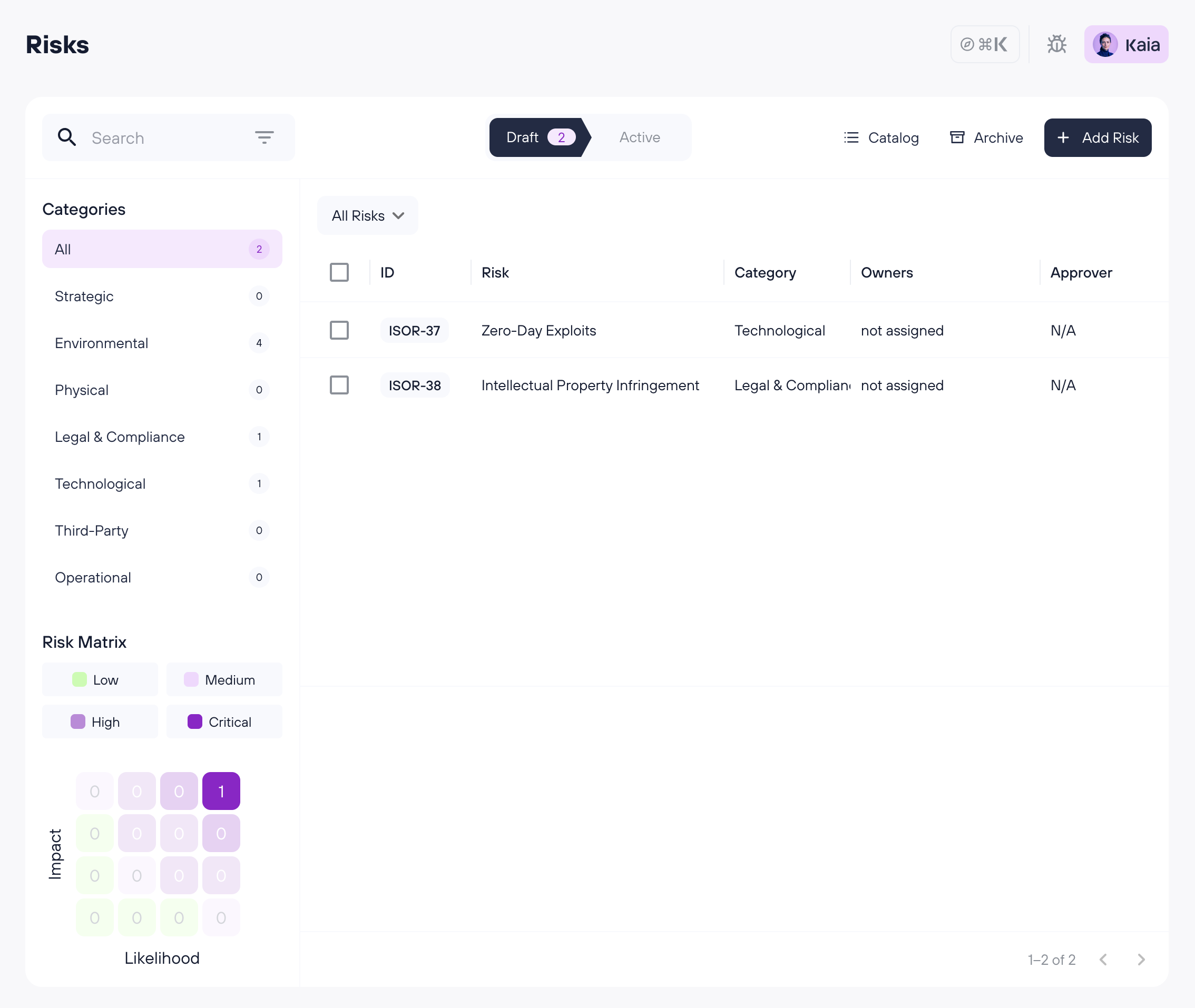
On the Risk Overview page, you'll find the following sections:
Draft / Active tabs: Risks are split into two tabs. Draft shows risks that are still being worked on or awaiting approval. Active shows risks that are monitored or due for review. Each tab displays a list of risks with key information. Click on any risk to open its Detail View.
Risks with owners and a Risk rating of High or Critical need to be approved in order to move them from Draft to Monitored (Active). Risks with a rating of Low or Medium will not be sent for approval and can be set to Monitored directly by the risk owner.
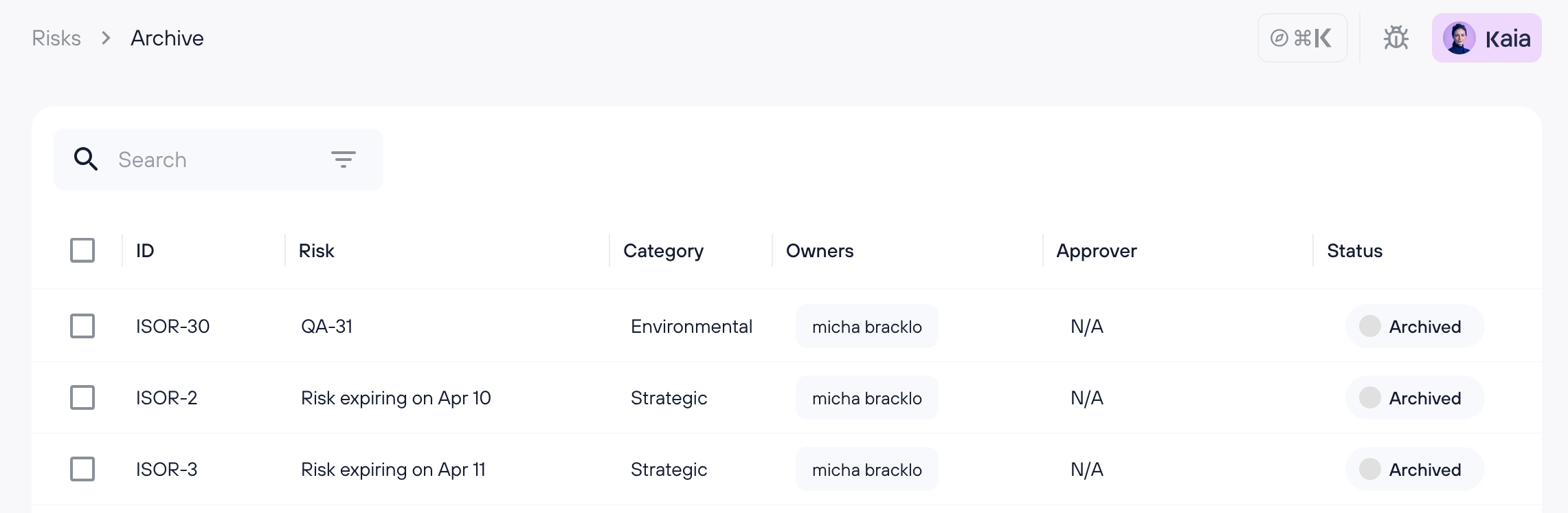
Archive: Access archived risks via the Archive button in the top bar. Archived risks are view-only and preserved for audit purposes.
Catalog: Browse and add predefined risks from the risk catalog.
Filters: Use the search and filter bar to narrow your view — including by status, treatment, and whether a risk requires approval or needs review.
Categories: Risks are grouped by context to help you navigate and manage them more easily.
Risk matrix: This visual tool maps risks based on two dimensions - Impact and Likelihood. Click on any square in the matrix or on a risk level name to filter the list to that severity level.
Detail View
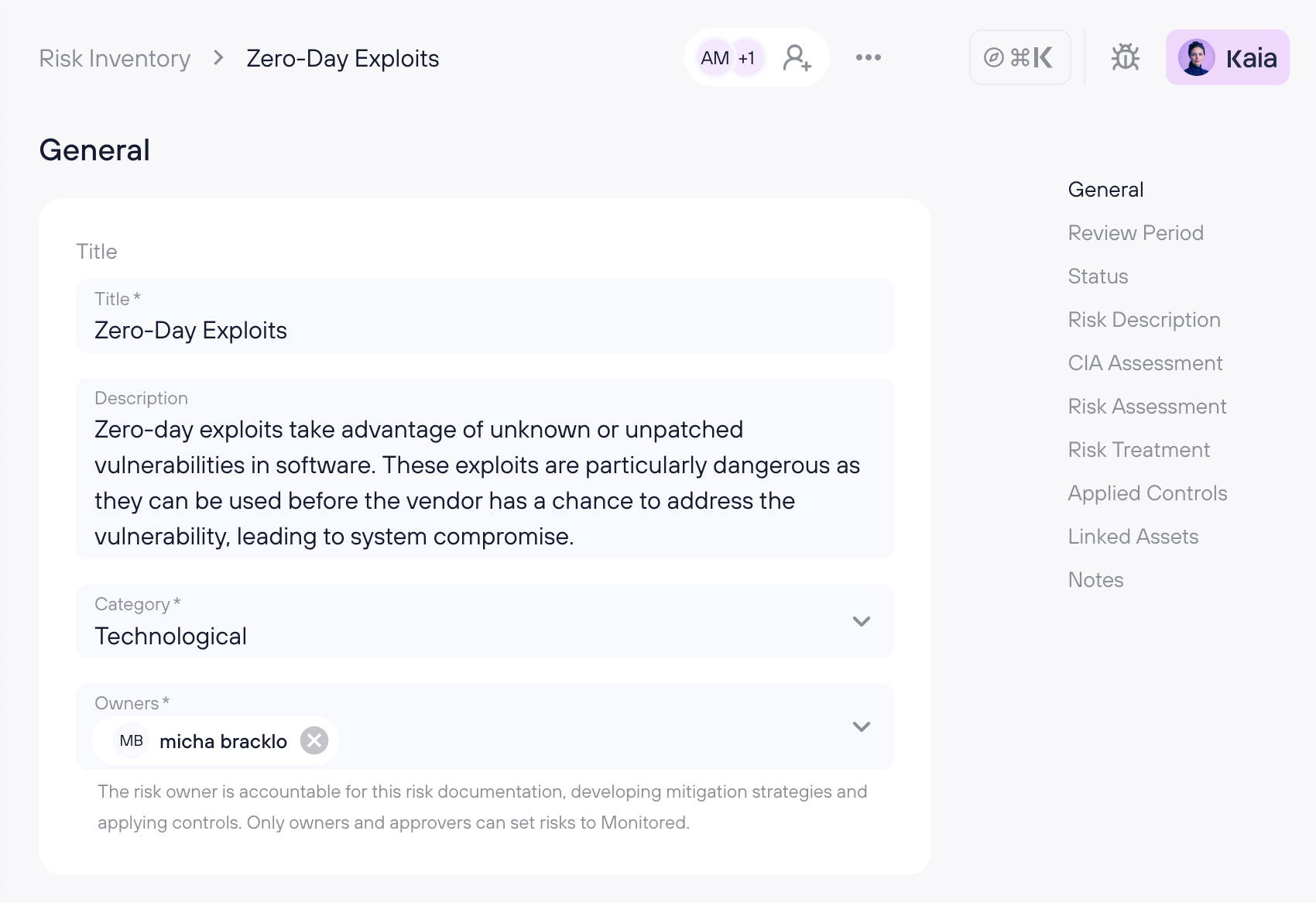
General
Title: The name of the risk.
Description: A detailed explanation of the risk.
Risk category: The context or area of the organization where the risk occurs.
Owners: The individuals responsible for managing the risk. These should be people who are operationally close to the risk’s context and capable of accurately assessing and addressing it. Only risk owners and approvers can set a risk to monitored.
Review Period
Periodic risk re-evaluation is best practice across compliance frameworks. Kertos automates this with configurable review cycles.
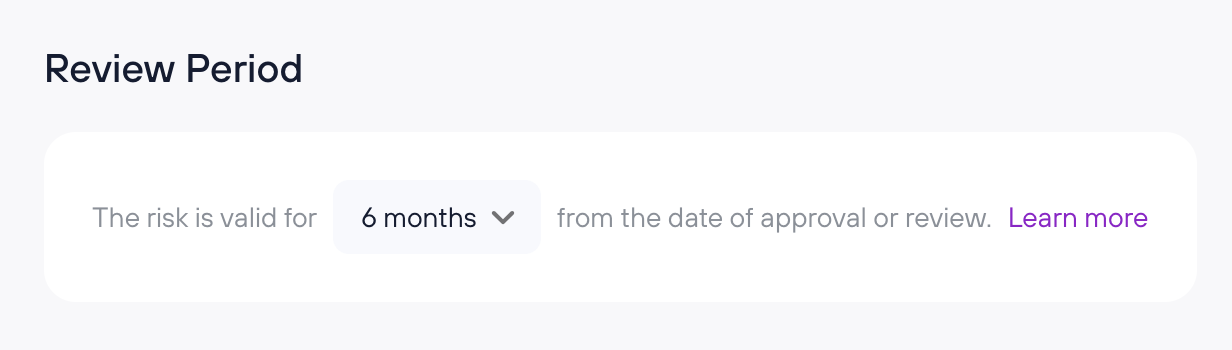
Setting a review period
Each risk has a review period that can be set to 3, 6, or 12 months. The review timer starts when the risk is approved and set to Monitored.
When a review is due
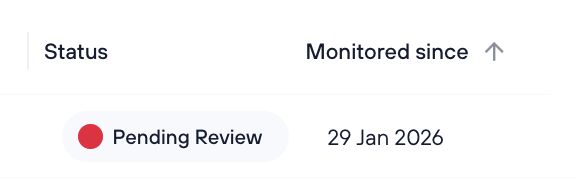
When the review period expires, the risk is flagged with a Pending Review badge and a task is automatically created for the risk owner:
Completing a review
When a review is due, the risk is flagged with a Pending Review badge. Click Mark as Reviewed on the risk detail page to confirm. This resets the review timer and closes the review task:
Status
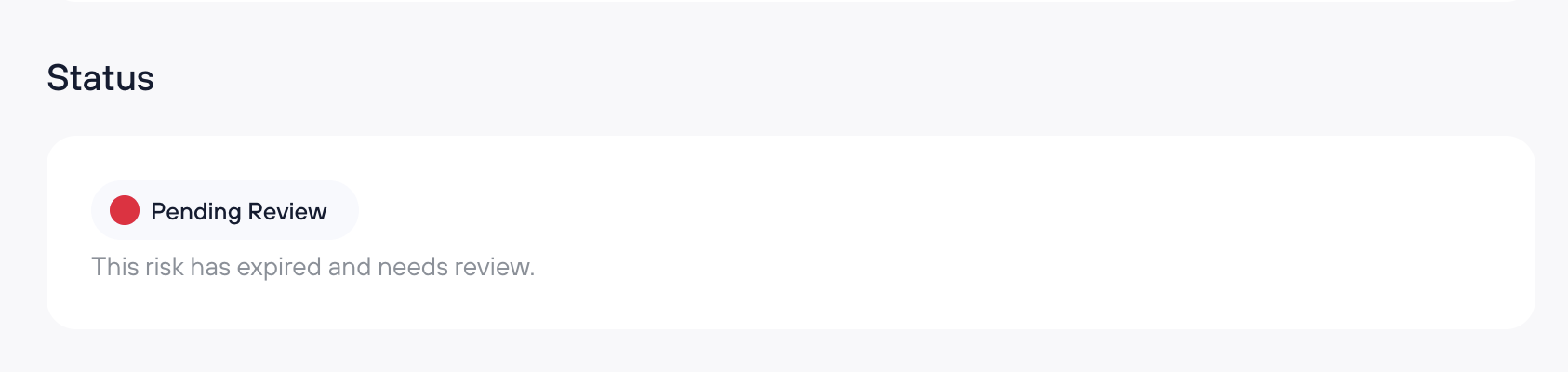
Shows the current lifecycle status of the risk: Draft, Needs Approval, Monitored, Needs Review, or Archived.
Risk Description
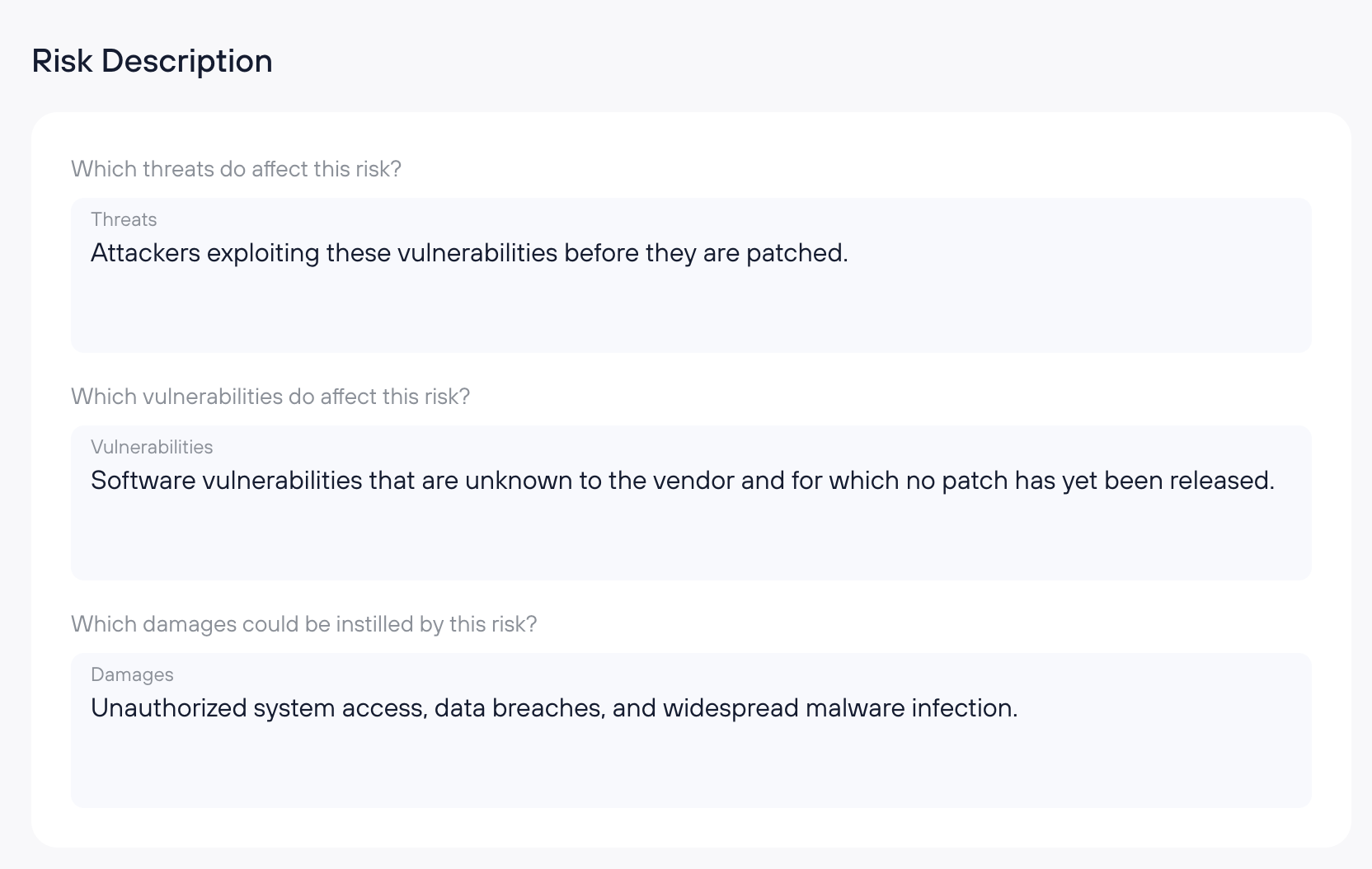
Threats: What potential dangers could affect your company?
Vulnerabilities: What weaknesses could be exploited?
Damages: What consequences might arise if the vulnerabilities are exploited?
CIA Assessment
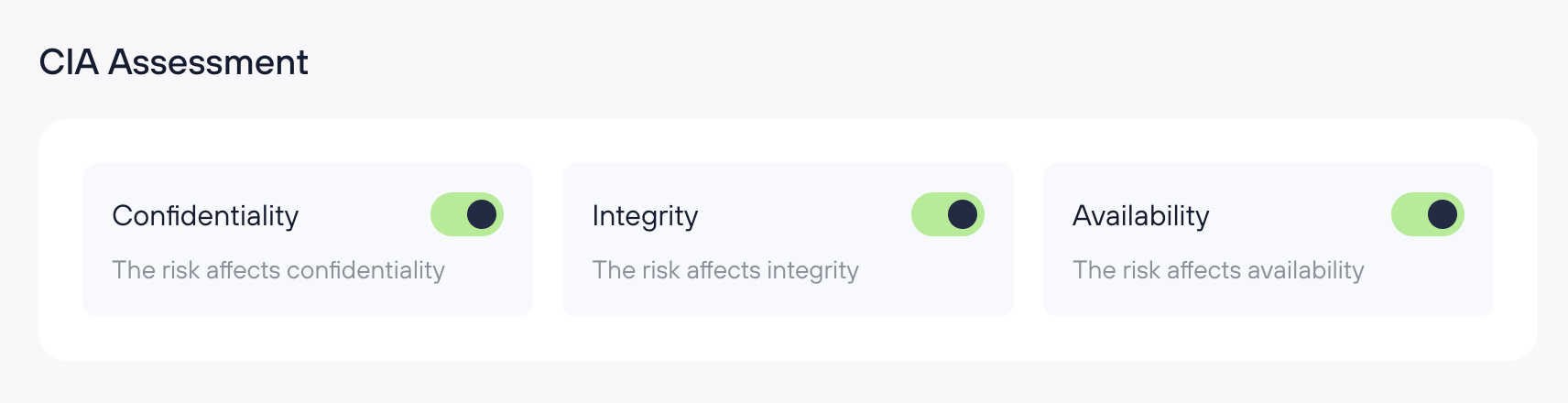
Specify which components of the CIA triad are affected by the risk (multiple selections allowed):
Confidentiality
Integrity
Availability
Authenticity (available only for clients with a DORA subscription, as required by the DORA regulation)
Risk Assessment
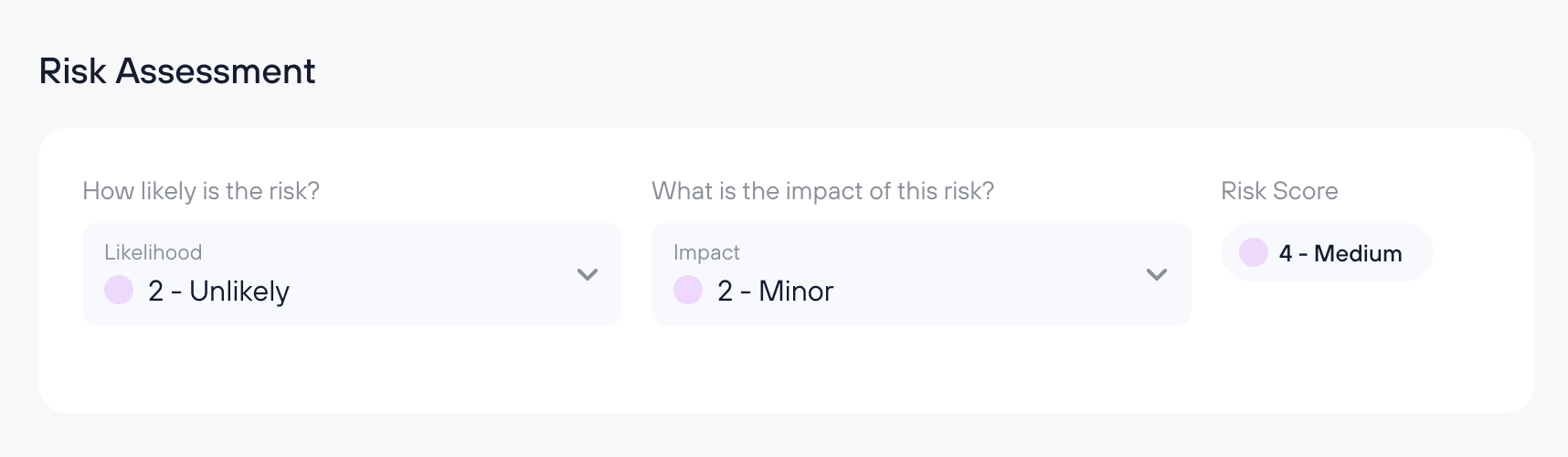
Likelihood: How likely is it that this risk will materialize? (Rated from 1 = Rare to 4 = Likely)
Impact: How severe would the consequences be? (Rated from 1 = Insignificant to 4 = Catastrophic)
Risk Score = Likelihood x Impact
Risk Treatment
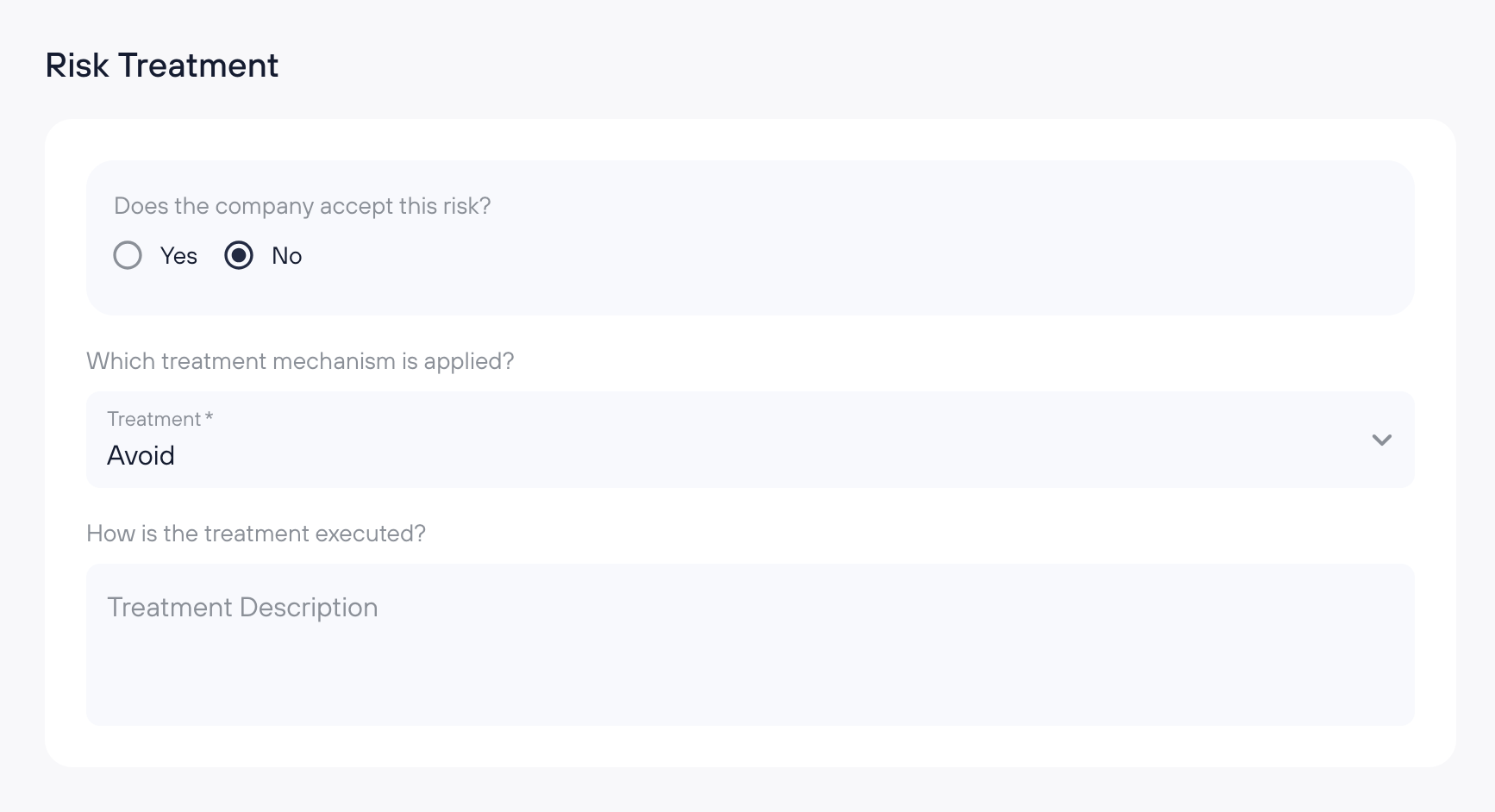
Acceptance: Has the company decided to accept the risk?
If yes, no further treatment details are required.
If no, proceed to define the treatment mechanism.
Treatment Mechanism: Will the risk be avoided, mitigated, or transferred (e.g., through insurance)?
Treatment Description: A detailed explanation of how the risk is being addressed in your organization.
Approver
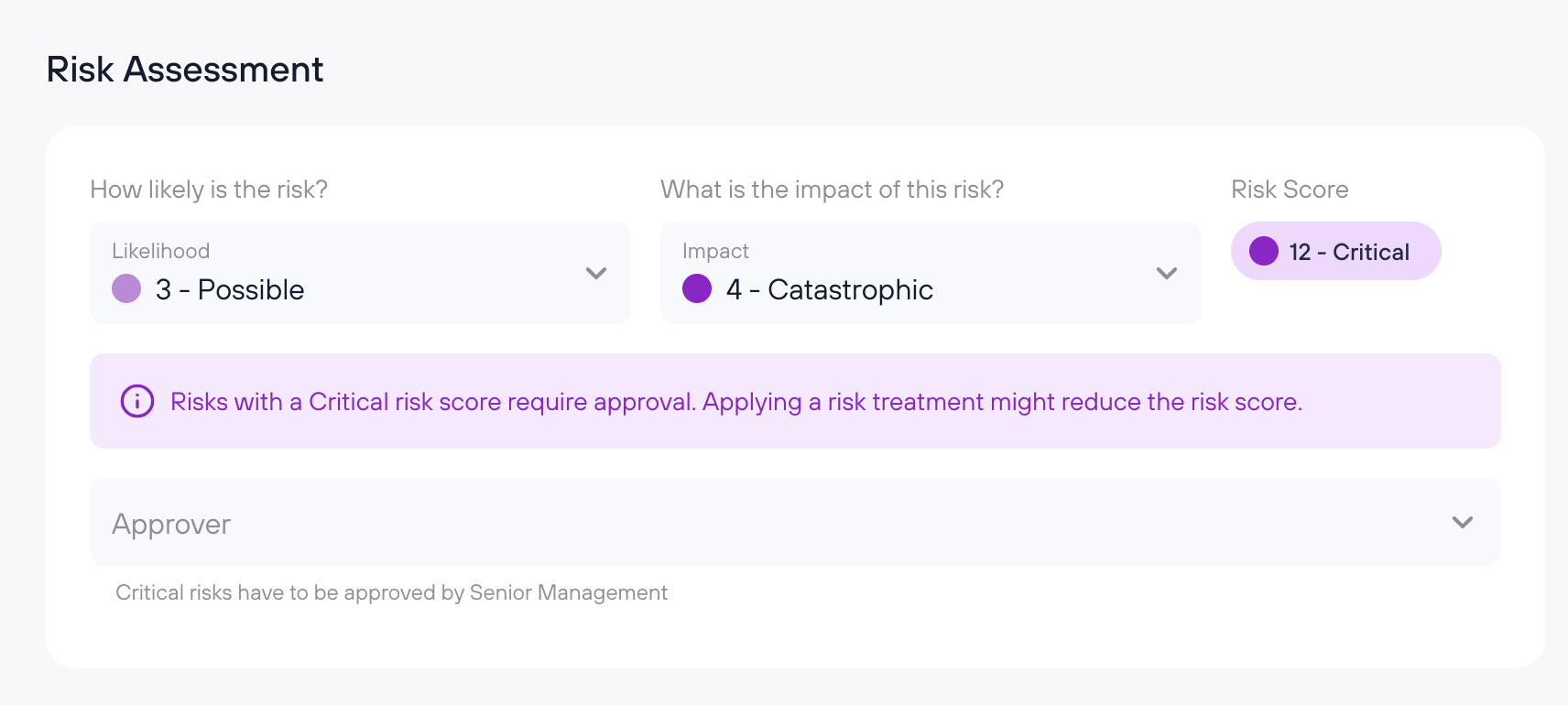
Whether an approver is required depends on the risk path:
Risk is accepted and Risk Score is Critical: An approver must be assigned.
Risk is accepted and Risk Score is High: The risk owner can self-approve with documented justification. No separate approver required.
Risk is treated, residual risk is HIGH or CRITICAL: An approver must be assigned.
Only Admin users are shown in the approver picker. The approver reviews the risk and provides a written justification upon approval. This justification is stored on the risk detail page as audit evidence. The assigned approver can edit the justification; all other users see it as read-only.
Applied Controls
This section allows you to link controls to the risk:
Click “Link controls” to open a window where you can select controls from various frameworks.
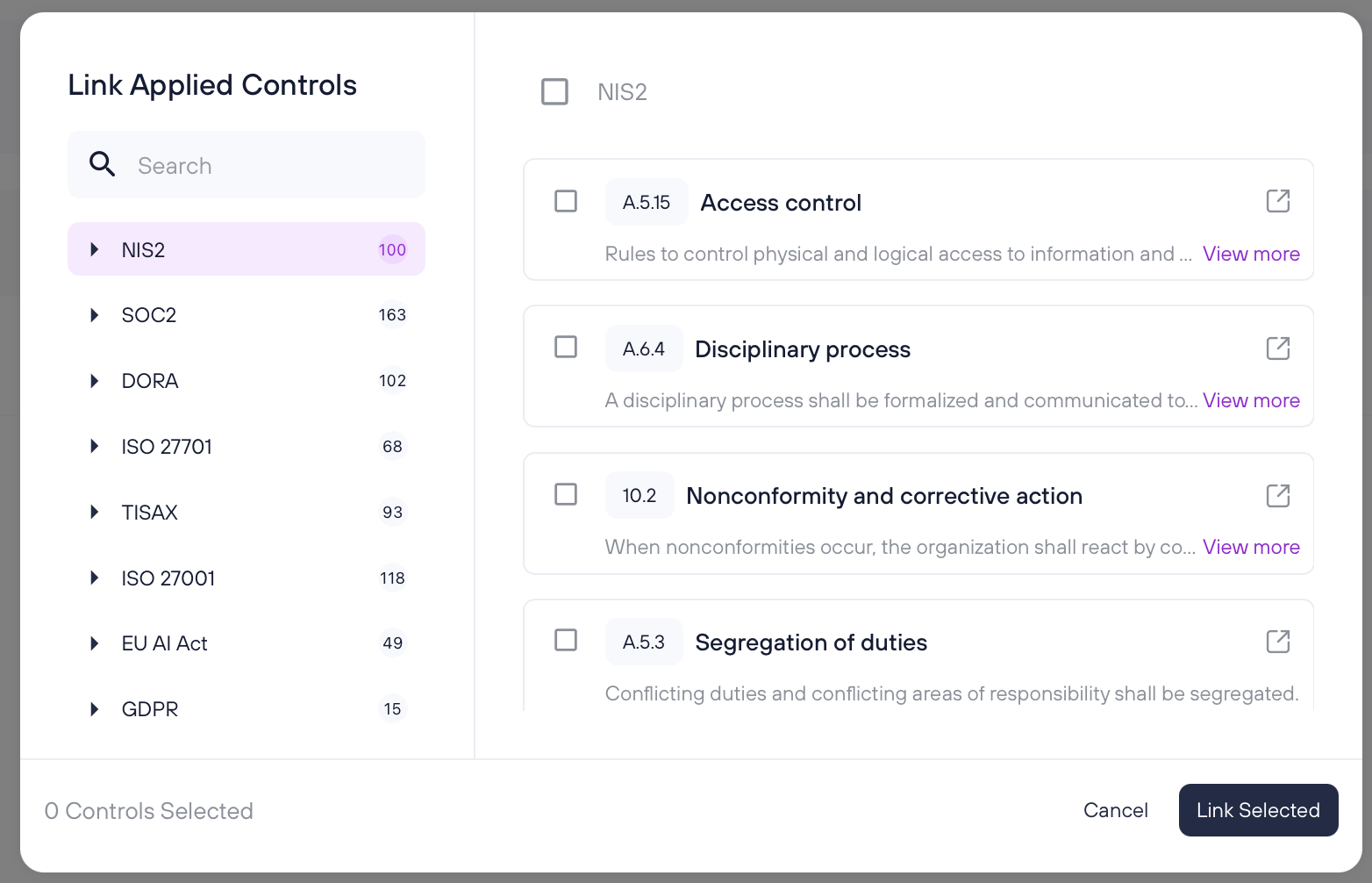
On the right-hand side, you’ll see “Suggested Controls” automatically recommended based on the characteristics of the risk.
You can either click “Link All Suggested” to quickly add all recommended controls or manually select specific ones and press “Link selected”.
Linked Assets
This section shows all assets associated with the risk, separated into two tabs: Primary Assets and Supporting Assets.
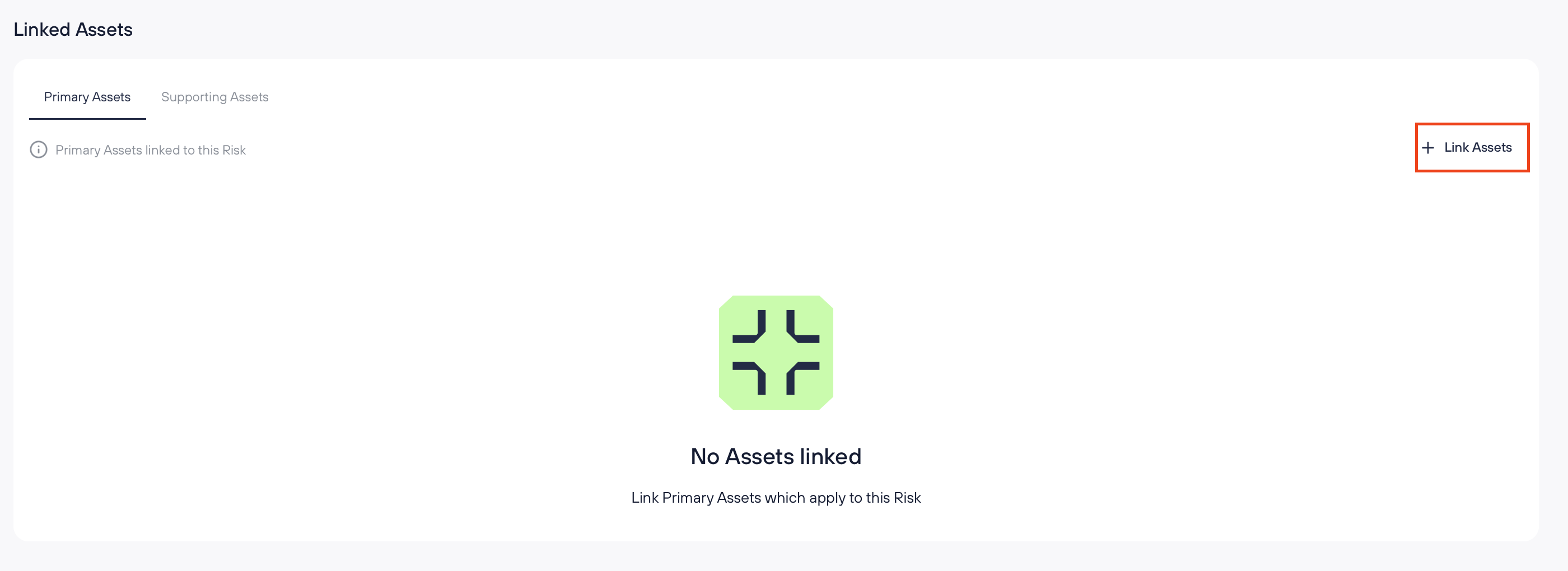
To link assets to a risk:
Click "+ Link Assets" in the relevant tab
Use search or category filters to find assets
Select one or more assets and click "Link Selected"
Already-linked assets appear pre-checked in the modal. You can uncheck them to unlink.
To unlink assets from the table, select one or more rows using the checkboxes and click "Unlink." Changes are bidirectional: linking an asset to a risk here will also show the risk on that asset's detail page, and vice versa.
Residual Risk
Re-assess the Likelihood and Impact of the risk after the treatment and controls have been applied. The scoring method remains the same as in the initial Risk Assessment.
Notes
Use this field to add any additional information or context relevant to the risk.
Activity Log
Each risk has a dedicated Activity Log that provides a timestamped audit trail of changes made to the risk. The Activity Log is available to Admin users only.
Accessing the Activity Log
Open any risk's Detail View, click the three-dot menu, and select Activity.

What's tracked
The Activity Log records the following changes automatically:
Risk creation
General fields: title, description, category, owner
Review period
Risk description fields: threats, vulnerabilities, damages
CIA assessment
Risk assessment: likelihood, impact, and computed risk score
Risk treatment: treatment type and treatment description
Controls: link and unlink actions when controls are linked from the risk side
Residual risk: likelihood, impact, and computed residual risk score
Notes
Workflow actions: approval, review, archive, restore, status transitions
Changes of linked assets are not yet tracked in the Activity Log.
How entries are displayed
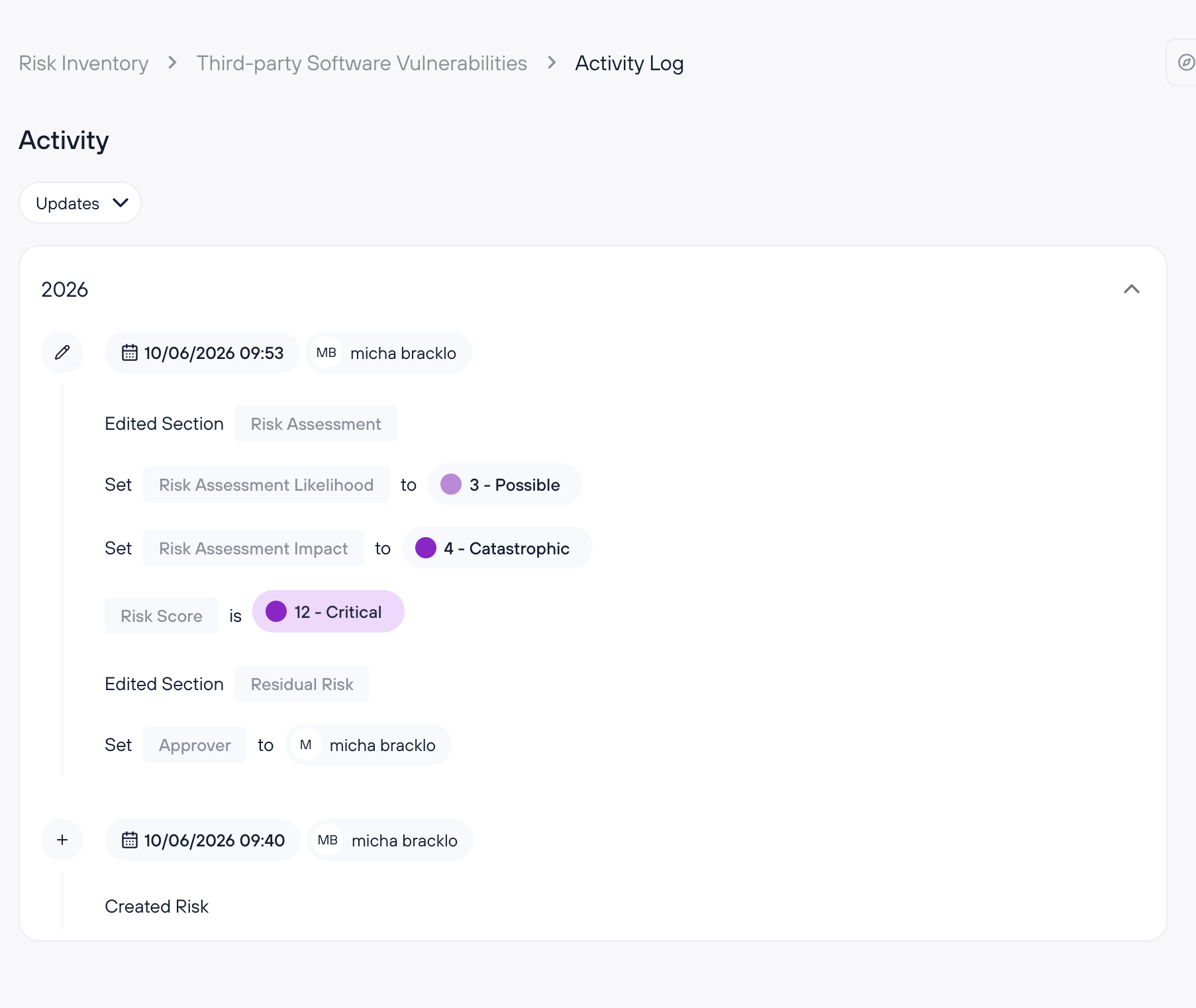
Entries are grouped by year, with the most recent year expanded by default. Timestamps reflect the user's browser timezone. Each entry shows the user who made the change, the action performed, and the affected field.
Field changes show the new value only — previous values are not displayed. Some fields are intentionally redacted for security: notes show only that a change was made, and threats, vulnerabilities, and damages show the field name without content.
Filtering
An Updates filter at the top of the page lets you narrow entries by section: All, General, Review Period, Risk Description, CIA Assessment, Risk Assessment, Risk Treatment, Controls, or Residual Risk. Filtering applies across all year groups.
Archived risks
Activity Log entries are preserved when a risk is archived and remain accessible from the archived risk's detail page.
Documenting Risks
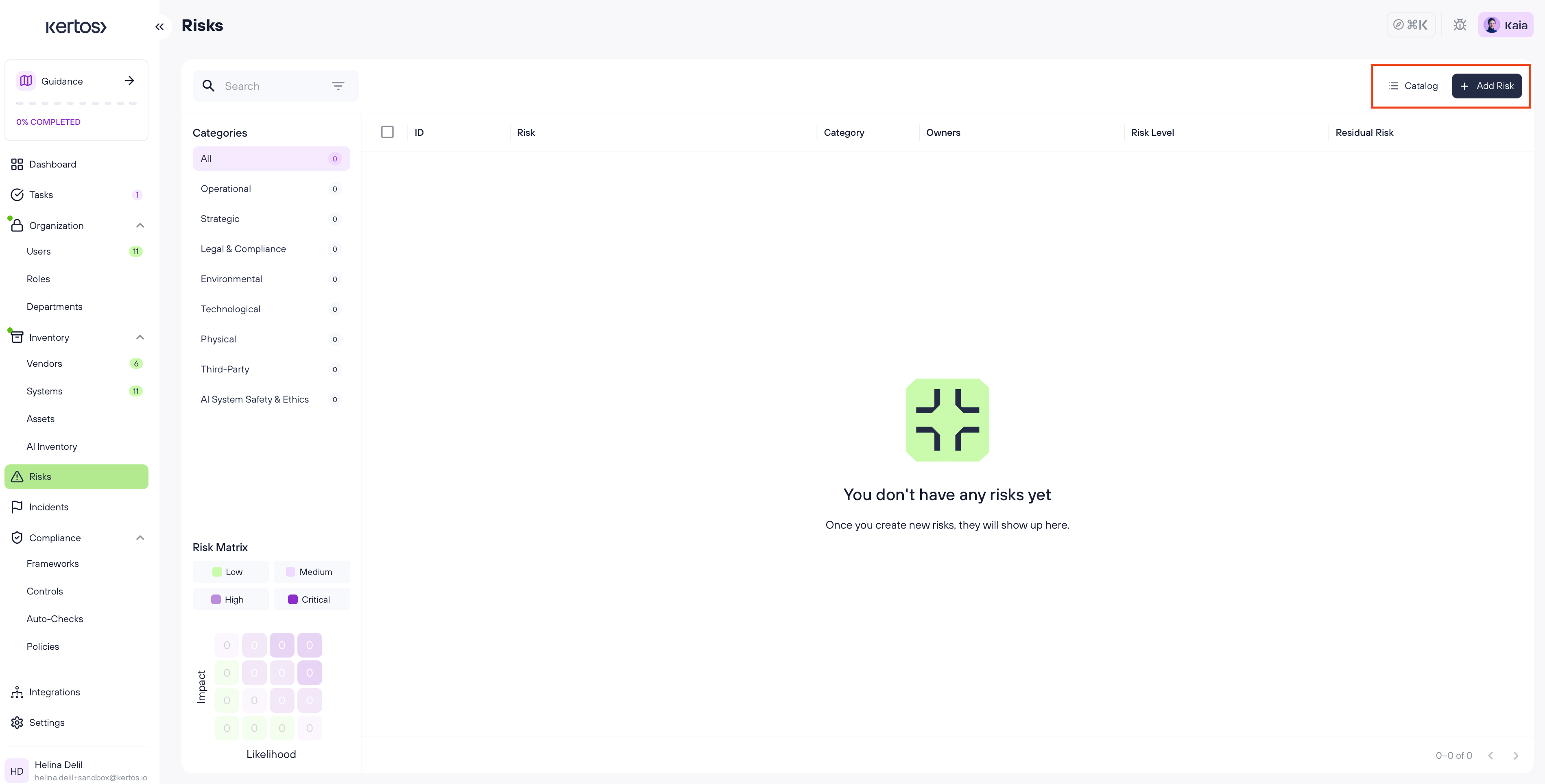
In the Risks tab, you can add and manage risks either by selecting predefined risks from the Catalog or by creating them manually. Both methods allow you to document key risk information and ensure a structured and compliant risk assessment process.
Adding risks from the Catalog
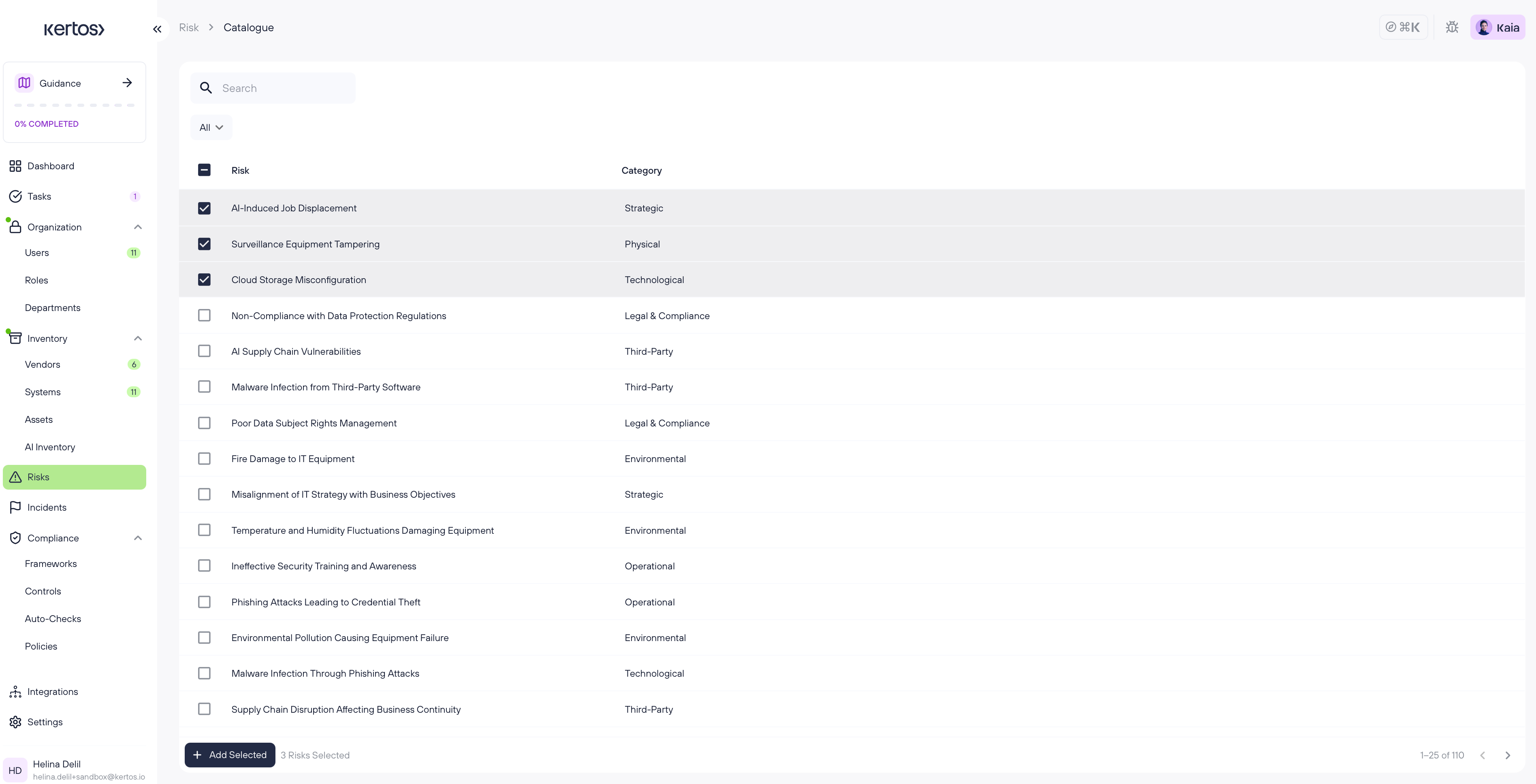
1. Select the category you want to add risks for.
2. Browse the list and preview any risk by clicking on it.
3. Select individual risks or use the checkbox at the top to select all.
4. Click “Add selected” to create these risks.
5. The added risks will appear in the overview.
Adding risks manually

1. On the overview page, click “Add Risk” in the top right corner.
2. You’ll be taken to the Detail View of a new, empty risk.
3. Fill out all required fields. New risks start in Draft status. Use the Save dropdown to either Save as Draft, Save & Set to Monitored (for risks with a low/medium score), or Save & request Approval (for risks with a high/critical score).
Archive & Restore
Archive allows you to remove risks from your active views while preserving them as read-only records.
Archiving a risk
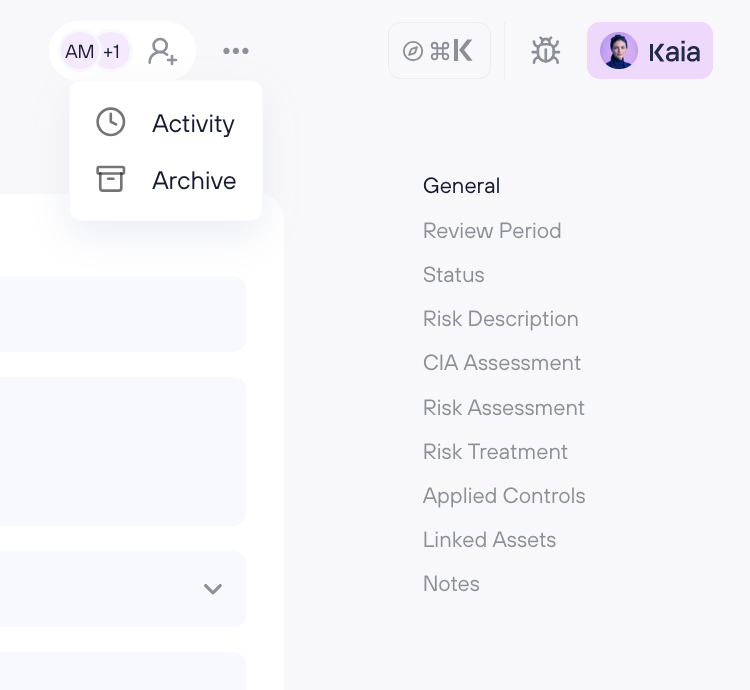
From the risk detail page, open the three-dot menu and select Archive. You can also select multiple risks from the overview and use the bulk Archive action. An undo option appears briefly after archiving.
Viewing archived risks
Click Archive in the top bar of the Risk Overview.
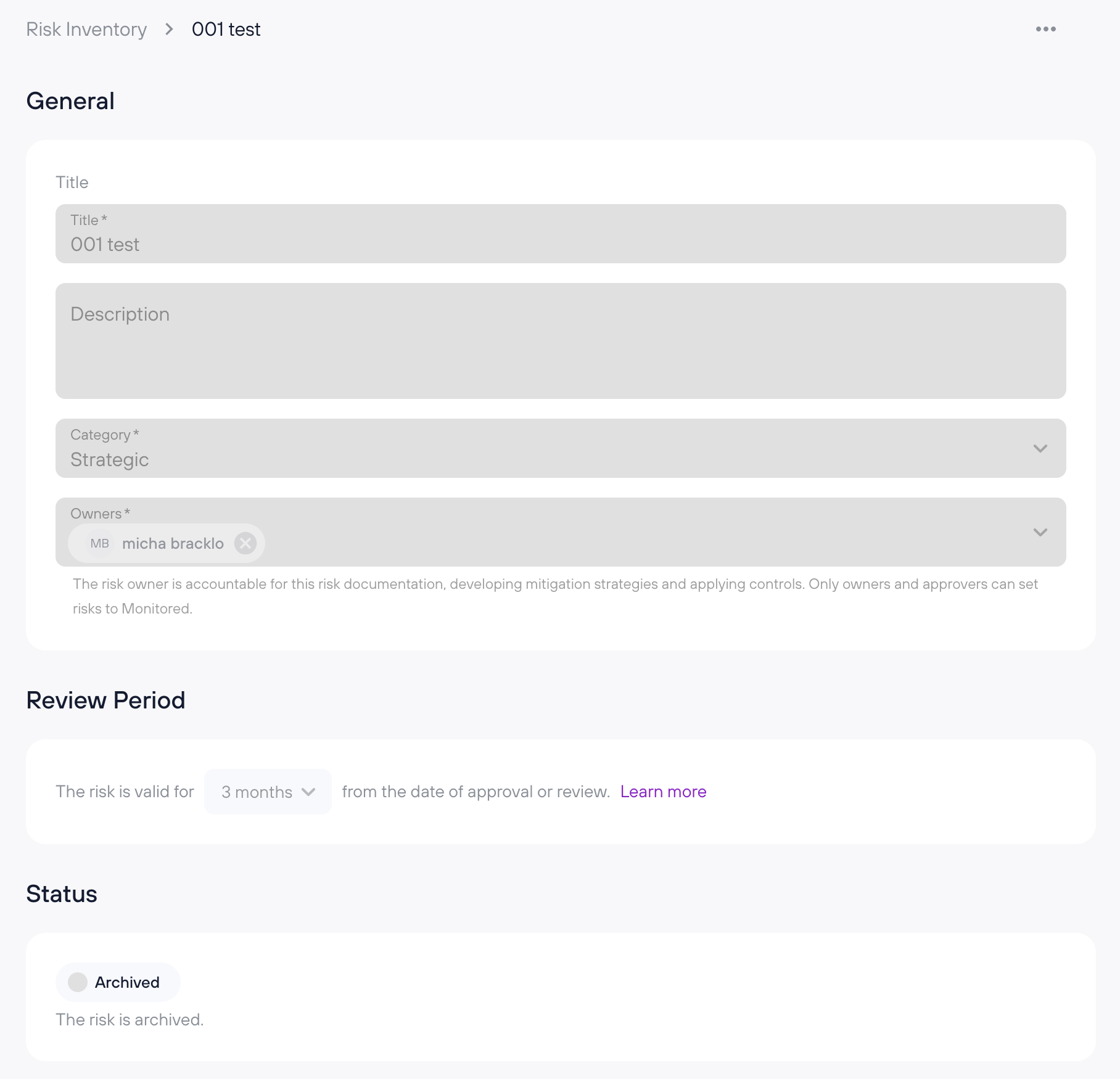
All fields on archived risk detail pages are disabled (view-only).
Restoring a risk
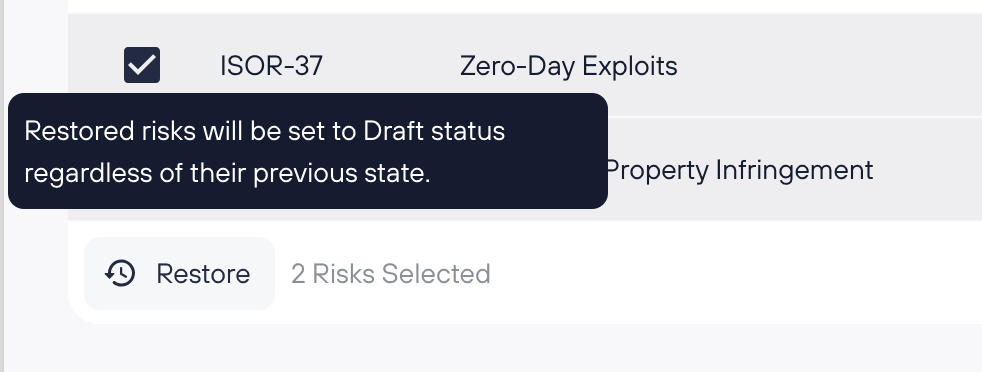
Open an archived risk and select Restore from the menu — the risk returns to Draft status. You can also bulk restore from the archive list:
Deleting from archive
Risks can be permanently deleted from the archive. This action is irreversible.
FAQs
How do I know which risks apply to my organization?
Start with the Risk Catalog for a curated list of common risks across categories. You can preview and select relevant ones, or ask KAIA for guidance if you’re unsure. It's also best practice to derive risks from your assets, assuming your asset inventory is complete.
What’s included when I add a risk from the catalog?
Catalog risks come with a predefined title, description, threats, vulnerabilities, and potential damages. You’ll still need to assign owners, complete the risk and CIA assessments, define treatment, and link applicable controls.
Can I edit catalog risks after adding them?
Yes. Once added, catalog risks behave like manually created ones - you can customize all fields to reflect your company’s specific context.
Do I need to include all controls immediately when creating a risk?
Not necessarily. Once a risk is added, open its Detail View and scroll down to the Applied Controls section. Click “Link Controls” to view expert-recommended controls. You can either apply them all using “Link all suggested” or pick specific ones to “Link selected.”
Is it better to assess risks before or after implementing controls?
You should assess risks based on your current situation, including any controls already in place. This gives an accurate picture of your security posture and helps measure control effectiveness.
Can I link assets to risks from either direction? Yes. You can link assets from the Risk detail page or link risks from the Asset detail page. The relationship is the same regardless of where you create it, and changes are reflected on both sides.
Why are some of my risks now in Draft? With the new risk workflow, existing risks were migrated into the appropriate status. Risks that are HIGH or CRITICAL (and require approval), or that are missing required fields, were moved to Draft. Check the Draft tab to review and complete them.
Who can approve a risk? Only Admin users can be assigned as approvers. The approver must provide a written justification before the risk can move to Monitored.
What happens when a risk review is due? The risk is flagged as Pending Review and a task is created for the owner. Click "Mark as Reviewed" on the risk detail page to confirm the review and reset the timer.
Can I restore an archived risk? Yes. Open the archived risk and select Restore from the menu, or use bulk restore from the archive list. Restored risks return to Draft status.
What's the difference between archiving and deleting? Archiving preserves the risk as a read-only record for audit history. Deleting permanently removes it. You can only delete risks from the archive.