Auto-Checks: Cloudflare
Last updated: September 9, 2026
Auto-Checks is a feature that verifies technical configurations in your cloud environment against ISO 27001 requirements. These checks are run automatically and linked to your implementation steps within Kertos.
Auto-Checks for Cloudflare verify the security settings of your Cloudflare zones: TLS and certificate configuration, HSTS, WAF and rate limiting, DNSSEC, and DNS records. Instead of exporting screenshots from the Cloudflare dashboard for every audit cycle, you connect Cloudflare once and Kertos collects the evidence for the controls that require it.
The checks cover the Cloudflare zone, dns and firewall settings and are mapped to controls in ISO 27001:2022, NIS2 and SOC 2.
How It Works
How to activate Auto-Checks for Cloudflare in Kertos?
Go to Integrations in the navigation bar and then to Discovery.
Locate the Cloudflare card and click Setup.
Click Sign in with Cloudflare.
Log in to Cloudflare and confirm the access request. Kertos asks for read-only access to your account, zones, zone settings and DNS records.
Back in Kertos, click Save.
Click Sync on the Cloudflare card to run the checks for the first time.
⚠ You do not need to create an API token or select permission scopes yourself. The login flow requests the required read-only permissions.
Once the run is finished, the Cloudflare Auto-Checks are linked automatically to the corresponding controls and implementation steps in your frameworks. You can find them in the tab Controls and in the tab Auto-Checks.
What Are the Cloudflare Auto-Checks Based On?
In close collaboration with auditors, we curated the checks that matter most for security and compliance and mapped each of them to controls in ISO 27001:2022, NIS2 and SOC 2. Every check comes with a description of the finding and remediation guidance you can follow in the Auto Check Overview Page.
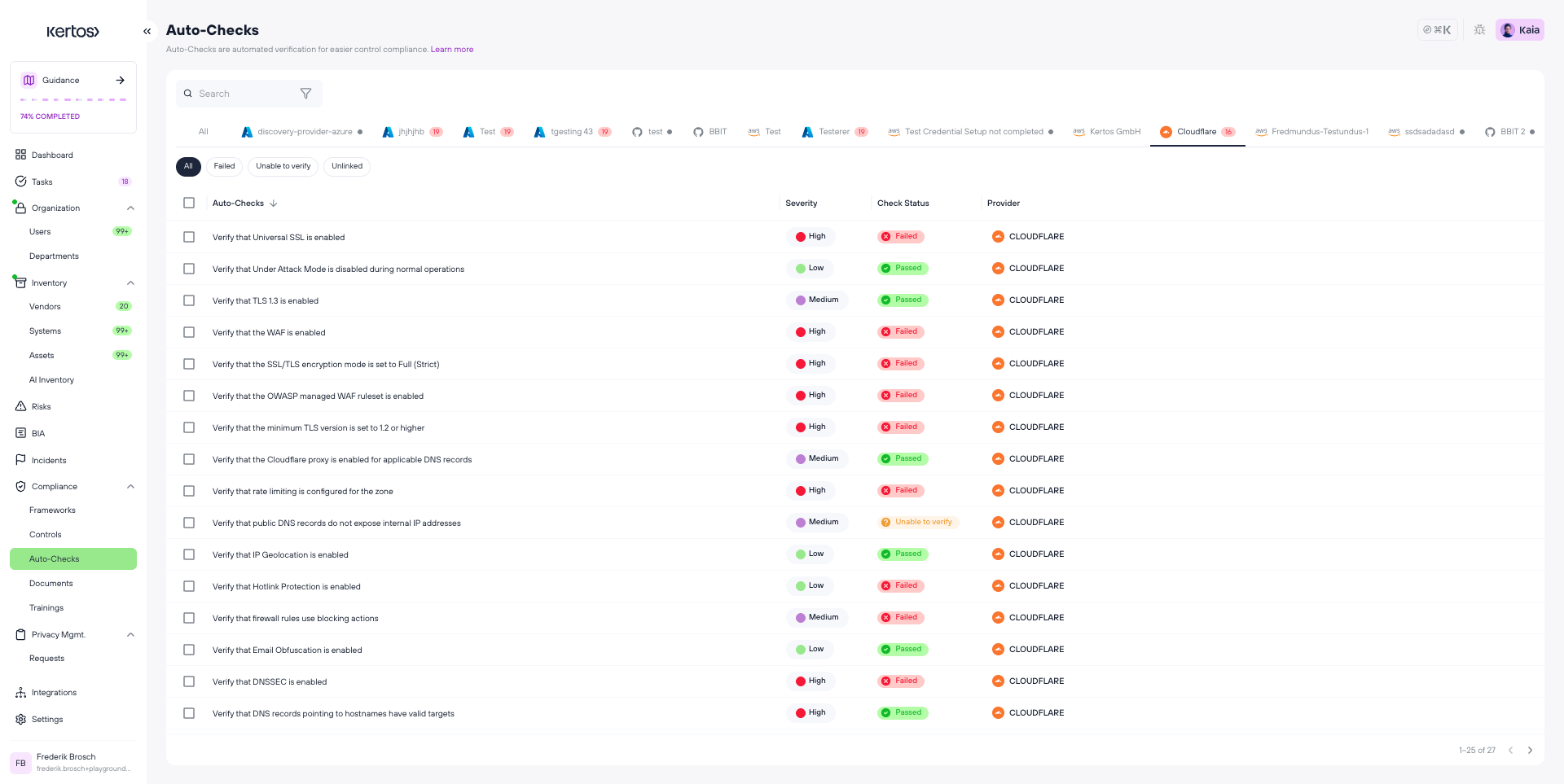
Which Auto-Checks are available for Cloudflare, and how are they mapped to ISO 27001:2022 controls?
Each Auto-Check is mapped to at least one control, which helps to demonstrate the technical implementation of key security requirements.
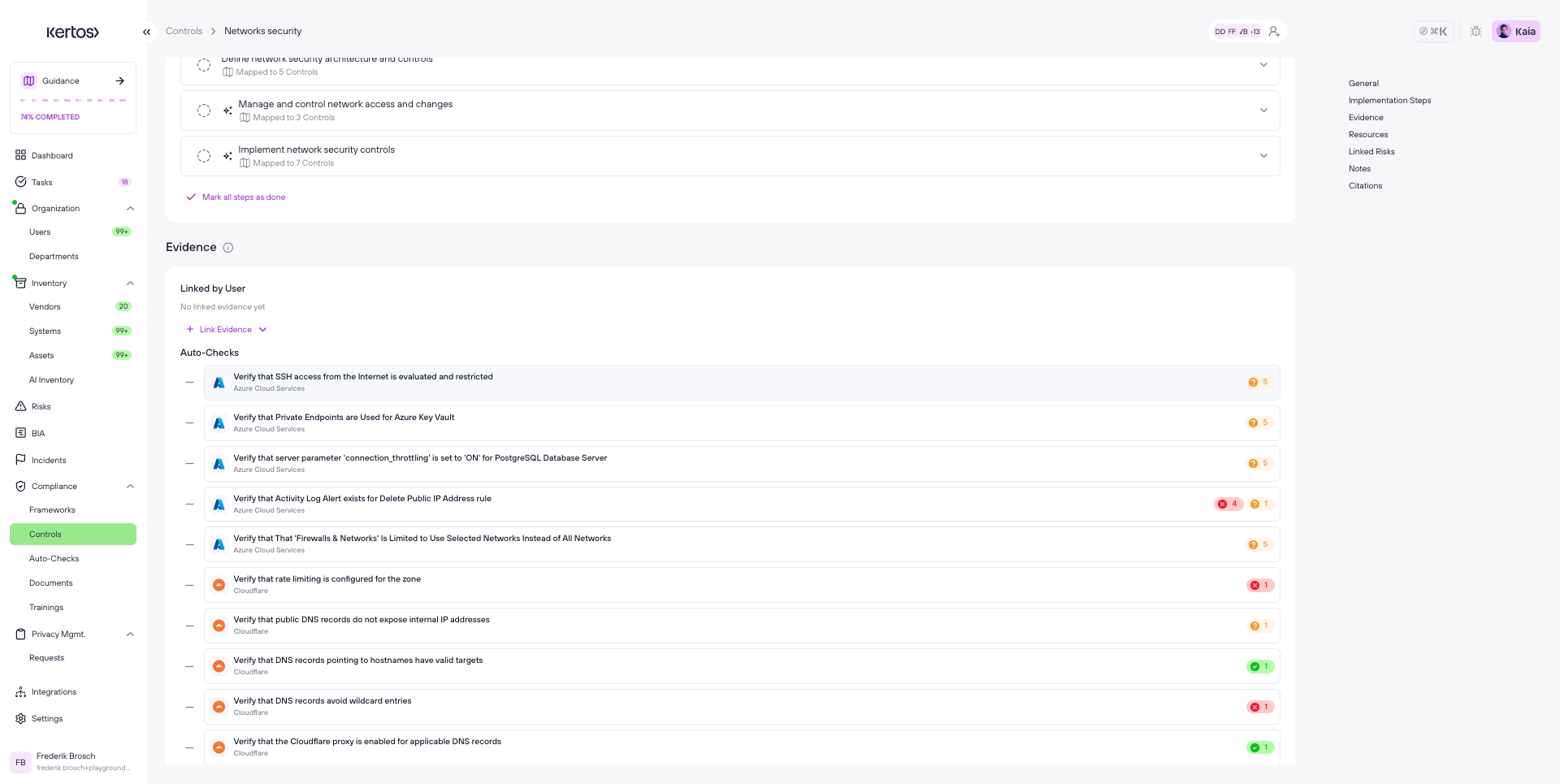
You can find the Auto-Checks in the respective Controls Page under the Section Evidence.
Auto-Check Title | What it verifies | Cloudflare service | Severity | ISO 27001:2022 |
|---|---|---|---|---|
SSL/TLS encryption mode is set to Full (Strict) | Cloudflare connects to your origin server with end-to-end encryption and certificate validation, which prevents man-in-the-middle attacks between Cloudflare and the origin. | zone | high | A.8.24 |
Minimum TLS version is set to 1.2 or higher | TLS 1.0 and 1.1 are disabled. Both are deprecated and vulnerable to BEAST and POODLE. | zone | high | A.8.24 |
TLS 1.3 is enabled | TLS 1.3 is active, which improves performance and security over older TLS versions. | zone | medium | A.8.24 |
HTTPS redirect is enabled | All HTTP traffic is redirected to HTTPS, so no data is transmitted unencrypted. | zone | high | A.8.21, A.8.24 |
HSTS is enabled with recommended max-age and includes subdomains | HTTP Strict Transport Security is configured with a max-age of at least six months and covers subdomains, which prevents SSL stripping. | zone | high | A.8.21, A.8.24 |
WAF is enabled | The Web Application Firewall is active on your zones. | zone | high | A.8.20, A.8.21 |
OWASP managed WAF rulesets are enabled | The OWASP Core Ruleset is active in the Cloudflare WAF and blocks SQL injection, XSS and other OWASP Top 10 attack vectors. | zone | high | A.8.25, A.8.26 |
Rate limiting is configured for the zone | Rate limiting rules exist to protect against DDoS, brute force and API abuse. | zone | high | A.8.21 |
DNSSEC is enabled | DNS responses are cryptographically signed, which protects against DNS spoofing and cache poisoning. | zone | high | A.8.20 |
DNS records do not use wildcard entries | A, AAAA, CNAME, MX and SRV records avoid wildcards such as | dns | medium | A.8.20 |
Several of these checks also serve as evidence for other frameworks. The TLS and SSL checks map to GDPR Art. 32 and PCI-DSS requirements, the WAF and rate limiting checks to OWASP and PCI-DSS.
How do I fix a failed check?
Open the failed check in Kertos and read the description and the remediation guidance.
Change the setting in the Cloudflare dashboard. All checks refer to settings under SSL/TLS, Security or DNS of the respective zone.
Click Sync on the Cloudflare card, or wait for the next scheduled run.
The check moves to Passed and its implementation step is ticked off.
Which Cloudflare products are covered?
The current version covers the zone, DNS and firewall settings listed above. Cloudflare Access, R2 and Workers are not part of it yet.
FAQs
How often do the Cloudflare Auto-Checks run?
They run during every discovery run. You can trigger a run at any time with the Sync button on the Cloudflare card.
Which permissions does Kertos get in my Cloudflare account?
Read-only access to account settings, zones, zone settings and DNS records. Kertos does not change any setting in Cloudflare.
Are all zones scanned?
Yes. The checks run against every zone that the connected account has access to.
Why is a check marked as "Unable to verify"?
Auto-Checks only run for services that are in use and readable in the connected environment. If a zone could not be reached or a setting is not available in your Cloudflare plan, the check is not evaluated and is shown as "Unable to verify" instead of failed.
Does a failing check change the status of my control?
A passing check marks its implementation step as complete, and the control moves to Implemented once all steps are complete. If a passing check later fails, the implementation step is unchecked, and the control stays in Implemented.
How do I disconnect Cloudflare?
Go to the Cloudflare integration in Kertos and remove the integration. You can additionally revoke the access in your Cloudflare account under My Profile and then Authorized Apps.