KAIA Evidence Checker
Last updated: May 5, 2026
KAIA's Evidence Checker automatically reviews PDF documents uploaded as evidence to a control and flags potential compliance gaps for you to review — before they become an audit problem. No expert needed, no waiting. Just upload, and KAIA tells you if something looks off.
Problem Statement
When uploading evidence to a control, users often have no way of knowing whether their document actually covers what the control requires. This leads to uncertainty, repeated back-and-forth with Customer Support, and evidence gaps only discovered during audits, when it's too late to act quickly.
Overview
KAIA's Evidence Checker runs automatically whenever you upload a PDF as evidence to a control. It reads the document against the control's requirements and, if it detects potential gaps, surfaces a banner with clear next steps. You stay in control: review KAIA's suggestions or dismiss the banner and move on.
Key Features
Automatic gap detection — KAIA analyzes your PDF immediately after upload and checks it against the control requirements. No manual trigger needed.
Evidence Check banner — If KAIA detects potential compliance gaps, a banner appears directly in the control view. If nothing stands out, no banner is shown and you can proceed normally.
Remediation suggestions in chat — Clicking Review opens the KAIA chat with specific, actionable suggestions based on what was flagged in your document.
Flexible user control — You decide what to do with KAIA's flags. Ignore the banner if you disagree, or use it as a prompt to upload additional evidence.
Benefits
Instant confidence at upload time — Know on the spot if your evidence looks incomplete, without having to ask an expert or wait for a review cycle.
Gaps caught early — Potential issues surface at the moment of upload, not during an audit. Less scrambling, fewer surprises.
No expert dependency — KAIA gives you clear, actionable signals so you can make an informed decision on your own.
How It Works
Step 1 — Upload your evidence Navigate to a control and upload a PDF document as evidence.
Step 2 — KAIA analyzes the document KAIA automatically reads the PDF against the control requirements. No action needed from you.
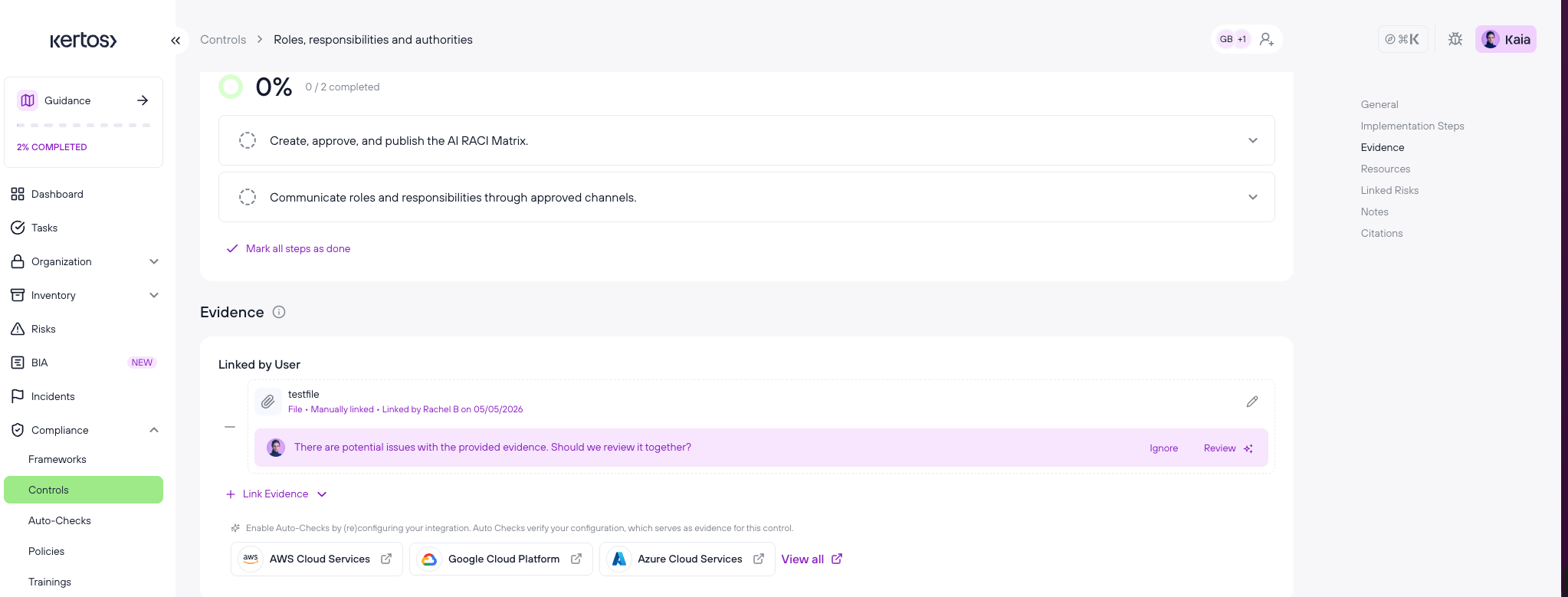
Step 3 — Review the result
If no gaps are detected, no banner appears — you're good to proceed.
If KAIA detects potential gaps, an Evidence Check banner appears on the control.
Step 4 — Act on the banner You have two options:
Ignore — the banner disappears and no action is taken.
Review — the KAIA chat opens with specific remediation suggestions based on the detected gaps.
FAQs
1. What file types does the Evidence Checker support? PDF only. Other file types are not analyzed in this release.
2. Does KAIA give a pass or fail verdict on my evidence? No. KAIA flags potential gaps for you to review, it does not make a compliance decision. You remain in control of whether to act on the suggestions.
3. What happens if KAIA flags something incorrectly? You can simply ignore the banner. KAIA's flags are signals, not requirements. If you believe your evidence is sufficient, dismiss the banner and continue.
4. Does the Evidence Checker replace a compliance expert? No. It accelerates your review and surfaces potential issues early, but final judgment on evidence sufficiency remains with you or your compliance team.
5. Will KAIA always show a banner when I upload a PDF? No. The banner only appears when KAIA detects something worth flagging. If your document looks well-aligned with the control, no banner is shown.