Discovery explained
Last updated: August 6, 2026
The Kertos Discovery is your tool of choice to uncover every data relevant to your compliance efforts - from IT infrastructure to users.
Specifically, you can automatically identify:
Vendors
Systems (the tools that vendors provide you with)
Data Classes (categories of data that systems feed into)
Processing Activities
Users
Assets, including hardware devices from your device management
Discovery channels
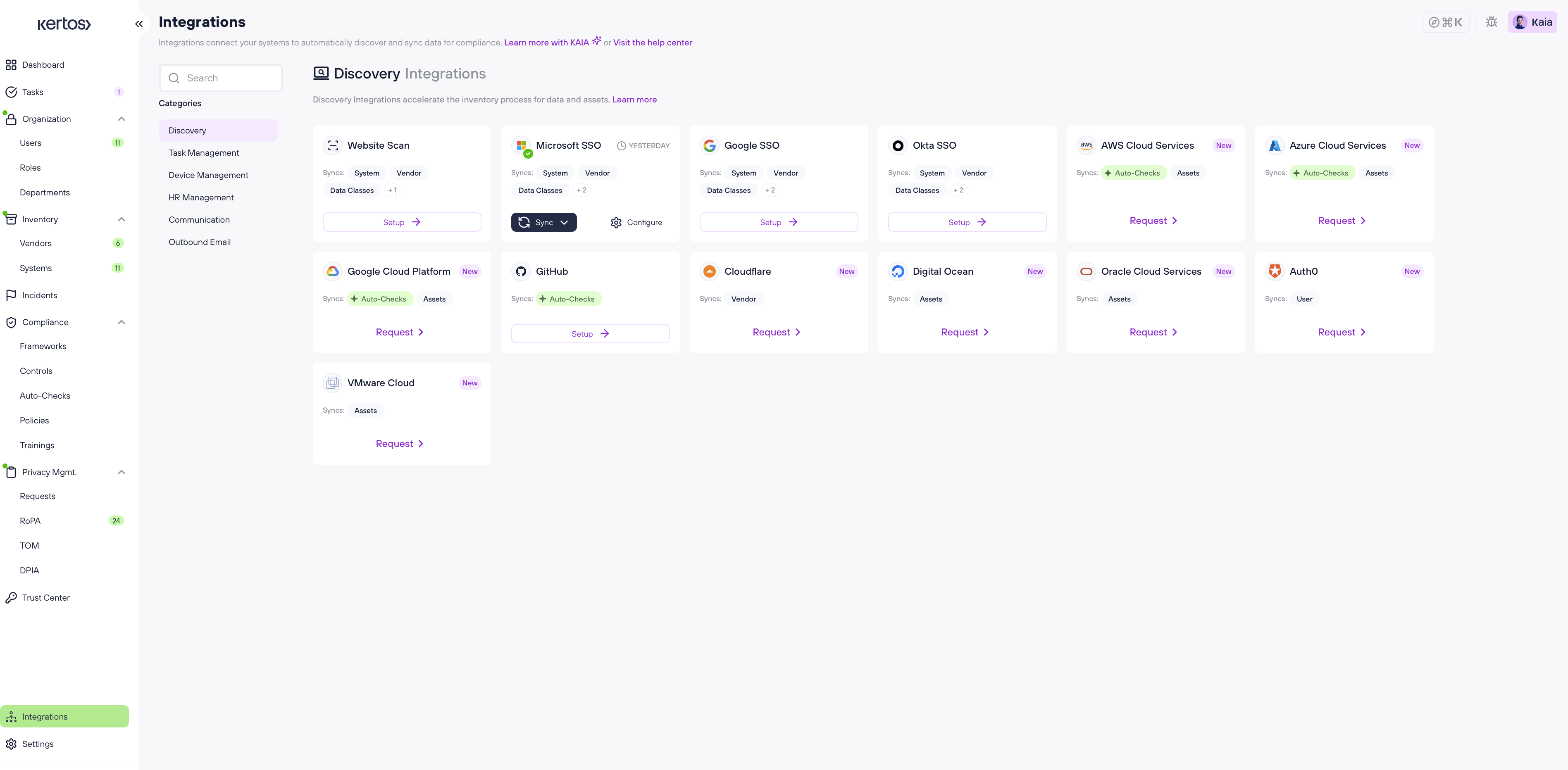
From the Integrations > Discovery page, you can access multiple channels through which you can discover your organization’s data.
⚠ Not every channel is able to cover all categories of data. Please refer to the "Syncs:" field under each integrations' name to see what types of data it covers.
Website Scan: Scans your website for connected tools.
Single-Sign-On (SSO) Scan: Scans your SSO-Account for tools and users.
Cloud Services / Platforms: Scans your cloud infrastructure for cloud assets.
Device Management (MDM): Scans your device management, for example Microsoft Intune, for hardware assets and their compliance status.
Running a Discovery
1. Go to "Integrations" in the navigation bar and then to "Discovery".
2. Locate the desired integration on the page.
3. Click on “Setup”.
4. Follow the next steps according to the selected integration.
5. After you have finished the integration setup, choose "One time run" to run discovery once, or "Automatic" to let Kertos run it on a schedule. The schedule differs between integrations.
How current is discovered data?
Discovery runs on a schedule, so changes you make in a connected system do not appear in Kertos immediately. For Microsoft Intune, allow up to 24 hours after a change before the device status updates in Kertos. If you need it sooner, trigger a one time run.
Device compliance from Microsoft Intune
Devices discovered through Intune also carry a compliance status. Kertos reads the per-setting results of your Intune compliance policy and evaluates three settings:
Require a password to unlock devices (
PasswordRequired)Require encryption of data storage on device (
StorageRequireEncryption, FileVault on macOS and BitLocker on Windows)Maximum minutes of inactivity before password is required (
PasswordMinutesOfInactivityBeforeLock)
All three have to come back compliant. A single failure makes the device non-compliant in Kertos.
Kertos does not define an auto-lock threshold. You choose the value in Intune, and Kertos passes through Intune's own evaluation.
Devices are non-compliant although the policies are assigned
The usual cause is that the setting is enforced through a configuration profile rather than a compliance policy. Intune does not feed configuration profiles into its compliance evaluation, and a setting that is missing from the compliance policy is reported as non-compliant rather than not applicable.
To check your policy:
Open the Microsoft Intune admin center and go to Devices → Compliance (in some tenants: Devices → Compliance policies → Policies).
Open the policy that applies to your macOS laptops, then do the same for Windows if you have both.
Under Compliance settings → System Security, confirm that these three are set to an actual value rather than "Not configured":
Require a password to unlock devices
Maximum minutes of inactivity before password is required
Require encryption of data storage on device
Add the missing settings to the compliance policy, then wait for the next sync or trigger a one time run.
Resetting Discovery
If you want to remove all discovered items at once (across all data types), you have a dedicated option for that in the settings.
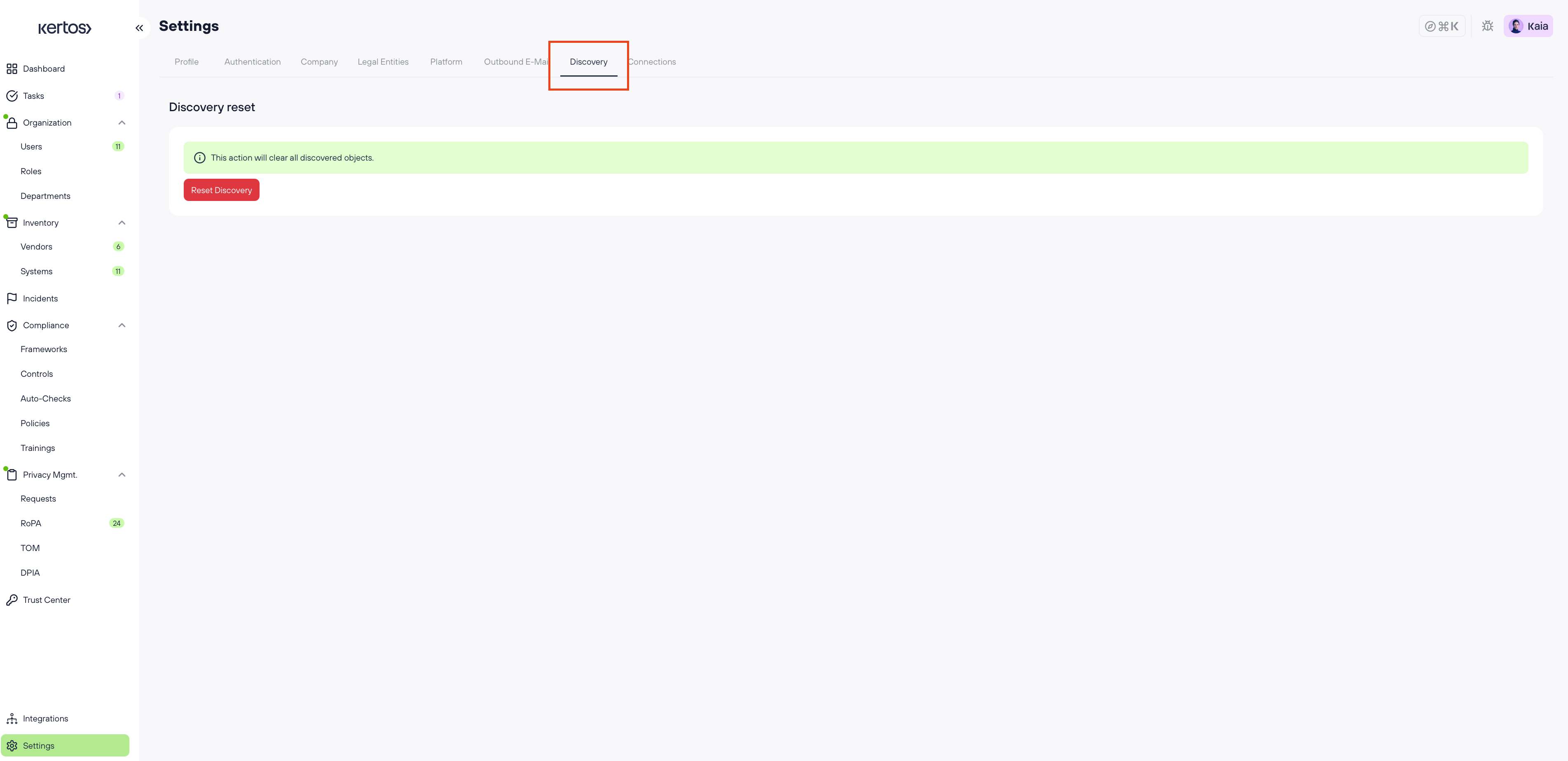
1. Go to “Settings” in the navigation bar.
2. Go to the tab “Discovery”.
3. Click “Reset Discovery”.
4. Confirm the deletion.
Next steps
After the discovery, the next steps are to either activate or archive the discovered data objects like vendors, systems, and assets, and provide the necessary information for every data object that you activate.
This principle applies throughout the Kertos platform. See the individual articles in the Inventory section for more guidance.
FAQs
What is the Kertos discovery?
Discovery is the umbrella term for integrations that we offer that discover compliance-relevant data for you automatically, like systems, vendors, assets, and users.
Which discovery integration should I use?
Not every integration can discover all types of data objects. In the discovery tab of the integrations page, you can see in every integration box which data objects are being synchronized by this integration. We recommend to use as many as discovery integrations as possible, so that profit as much as possible from Kertos’ automating capabilities.
What is the difference between the discovery integrations?
They integrate with different external systems that you already use in your organization, for example, cloud services, mobile device management, or SSO.
What should I do after the discovery?
The discovery is there to gather the data objects that could be relevant to your compliance efforts. These data objects will then show up in the “Discovered” tab of each data object page, for example, vendors. It is then your job to select the objects that are actually relevant by moving them to “Active”. Please refer to our help center for step-by-step guidance if you need further assistance.
Why are my Intune devices non-compliant although the policies are assigned?
Kertos evaluates password, encryption and auto-lock from your Intune compliance policy. Settings enforced through a configuration profile are not part of Intune's compliance evaluation and are reported as non-compliant. See Devices are non-compliant although the policies are assigned above.
How long does it take until changes appear in Kertos?
For Intune, allow up to 24 hours. Trigger a one time run if you need the update sooner.