Scanning your website
Last updated: April 28, 2026
The website scan inspects your website architecture and discovers tools and applications connected to it. There are usually more than you would expect at first!
How does the website scan work?
Our website scan analyses the DNS records on your domain as well as the response headers provided and JavaScript bundles retrieved when loading your website.
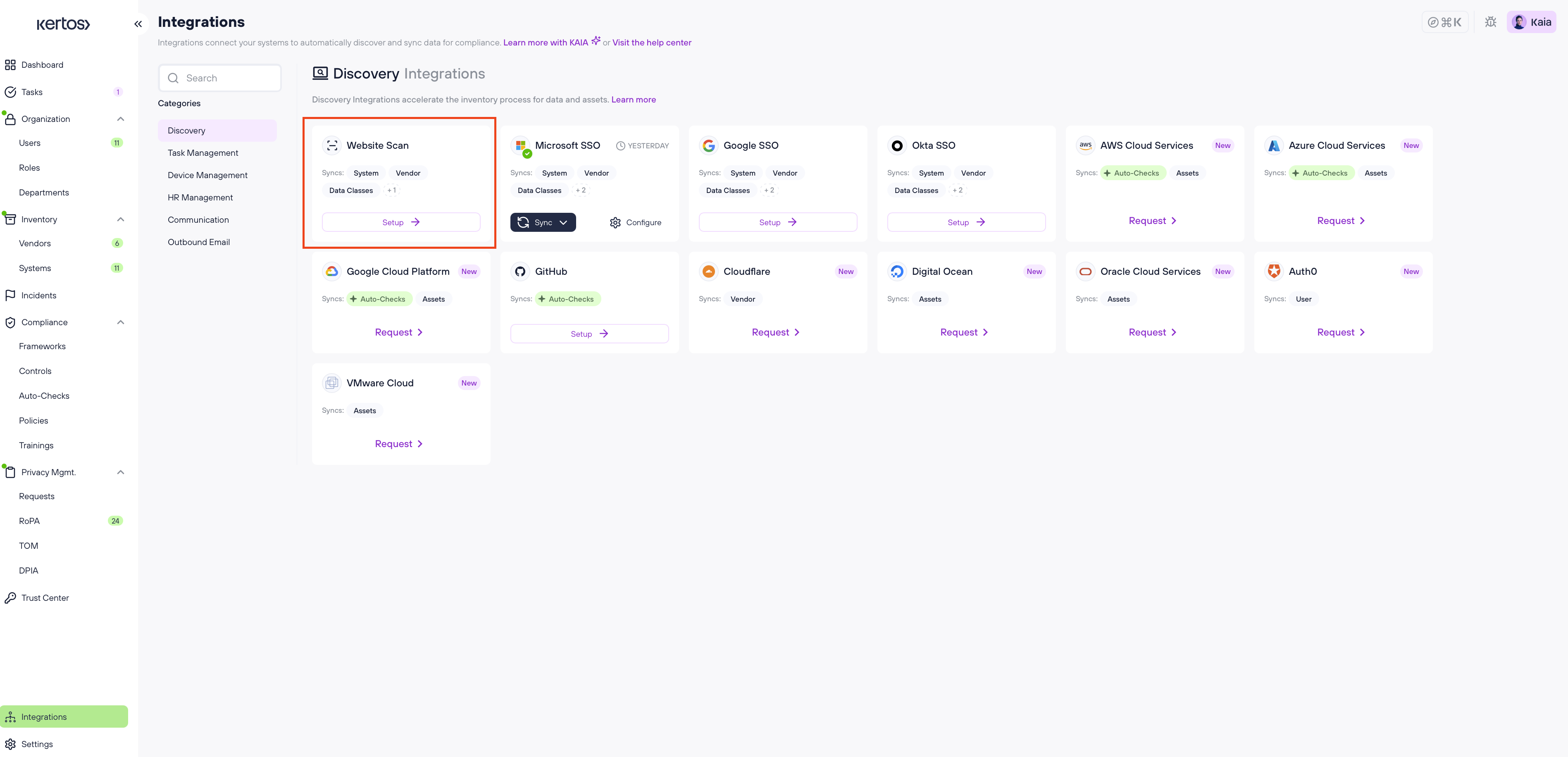
Go to Integrations in the navigation sidebar and select the Discovery category.
Click Setup on the Website Scan integration card.
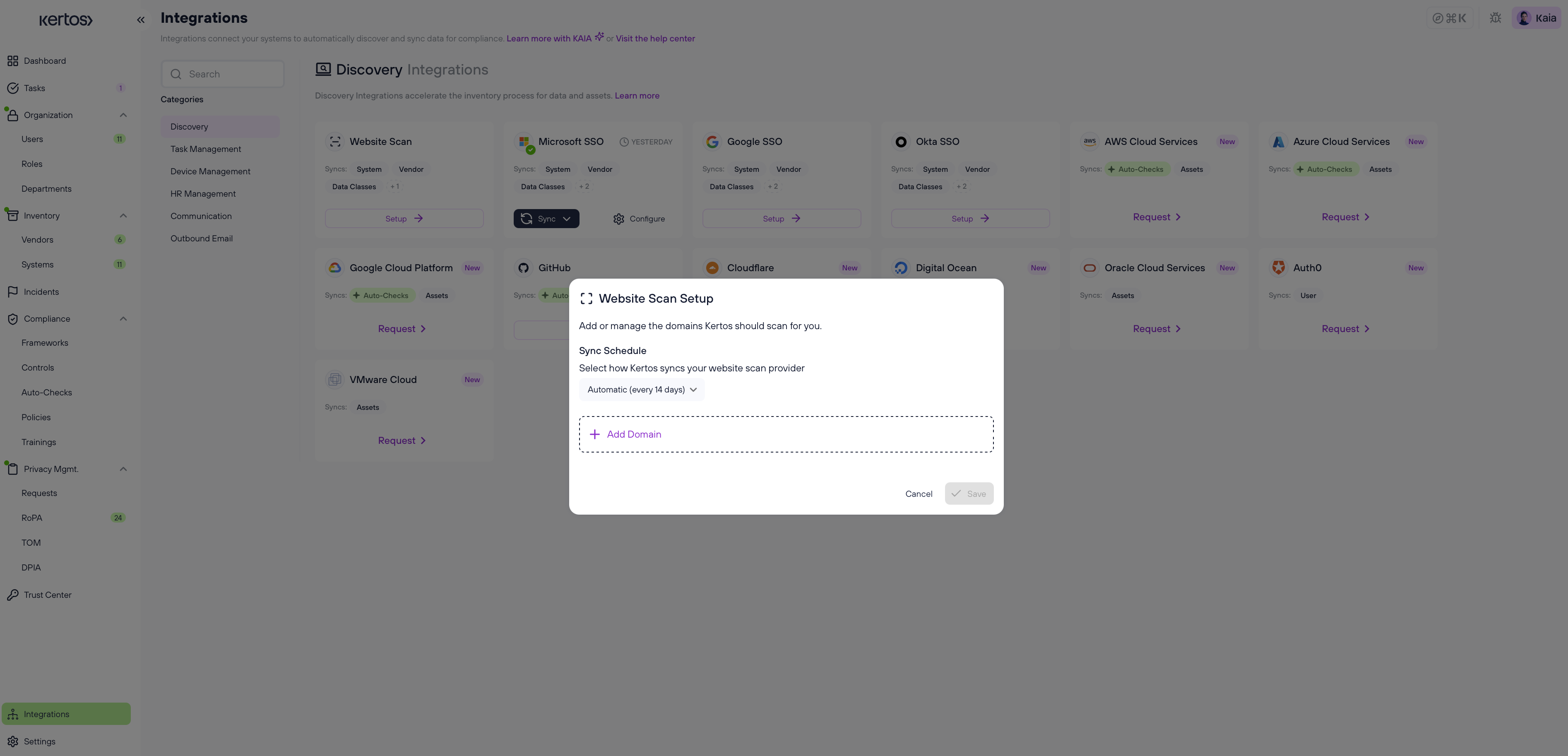
The Website Scan Setup dialogue will open. Here you can add or manage the domains Kertos should scan for you.
Click + Add Domain and enter the domain of the website you want to scan, usually your homepage. Make sure to enter the full URL, including "https://". Repeat this step for any additional sites or subdomains (e.g. app.yourdomain.com).
Under Sync Schedule, select how often Kertos should sync your website scan. The default is Automatic (every 14 days), but you can adjust this to suit your needs.
Click Save to confirm and start the scan.
What happens after I run the Website Scan?
After the Website Scan, you'll see the discovered Vendors & Systems. Click on the Systems or Vendors tab in the sidebar and navigate to Discovered. All newly discovered items are listed there. To include them in your inventory, select them and click Set to Active.