Connect Kertos to your AI tools via Kertos MCP Server
Last updated: October 16, 2026
Connect your Kertos workspace to the AI tools your team already uses, so you can ask questions about your compliance data in plain language. Kertos offers six connectors: Claude, ChatGPT, Gemini, Codex, n8n and Langdock. All of them talk to the Kertos MCP server.
What the connected tool can see: exactly what your own Kertos user can see. Your role and permissions apply.
Before you start
You need a Kertos user that is not an auditor. Auditors can view the Connectors page but cannot add connectors.
You need an account in the tool you want to connect. For Langdock, n8n and ChatGPT workspaces, your workspace admin may have to allow custom MCP servers first.
Talk to your admin before connecting a tool. Custom MCP servers have security implications, and Kertos shows this reminder in every connector dialog too.
Step 1: Open the Connectors page
In Kertos, open Settings and select the Connectors tab.
You see one card per connector. If a connector you expect is missing, it is not enabled for your company yet. Use Request connector at the bottom of the page, or contact your Customer Success Manager.
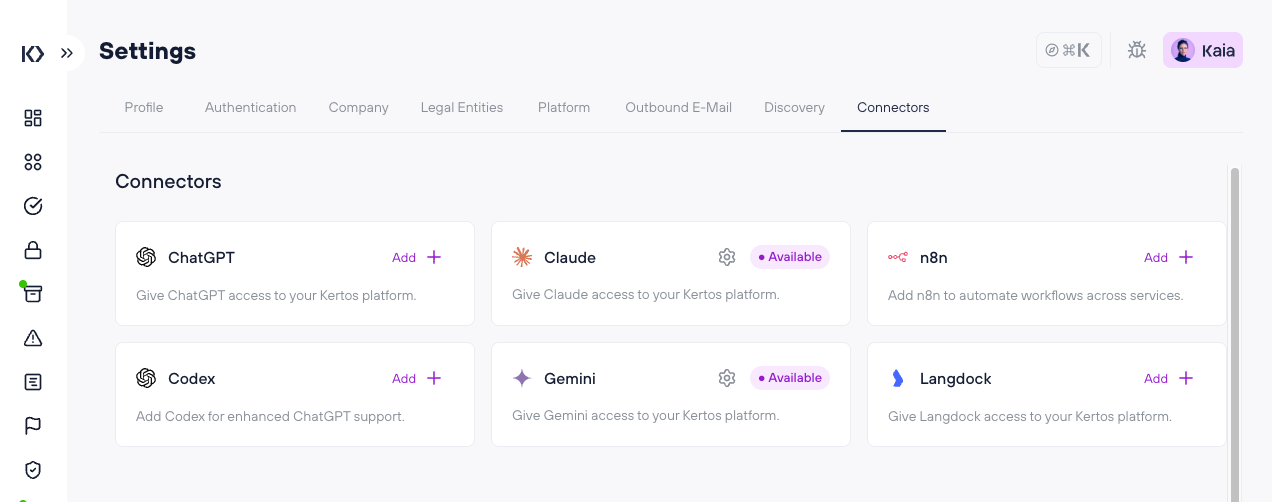
What the status on a card means
No status, "Add" button: you haven't set this connector up yet.
Available: ready to use. Kertos provides this connector, so you only copy the details into your tool.
Pending: you've set it up in Kertos, but your tool hasn't signed in yet.
Running: your tool is connected. The card shows when the current session expires.
Click the gear icon on any card to reopen its details.
Step 2: Get your connection details
Every connector shows an MCP Server URL and a Client ID, each with a copy button. Some connectors need a little more. There are three kinds:
Ready to use (Claude, Gemini)
Kertos provides these. Open the card and copy the MCP Server URL and Client ID. There is no secret.
One click (Codex)
Click Add. Kertos creates your connector and shows the MCP Server URL and Client ID. There is no secret.
With callback URL and secret (ChatGPT, n8n, Langdock)
These tools give you a callback URL that Kertos needs, and Kertos gives them a secret in return.
Click Add on the card.
In your tool, start adding Kertos as an MCP server (see the tool's section below) and copy the callback URL or redirect URL it shows you.
Paste it into Callback URL in Kertos and click Connect.
Kertos shows a Secret. Copy it now. It is shown only once. If you lose it, delete the connector and add it again.
Click Finalize and complete the setup in your tool.
Not sure how to proceed? Click Help me with this in the dialog, and KAIA walks you through it.
Step 3: Add Kertos to your tool
Each tool's menus change often, so the labels below may differ slightly in your version. Look for the place where your tool manages MCP servers, connectors or integrations.
Claude (Claude Desktop, claude.ai, Claude Code)
Claude Desktop and claude.ai
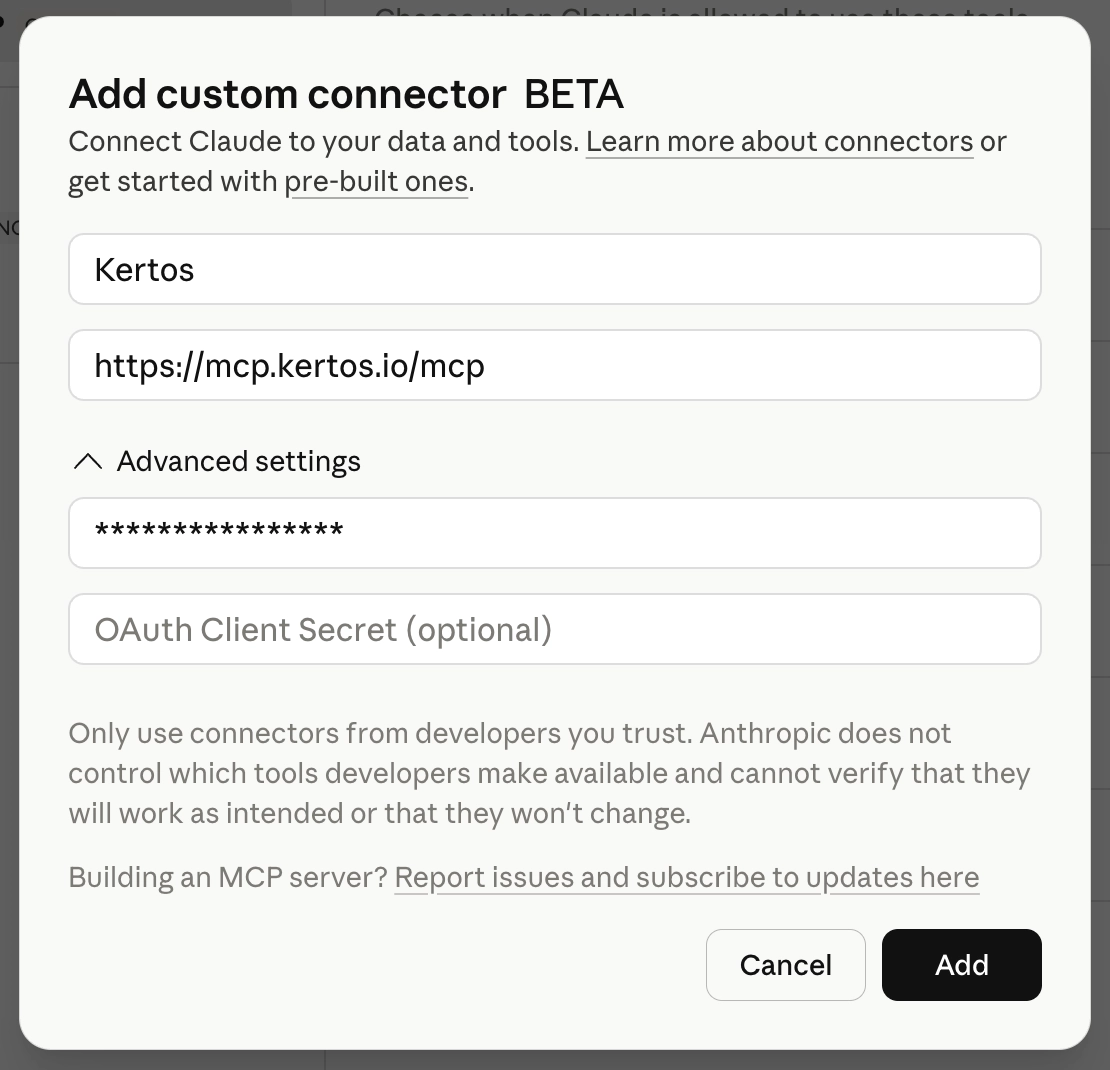
Open Settings → Connectors and choose Add custom connector. On Team and Enterprise plans, an owner may need to add it under the organization settings first.
Enter a name, e.g. "Kertos", and paste the MCP Server URL.
Under Advanced settings, paste the Client ID. Leave the client secret empty.
Save, then click Connect on the Kertos connector.
Claude Code
Run this in your terminal, using the values from Kertos:
claude mcp add --transport http kertos <MCP Server URL> --client-id <Client ID>Then type /mcp, select kertos and authenticate.
ChatGPT
In ChatGPT, open Settings → Apps & Connectors. Under Advanced settings, turn on Developer mode. In Business and Enterprise workspaces, an admin may need to allow this.
Choose Create to add a new connector. Enter a name and paste the MCP Server URL. Select OAuth as authentication.
Copy the callback URL ChatGPT shows you (it looks like
https://chatgpt.com/connector/oauth/...) and paste it into Kertos as described in Step 2.Back in ChatGPT, enter the Client ID and the Secret from Kertos, then save and connect.
Gemini (Gemini CLI)
Open
~/.gemini/settings.jsonand add Kertos undermcpServers:
{
  "mcpServers": {
    "kertos": {
      "httpUrl": "<MCP Server URL>",
      "oauth": {
        "enabled": true,
        "clientId": "<Client ID>",
        "redirectUri": "http://127.0.0.1:7777/oauth/callback"
      }
    }
  }
}
Start Gemini CLI and run
/mcp auth kertos.
Codex (Codex CLI)
Run this in your terminal:
codex mcp add kertos --url <MCP Server URL> --oauth-client-id <Client ID>Then sign in with
codex mcp login kertos.
n8n
In n8n, create a new OAuth2 API credential.
Copy the OAuth Redirect URL n8n shows you and paste it into Kertos as described in Step 2.
Fill in the credential:
Grant type: PKCE (authorization code with PKCE)
Authorization URL:
https://api.kertos.io/api/v1/oauth/authorize/Access token URL:
https://api.kertos.io/api/v1/oauth/token/Client ID and Client Secret: the values from Kertos
Scope:
read
Save and click Connect my account.
In your workflow, add an MCP Client Tool node, paste the MCP Server URL, choose HTTP Streamable as transport, and select the credential you just created.
Langdock
In Langdock, open Integrations and add a new MCP server. Paste the MCP Server URL.
As authentication method, choose OAuth 2.0 Manual (Authorization Code + PKCE).
Copy the OAuth redirect URL Langdock shows you and paste it into Kertos as described in Step 2.
Back in Langdock, fill in:
Client ID and Client Secret: the values from Kertos
Authorization URL:
https://api.kertos.io/api/v1/oauth/authorize/Token URL:
https://api.kertos.io/api/v1/oauth/token/Scopes:
readLeave Send resource parameter turned on.
Click Test connection, select the Kertos tools you want to use, and save.
Step 4: Sign in to Kertos
The first time your tool connects, it opens a Kertos sign-in page in your browser. Log in with your Kertos account and approve the connection.
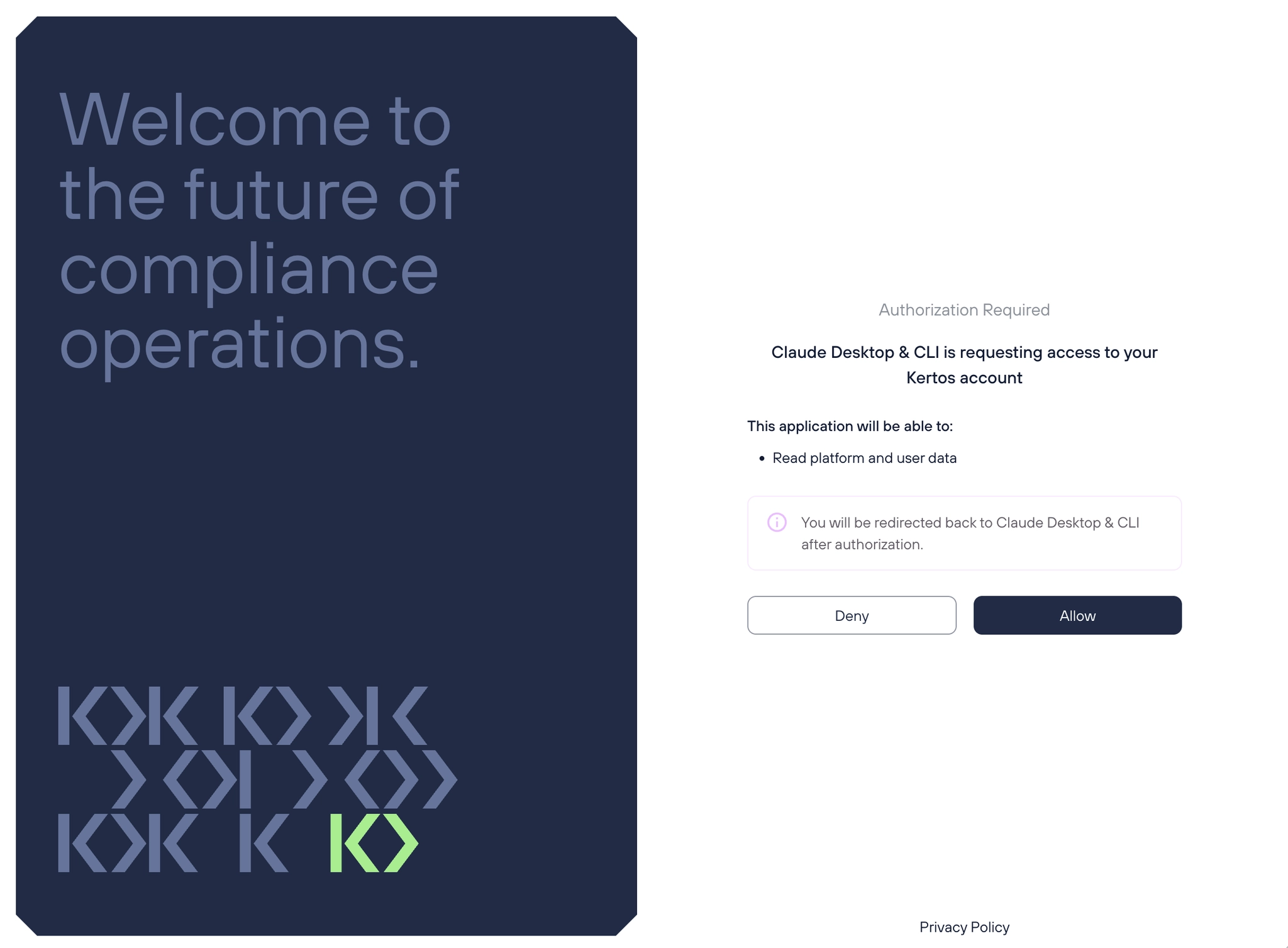
Back in Kertos, the connector card now shows Running.
Step 5: Try it
Ask your tool something like:
"Which policies do we have, and which are overdue for review?"
"List our open high risks and who owns them."
"Which vendors process personal data outside the EU?"
Disconnect or remove a connector
Open the connector via the gear icon on its card.
Revoke Access ends the current session. Your tool has to sign in again before it can read anything.
Delete integration removes a connector you created (ChatGPT, n8n, Codex, Langdock), including its secret. Claude and Gemini are provided by Kertos and cannot be deleted, only revoked.
Troubleshooting
Connection failed: compare the MCP Server URL and Client ID in your tool with the connector dialog in Kertos. For ChatGPT, n8n and Langdock, check the secret too.
Lost the secret: it can't be shown again. Delete the connector in Kertos, add it again, and update your tool with the new secret.
Callback URL rejected: paste the URL exactly as your tool shows it, without extra spaces. Kertos shows an example of the expected format below the field.
Card stays on Pending: the setup in Kertos is done, but your tool hasn't signed in yet. Finish the connection in your tool and approve the Kertos sign-in.
Asked to sign in again: sessions expire after a while. The card shows when. Sign in again from your tool.
Missing data: your tool only sees what your Kertos user can see. Check your permissions in Kertos.
Connector not listed: it isn't enabled for your company yet. Use Request connector or contact your Customer Success Manager.
Need more help? Contact your Customer Success Manager or Kertos support.