Reporting a security event
Last updated: September 10, 2026
If you notice something that could affect your company's information or personal data, you can report it in Kertos. You do not need to decide whether it is an incident. The Incident Management team will review your report and decide what needs to happen next.
What should I report?
Report anything that seems unusual or could put company information, systems, or personal data at risk. For example:
An email containing sensitive information was sent to the wrong person
A company device was lost or stolen
You noticed a suspicious login or access attempt
Files were changed, deleted, or shared unexpectedly
Someone had access to information they should not have seen
If you are unsure, submit a report anyway. You can select Not sure when Kertos asks whether personal data might be affected.
Submit an event report
Go to Incidents in the main menu.
Select Report Event.
Describe what you noticed. Include the details that may help the Incident Management team understand the situation.
Enter when you noticed the event.
Indicate whether personal data might be affected. Choose Yes, No, or Not sure.
Add any useful attachments, such as screenshots, emails, or other files. This step is optional.
Select Save.
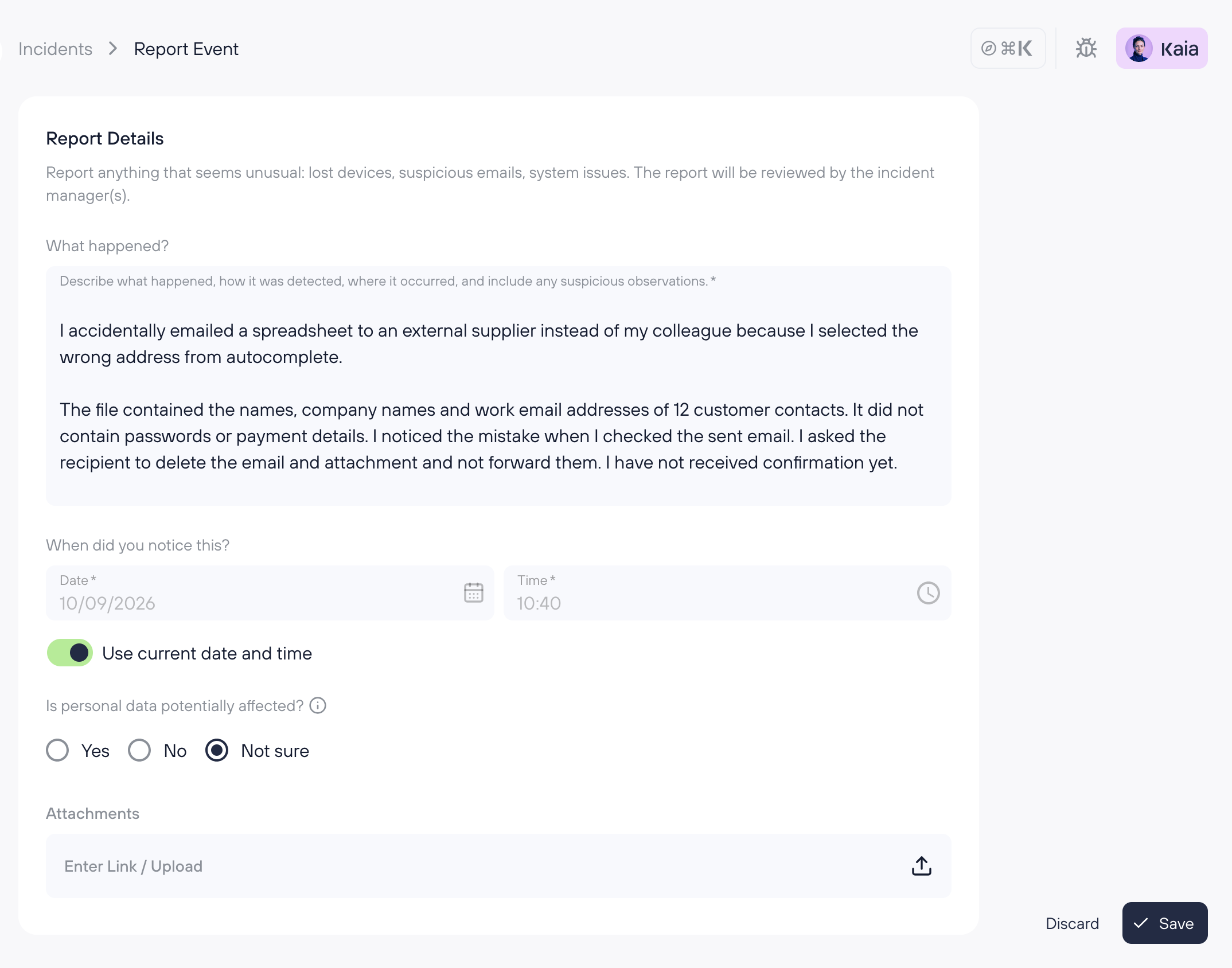
After submitting, you can find the report in Incidents.
Kertos records you as the reporter automatically and routes the report to the people responsible for reviewing it in your company.
Follow the status of your report
Open Incidents to view your own reports and follow their status. Use the Status and Type filters to find a specific report.
The overview uses these status labels:
Reported: The incident management team has been notified about your report.
Under Investigation: The incident management team is investigating your report and assessing the classification.
Open: The incident management team is handling this case.
Closed: The incident management team has reviewed and closed the case.
Open your report to see the status explanation. Once it has been classified, the explanation also tells you whether it is a security event, an incident, or a data breach.
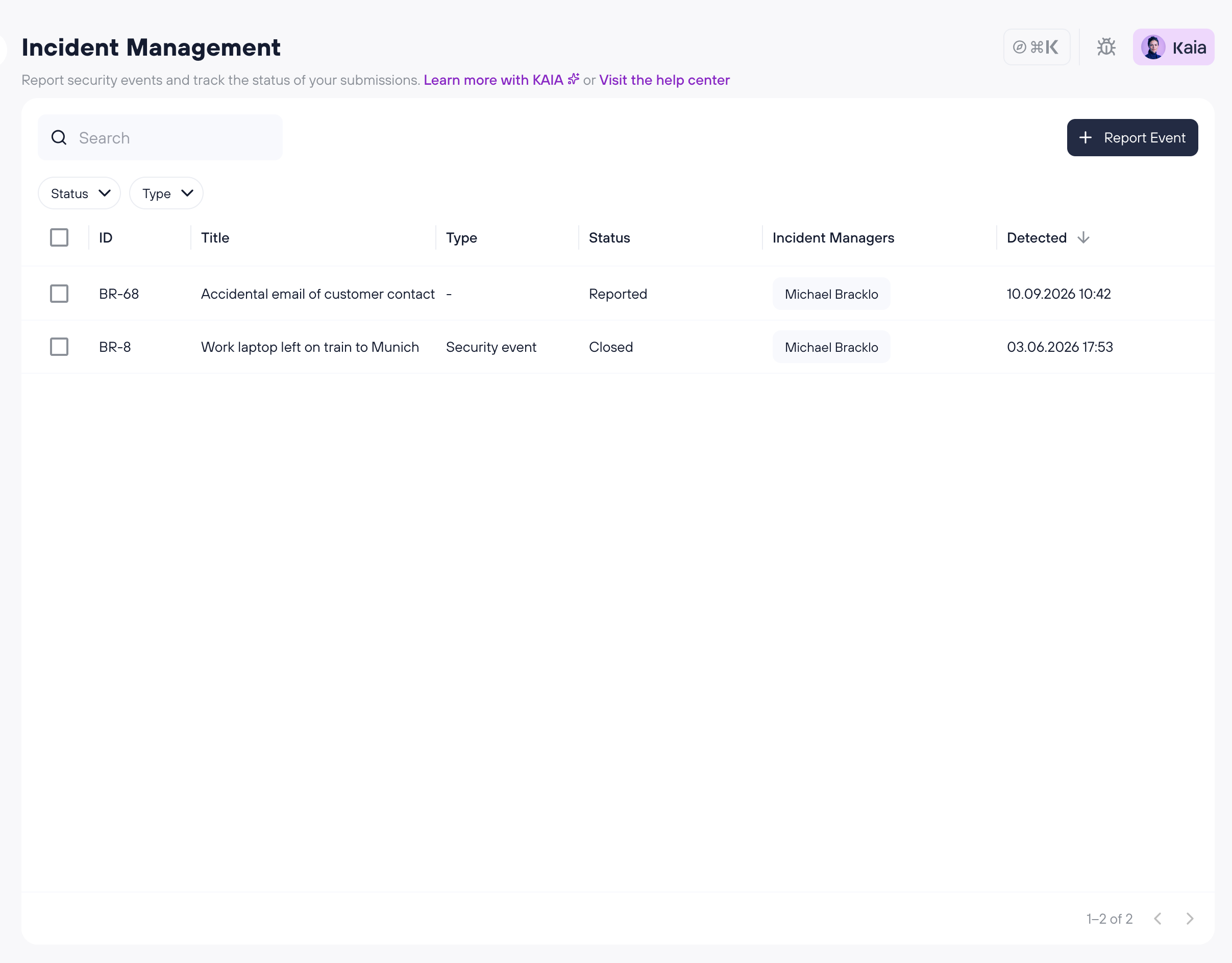
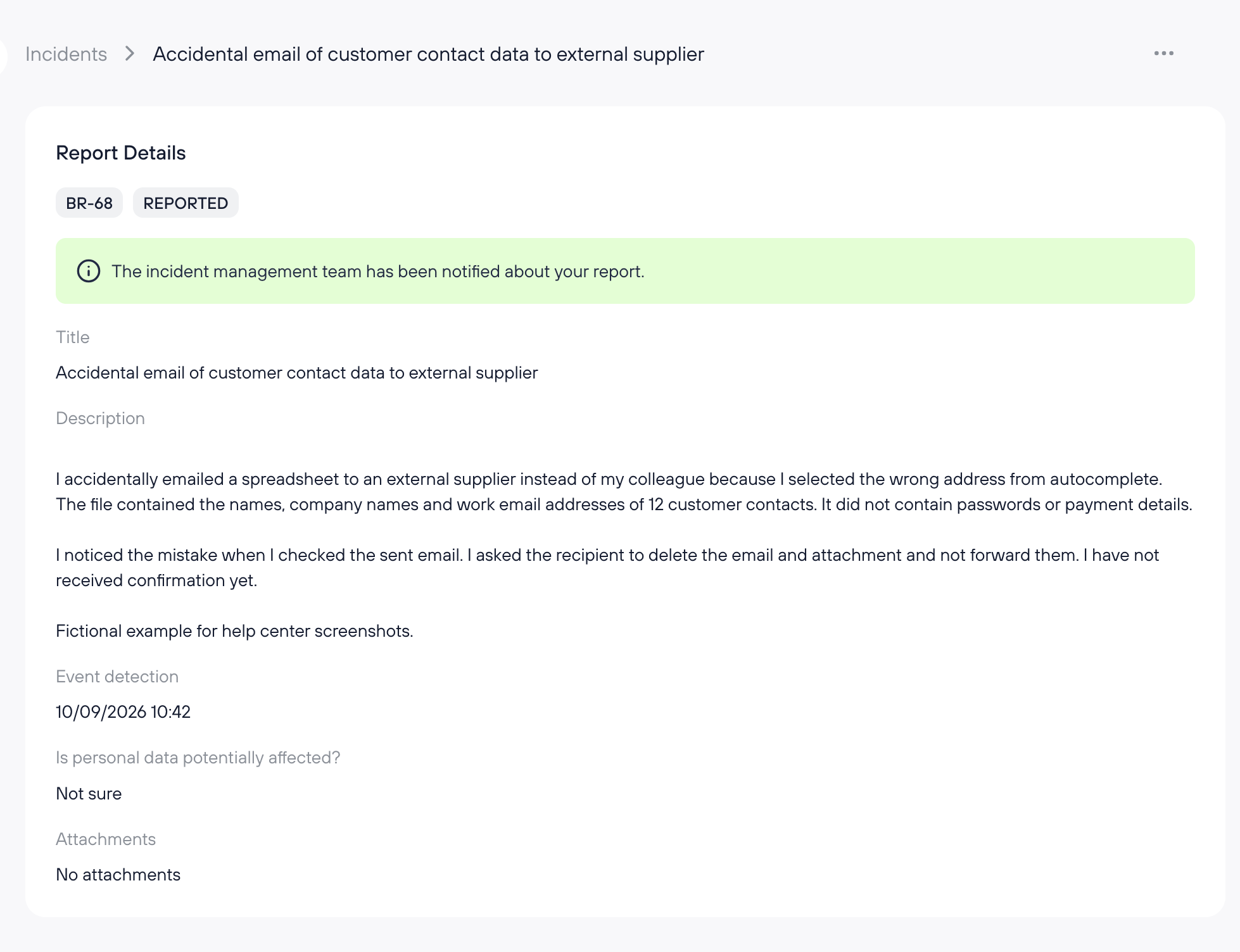
The overview shows the current status and assigned Incident Managers. Open a report to review the information you submitted. Internal assessment notes are not shown in your report view.
Edit or delete a report
You can edit or delete your report while its status is Reported and an Incident Manager has not assessed it yet.
Open the report and choose the action to edit or delete it.
When you edit a report, you can update the description, noticed date and time, personal data answer, and attachments.
Once an Incident Manager saves their assessment, you can no longer edit your report.
Frequently asked questions
Do I need to know whether something is an Incident?
No. Describe what happened and submit the report. The Incident Manager will assess it.
What should I select if I do not know whether personal data is affected?
Select Not sure. The Incident Manager will confirm this during the assessment.
Can I submit a report anonymously?
No. Kertos records the logged-in user as the reporter. Your identity helps the Incident Manager follow up if more information is needed.
Can I see reports submitted by other employees?
No. Employees can only see their own reports. Incident Managers and admins can access the reports they need to review and manage.
Related guide
For the review process, see Assessing and managing incidents.