Assessing and managing incidents
Last updated: September 10, 2026
When an employee submits an Event Report, it appears with the status Reported in Incidents. Incident Managers review the report and decide whether it needs further investigation, is a Security event, or requires formal Incident handling. This guide covers assessment, response, closing, and reopening.
For setup and routing, see Setting up Incident Managers. For employee instructions, see Reporting a security event.
The Incident Management overview
The overview gives you access to Event Reports and Incidents. Use the Status filter to show Reported, Under Investigation, Open, or Closed records.
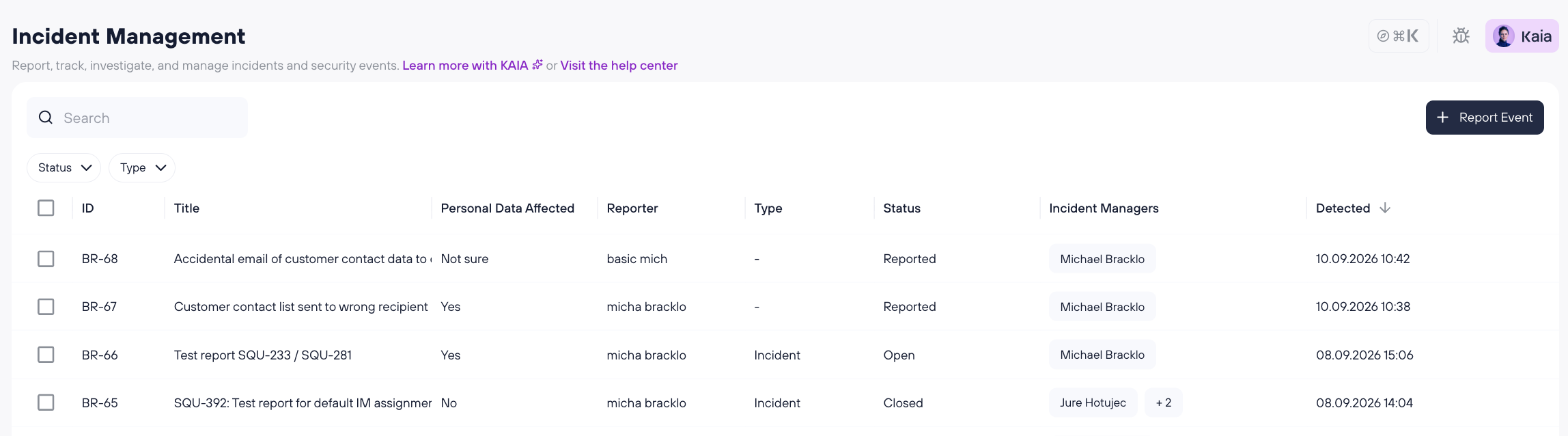
Use the Type filter to select Incident or Security event after records have been classified.
Opening a report does not change its status or start an investigation. Saving an assessment decision, closing a record, or reopening it changes its status.
Review an Event Report
Open Incidents.
Set the Status filter to Reported.
Open the report you want to review.
Review the submitted information and any attachments.
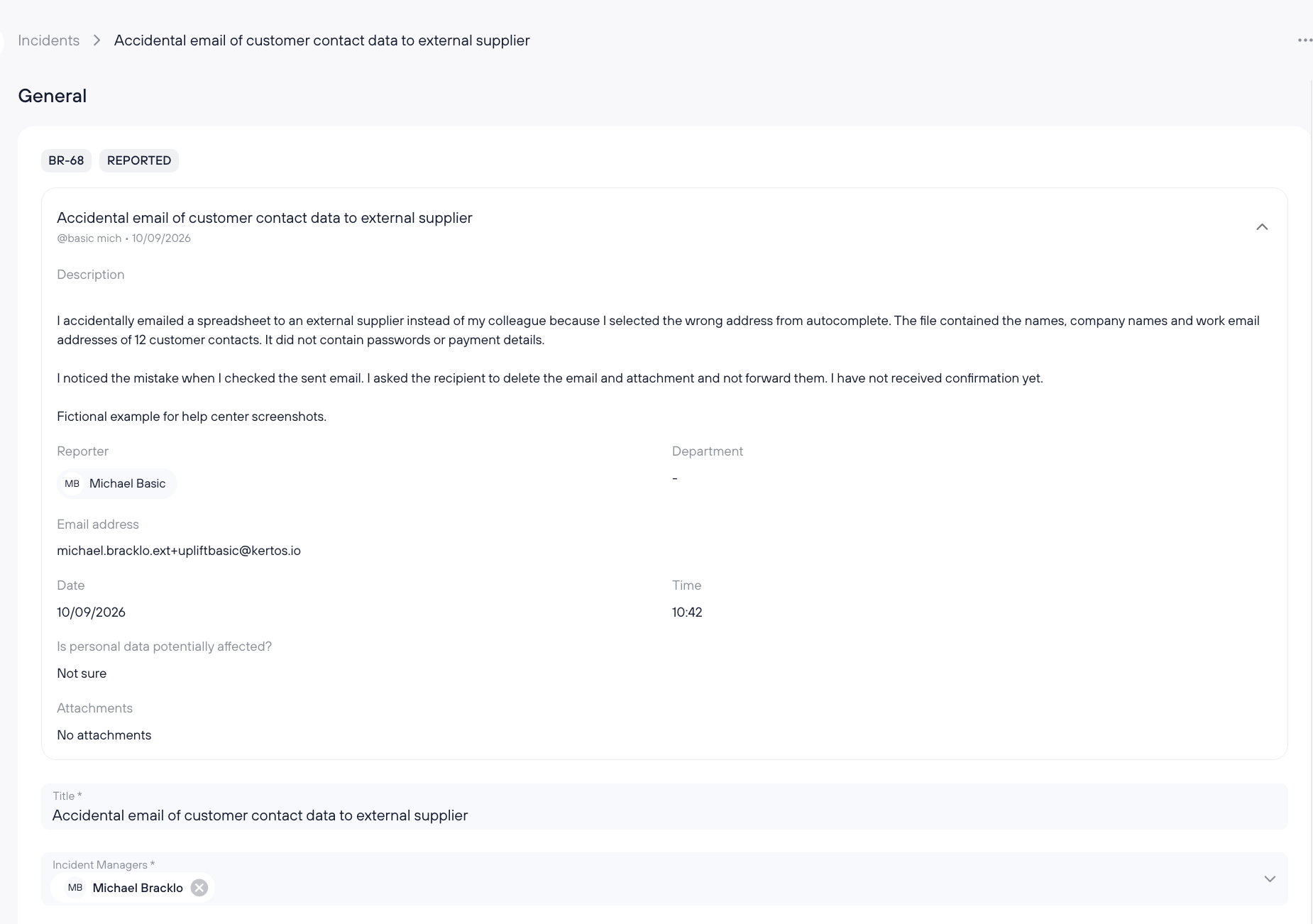
The submitted report is shown read-only during assessment. It includes:
What happened
Who submitted the report
When the employee noticed the event
Whether the employee thought personal data might be affected
Attachments
The original report remains available after the record moves into Incident handling.
Confirm whether personal data is affected
Review whether personal data is affected before completing the assessment. Confirm Yes or No when classifying the report as an Incident or Security event.
If the employee selected Yes or No, you can keep or change the answer.
If the employee selected Not sure, confirm the correct answer before completing the assessment.
If your decision differs from the employee's Yes or No answer, add a justification.
The employee's original answer remains visible in the submitted report.
Choose the assessment outcome
Review the assigned Incident Managers and make sure at least one is selected. Then choose one of the following actions:
Needs investigation
Select Needs investigation when you need more time or information. Saving moves the report to Under Investigation. You can return to it later and complete the assessment.
Security event
Select Security event when the report should be retained but does not require formal Incident handling. Add a classification justification. Select Save to keep the Security event open. Close it explicitly when no further handling is needed.
Incident
Select Incident when formal Incident handling is required. Confirm the affected legal entity and add a justification for classifying the event as an Incident. You can continue the assessment and document Incident details on the same record.
Select Save to move the record to Open. If the assessment and response are already complete, you can close it instead.
After a final classification has been saved, the record cannot move back to Needs investigation. If you later change the final classification (e.g. from Incident to Security Event), Kertos asks for a new justification.
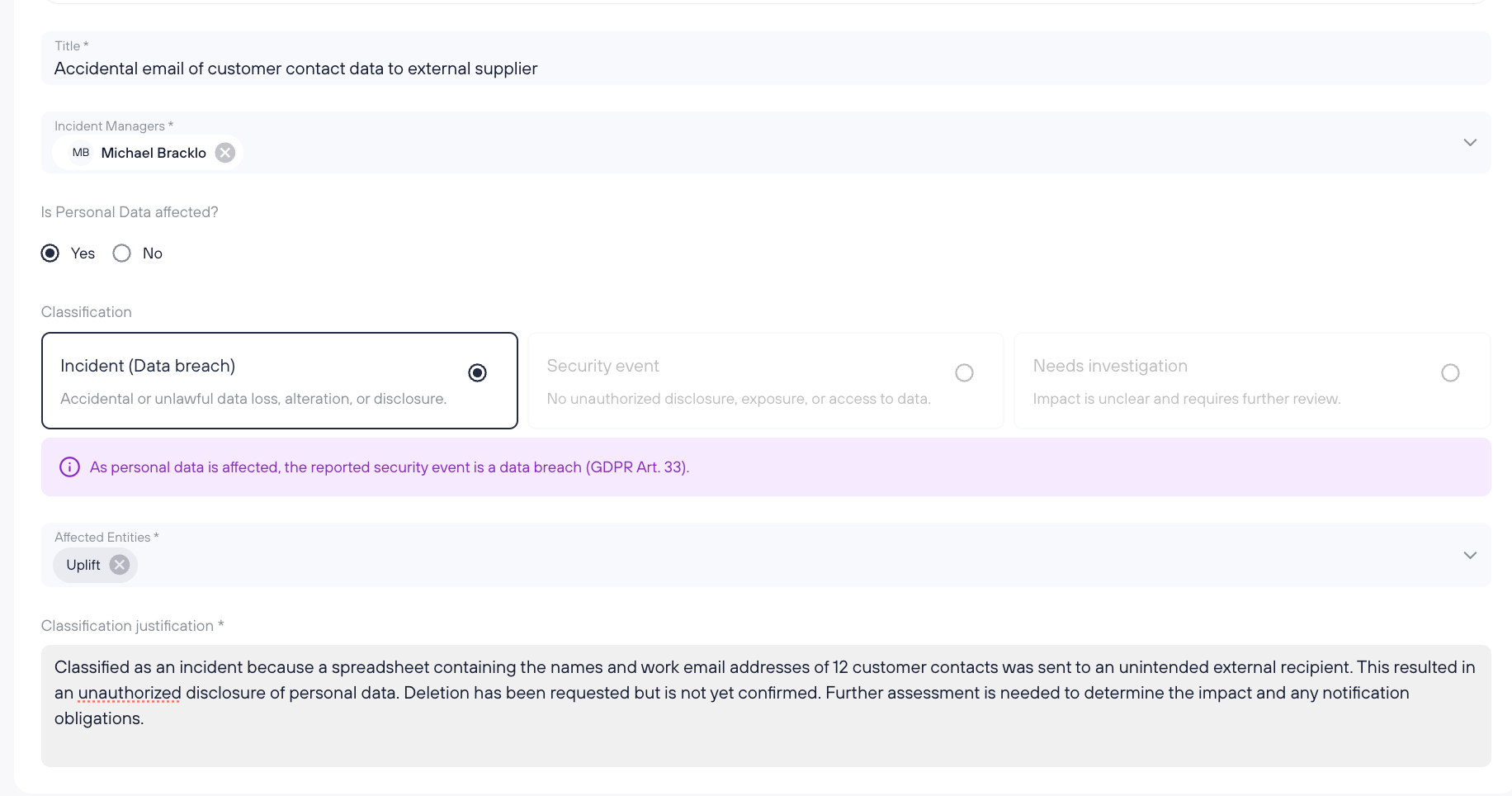
Incidents involving personal data
If personal data is affected, the record follows the Incident path. The label shown in Kertos depends on your company's framework setup:
Data breach for companies using GDPR only
Incident (Data breach) for companies using ISO 27001, or ISO 27001 together with GDPR
This label does not create a separate record. It shows that the Incident also involves personal data.
When the Incident Manager confirms an Incident involving personal data, the responsible DPO receives a task. This also applies when Kertos acts as your company's external DPO.
What the reporter can see
Reporters can view their own reports and follow their status. Their report view shows the submitted information; internal assessment notes, classification justifications, root-cause information, and other internal Incident details are not shown.
Manage a confirmed Incident
Open the Incident you want to manage in Incidents. You can use its status to find it. The original Event Report and attachments remain available within the record.
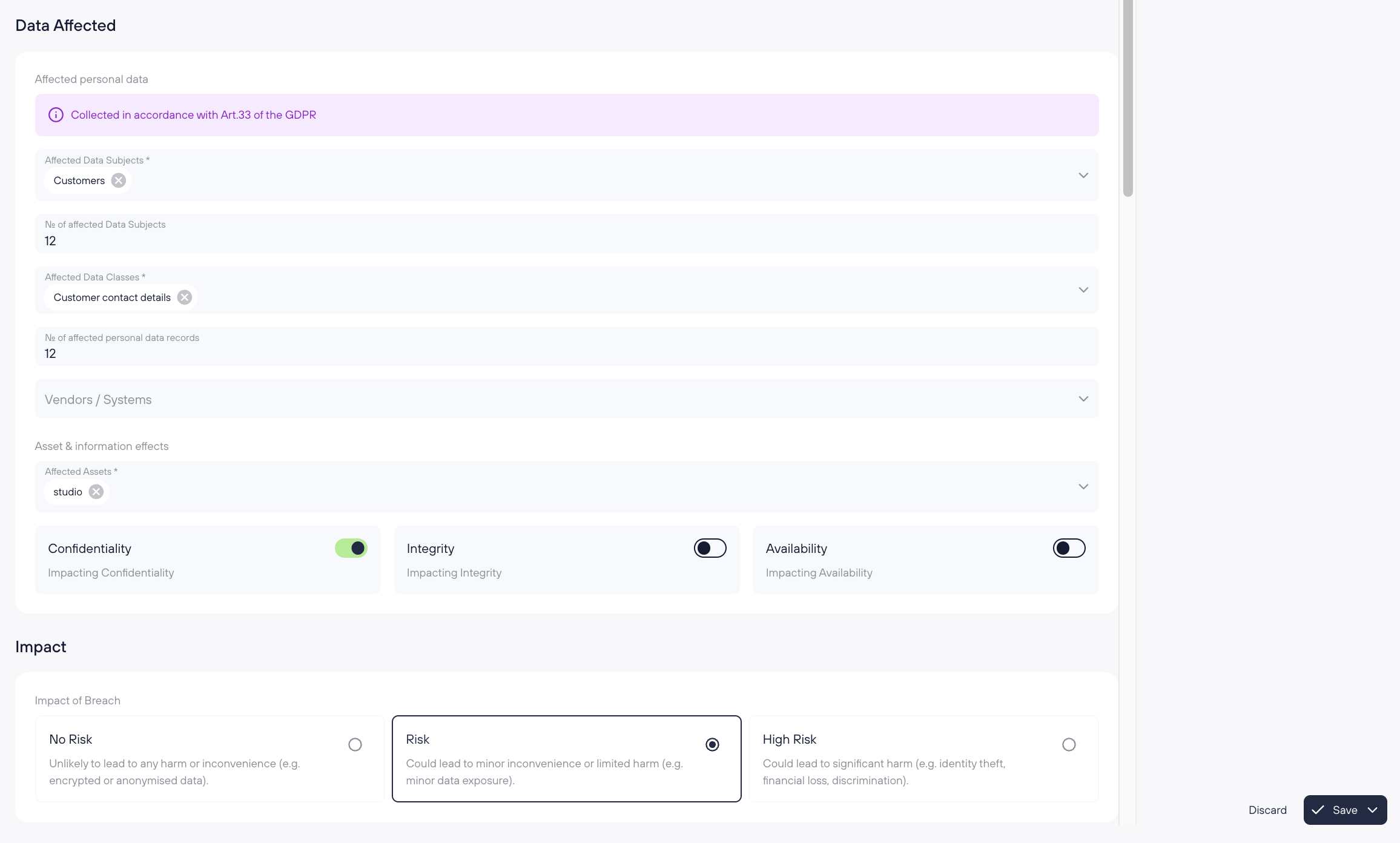
Complete the Incident information
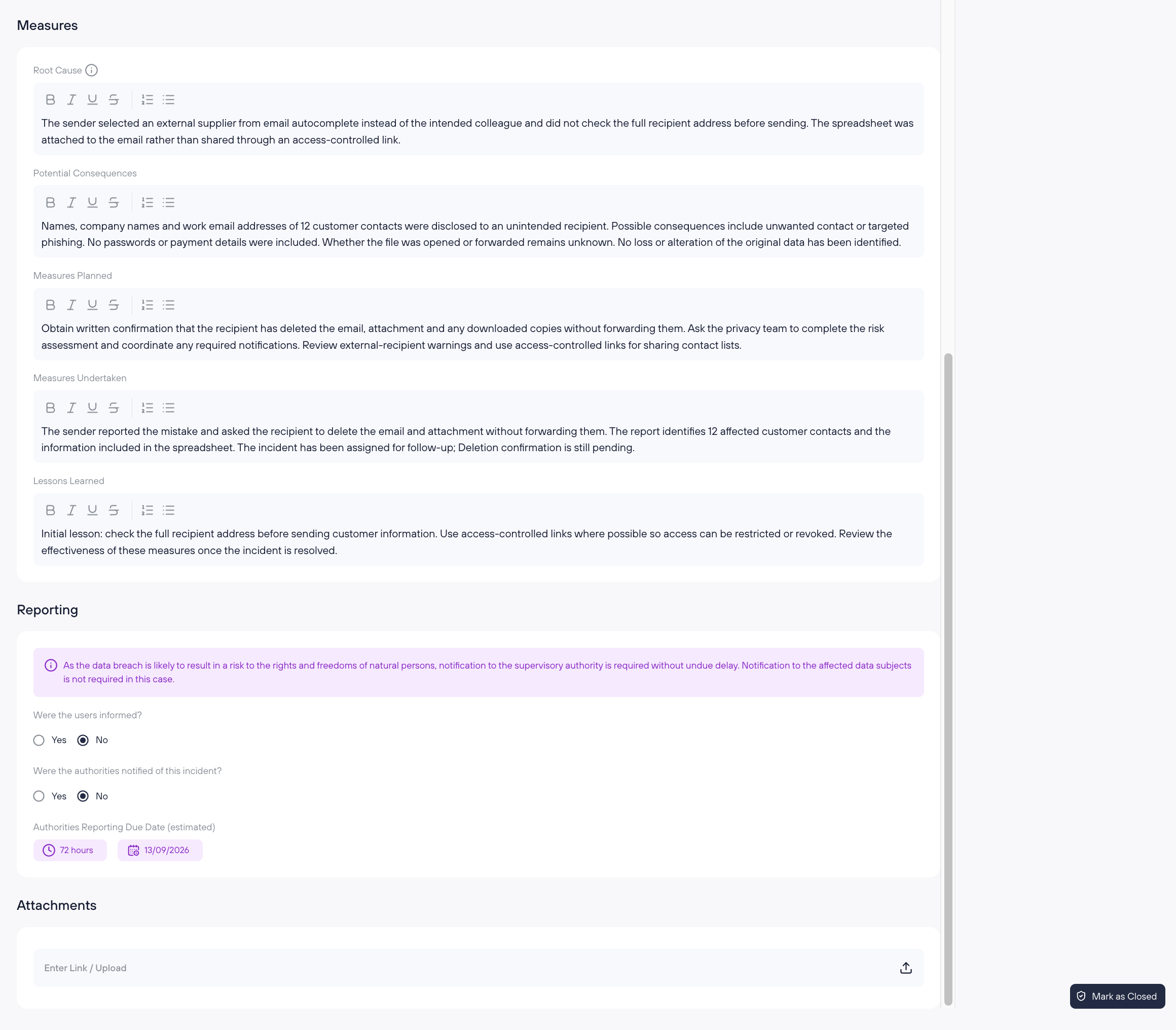
Within the Incident record, you can document the assessment and response. Depending on the Incident and the features enabled for your company, this includes:
When the Incident occurred and was detected
Affected legal entities, assets, and information
Linked systems in Vendors / Systems
Whether personal data was affected
The impact on confidentiality, integrity, and availability
Root cause and possible consequences
Measures already taken or still planned
Whether authorities or affected people have been notified
Supporting attachments
Save work without closing the Incident
Select Save to keep your current work and leave the Incident open. Fields marked as required must be complete before Kertos can save. You can add optional details later.
If required information is missing, Kertos identifies the information you need to complete.
Record notifications
In the Incident record, document whether authorities have been notified and, where applicable, whether affected people have been informed.
Recording this information in Kertos does not send a notification to an authority or to affected people. Follow your organization's reporting process to make any required external notification.
For personal data breaches, the controller must generally notify the competent supervisory authority without undue delay and, where feasible, within 72 hours after becoming aware of the breach, unless the breach is unlikely to pose a risk to people's rights and freedoms. See Article 33 GDPR and follow the advice of your privacy or legal team for the specific case.
Close an Incident
When the assessment and response are complete:
Review the Incident information.
Complete the required fields. Saving and closing require the same information.
Choose the action to close the Incident.
The Incident moves to Closed. Automated tasks created for the report are marked as done.
Reopen a closed Incident
Reopen an Incident if new information appears or more work is required.
Set the Status filter to Closed and open the Incident.
Choose the action to reopen the Incident.
The Incident returns to Open and can be edited again. Existing information remains on the record.
Change a saved classification
An Incident Manager or admin can change a saved record between the Incident and Security event paths when later findings change the assessment. Reopen a Closed record before changing it. Changing a final classification requires a new classification justification.
Changing an Incident to a Security event removes the Incident-specific and data-breach-specific information from the record. Kertos displays a warning and asks for confirmation before saving this change.
You cannot classify a record as a Security event while it is marked as affecting personal data. Select Save to keep the reclassified Security event open. Close it explicitly when no further handling is needed.
Frequently asked questions
Who can assess an Event Report?
Incident Managers and admins can access the assessment. Incident Managers remain the main owners for routing and task handling.
Does opening a report start the investigation?
No. Simply opening or reading a report does not change its status.
Is Needs investigation a classification?
No. It is a temporary action that moves the report to Under Investigation until a final decision is made.
Is a Data breach a separate third classification?
No. It is an Incident involving personal data. Kertos adjusts the visible label to match the frameworks used by your company.
Can I save an incomplete Incident?
You can leave optional details for later, but all required fields must be complete before saving. Select Save to keep your work without closing the Incident. Saving and closing require the same information.
Can I edit a closed Incident?
You must reopen it first. Reopening keeps the existing information and returns the Incident to Open.
Does Kertos notify the authority for us?
No. Recording notification information does not send a notification to an authority. Follow your organization's reporting process.
What happens if I change an Incident to a Security event?
Its Incident-specific information is removed after you confirm the warning. You can then save it as an open Security event or close it explicitly.