Commenting on documents
Last updated: August 26, 2026
Summary
Add comments directly on any section of a document in Kertos. Highlight the text you want to discuss, leave a comment, tag colleagues, and resolve threads once they're handled. all inside the document, without exporting it or chasing feedback elsewhere.
Problem statement
Reviewing a document used to mean collecting feedback across Slack, email, and calls. There was no way to comment on a specific part of a document inside Kertos, so it was hard to see which section a remark referred to, who raised it, and whether it was ever addressed. The discussion lived outside the tool, and outside the audit trail.
Overview
Commenting lets everyone involved in a document, owners, reviewers, and approvers discuss it in place. A comment attaches to the exact section you highlight and lives in a comments panel next to the document. You can reply in threads, tag colleagues who are then notified by email, and mark comments as resolved once they're done. Commenting works on both draft and active documents.
Key features
Inline comments — attach a comment to a specific highlighted section, so it's always clear what the discussion is about.
@mentions — tag a colleague in a comment and they're notified by email.
Threaded replies — keep a discussion together in one thread instead of scattered messages.
Resolve — mark a comment as done when it's handled. Resolved threads stay available under "Show resolved."
Delete — remove a comment you no longer need.
Kept separate from version history — comment threads live in the comments panel, not in the document's version history or activity log.
Benefits
The whole review happens in one place, tied to the document instead of spread across Slack and email.
It's clear which section each comment refers to, who raised it, and whether it was resolved.
More people can take part in a review: useful for larger teams working on the same policy.
Fewer handoffs and less back-and-forth outside the tool, so reviews move faster.
How it works
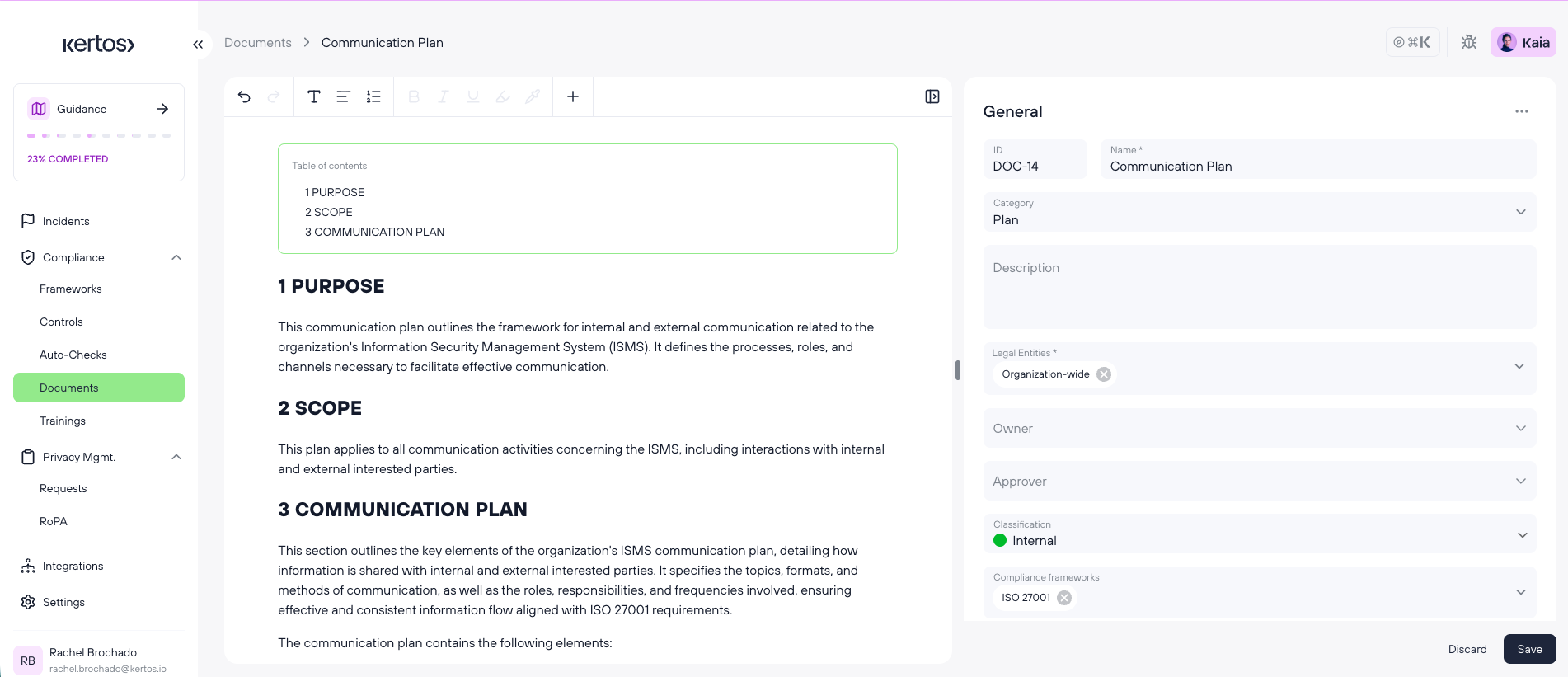
Open the document you want to review.
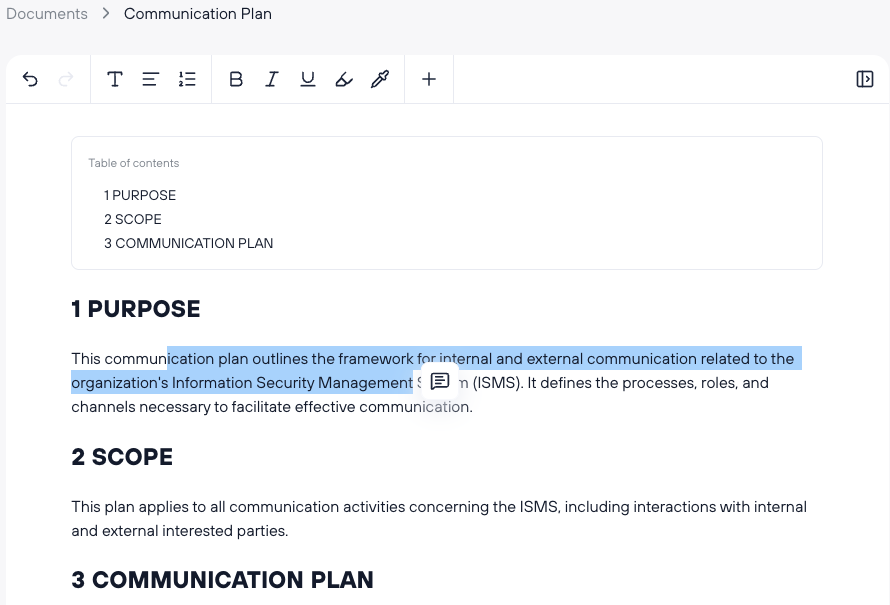
Highlight the text or section you want to comment on.
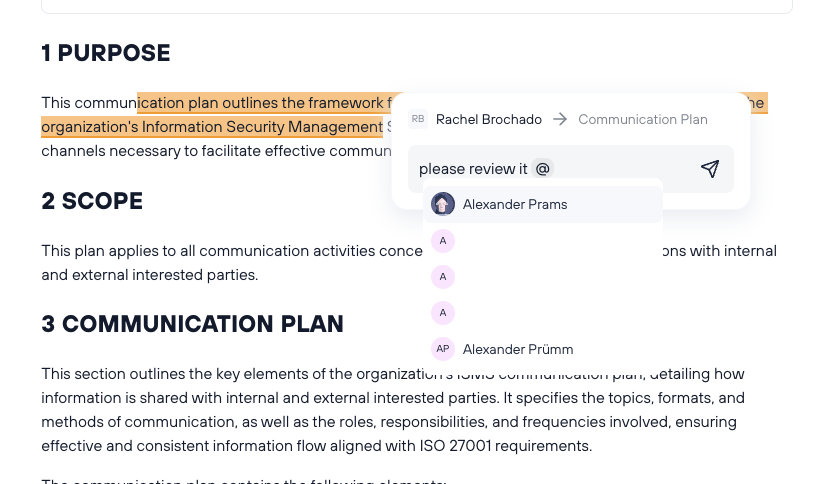
In the comment box that appears, type your comment. To involve a colleague, type
@and select their name.
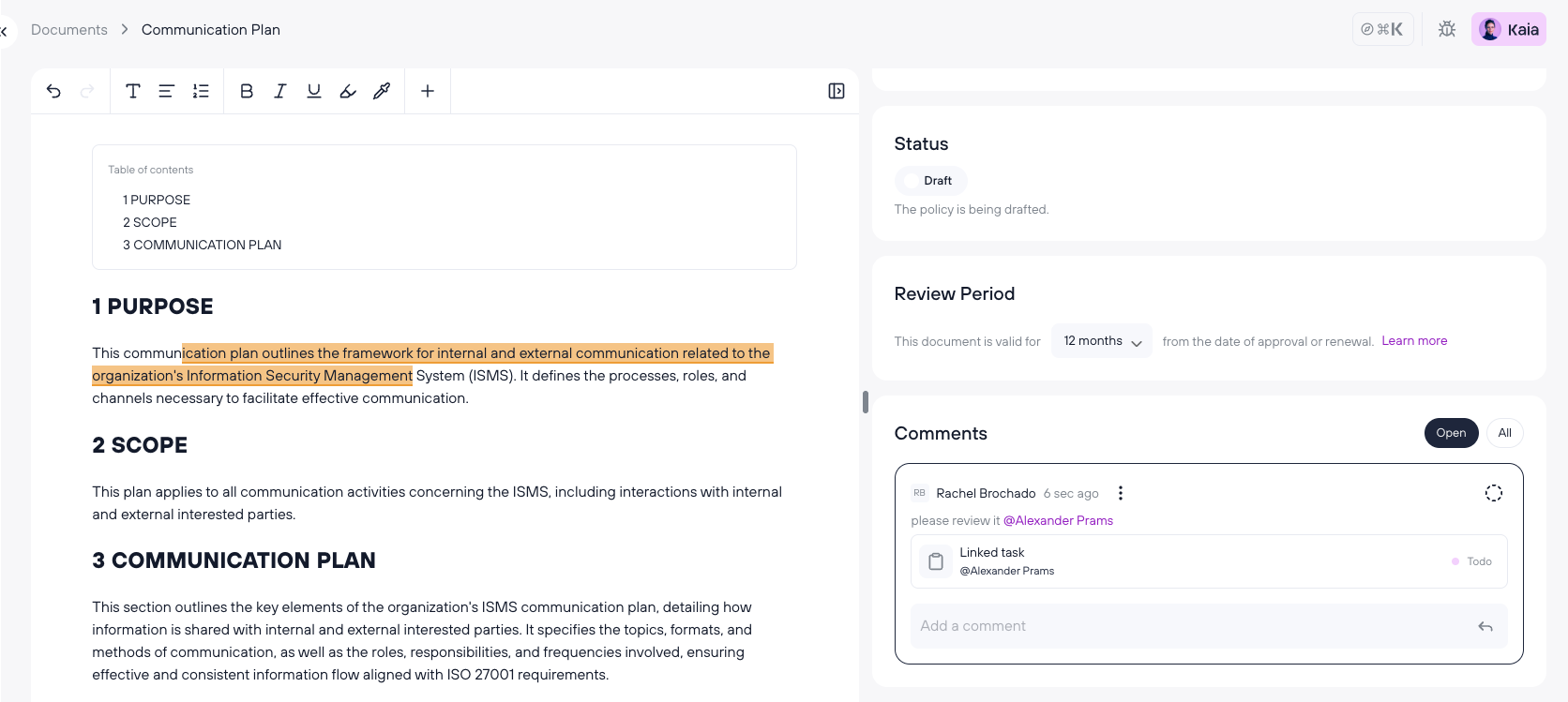
Send the comment. It appears in the comments panel on the right, linked to the section you highlighted.
Anyone you tagged receives an email notification.
Reply within the thread to keep the discussion together.
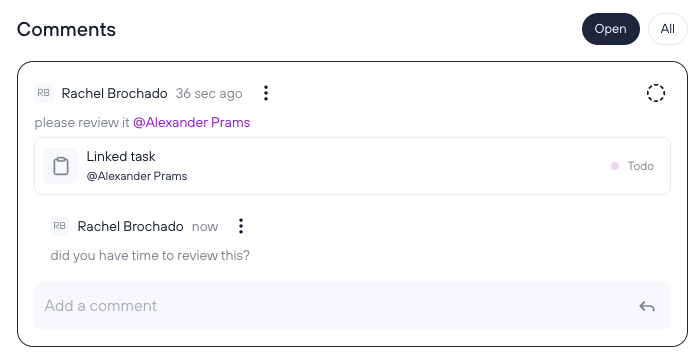
When the point is handled, mark the comment as resolved. You can find it again later under "Show resolved."
FAQs
Who can comment on a document?
Anyone with access to that document can add comments and reply to them.
Will people know when I tag them?
Yes. When you @mention someone, they receive an email notification. In-app notifications aren't part of this version.
Can I comment on any document, or only drafts?
Both. Commenting works on draft documents and on active, approved documents.
Can I approve a document that still has open comments?
Yes. Open comments don't block approval.
What happens to a comment after I resolve it?
It's kept, not deleted. Resolved threads are hidden from the main view and remain available under "All"
Do comments appear in the document's version history?
No. Comment threads live in the comments panel and are separate from version history and the document activity log.
Can I delete a comment?
Yes, you can delete a comment you added.