Giving permissions to team members
Last updated: May 26, 2026
Managing permissions efficiently is essential for maintaining control over who can access and modify critical data within your organization. This article explains how to manage permissions for different objects within the Kertos platform and introduces object-level permissioning, which allows admin users to grant basic users the ability to edit information on specific pages.
Assigning Permissions
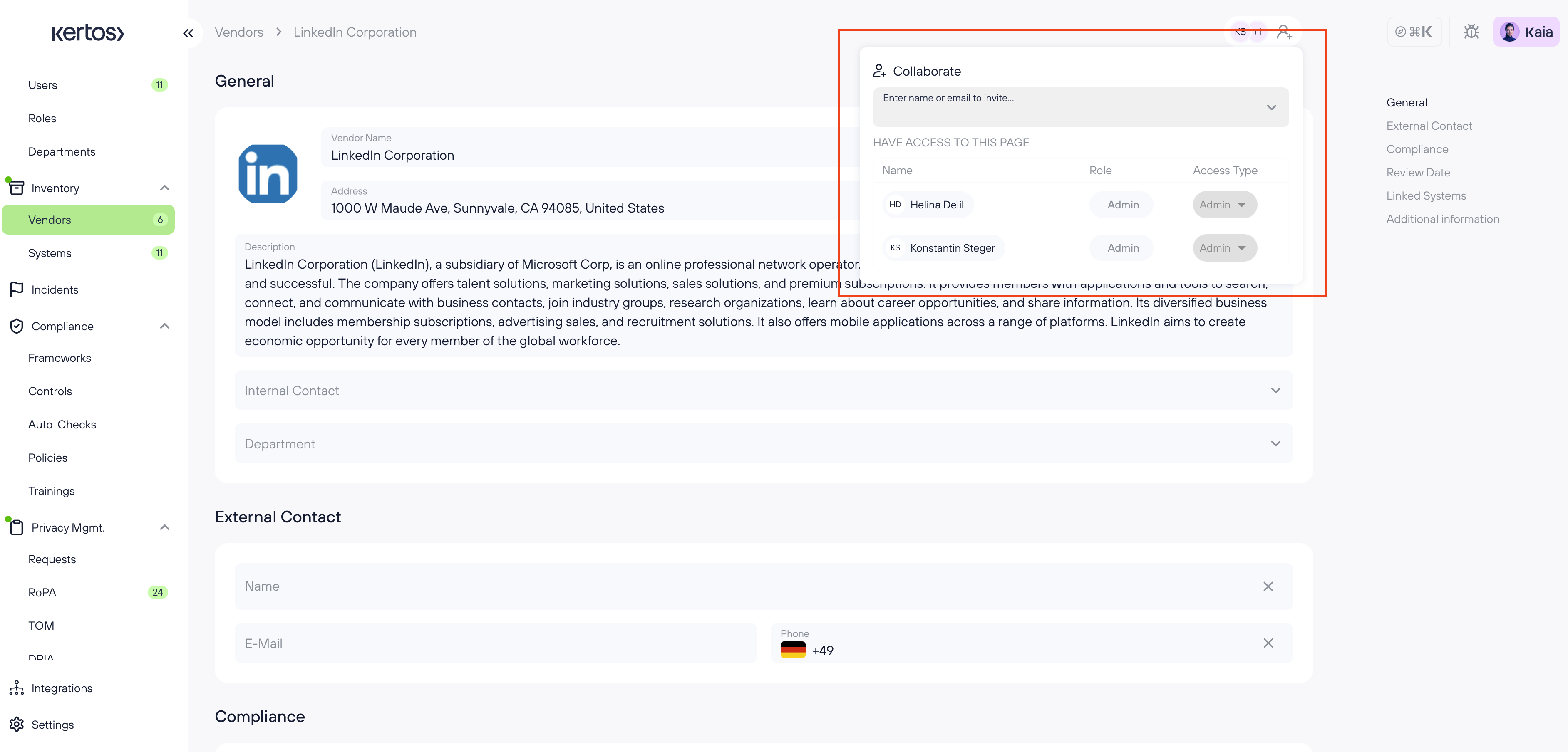
Go to a section in the navigation sidebar such as Vendors and select the specific vendor (e.g., LinkedIn Corporation).
Click the people icon (showing collaborator initials) in the top right area of the vendor's page to open the Collaborate-Panel.
In the "Enter name or email to invite" field, type the name or email of the user you want to assign permissions to.
Select the user from the dropdown list.
Below, under "Have access to this page", you will see a list of users with their current role and access type. Use the dropdown next to the user's name to adjust their permission level (e.g., Admin).
If needed, revoke permissions by selecting "Revoke" from the same dropdown.
Assigning Permissions While Creating Tasks
In Kertos, you can assign permissions to users while creating tasks directly on object-specific pages, like Vendors.
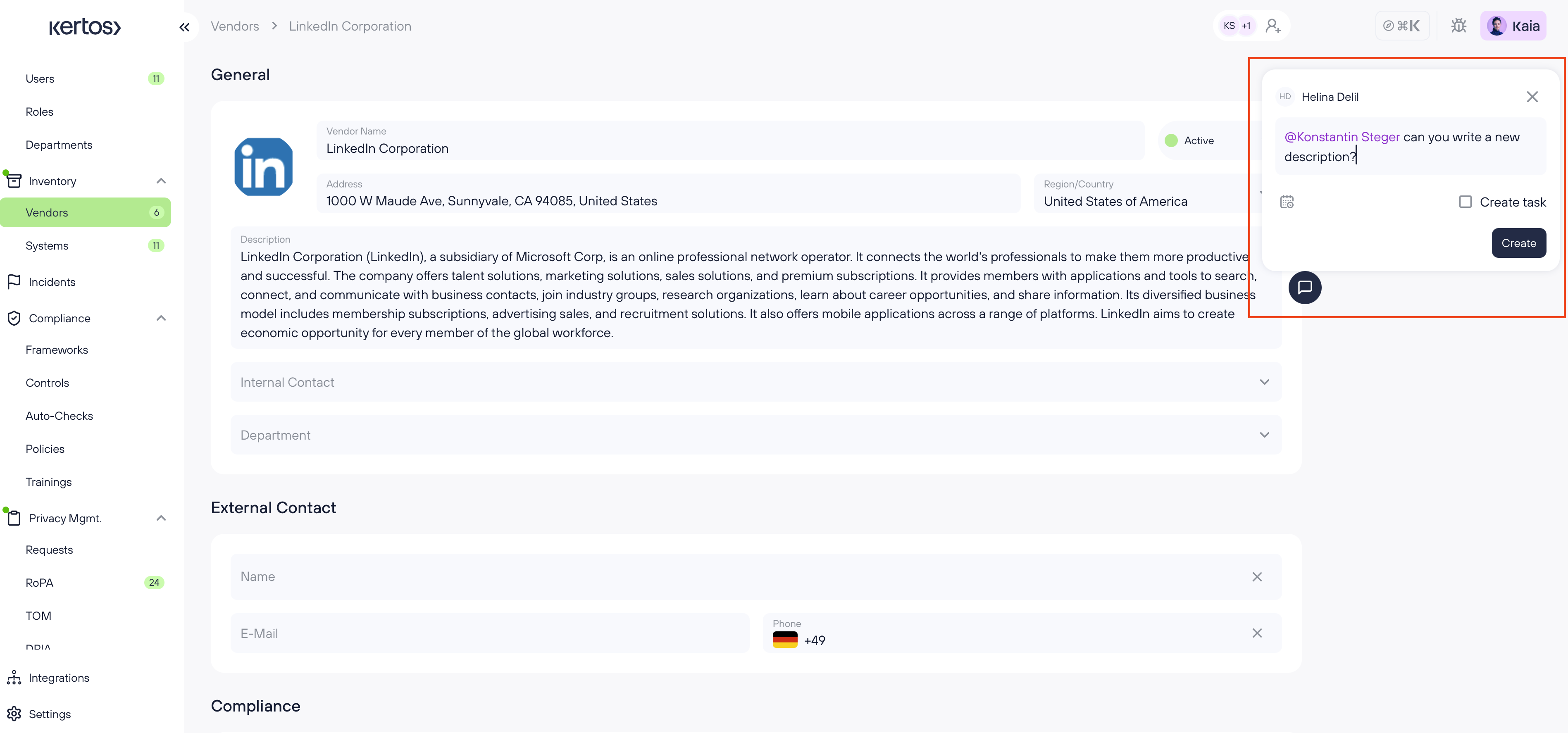
Navigate to the vendor's page (e.g., LinkedIn Corporation).
Click the comment icon at the bottom right of the page to open the comment field.
Tag a user by typing "@" followed by their name (e.g., "@Konstantin Steger") and write your message or request.
Check the "Create task" checkbox and click "Create".
By creating the task and tagging the user, permissions to view and edit the page are automatically assigned to the tagged user. This simplifies task assignment and permission management, ensuring that users can only access the information they are responsible for.