Task Management explained
Last updated: April 28, 2026
Efficient task management is crucial for efficient privacy and compliance operations. This article explains how to create tasks, set due dates, assign them to team members, and monitor progress using the Kertos task management feature.
Task Overview
To get an overview of all Tasks your team is currently working on, go to Tasks in the navigation sidebar. There, you see a list of all Tasks your team is currently involved in.
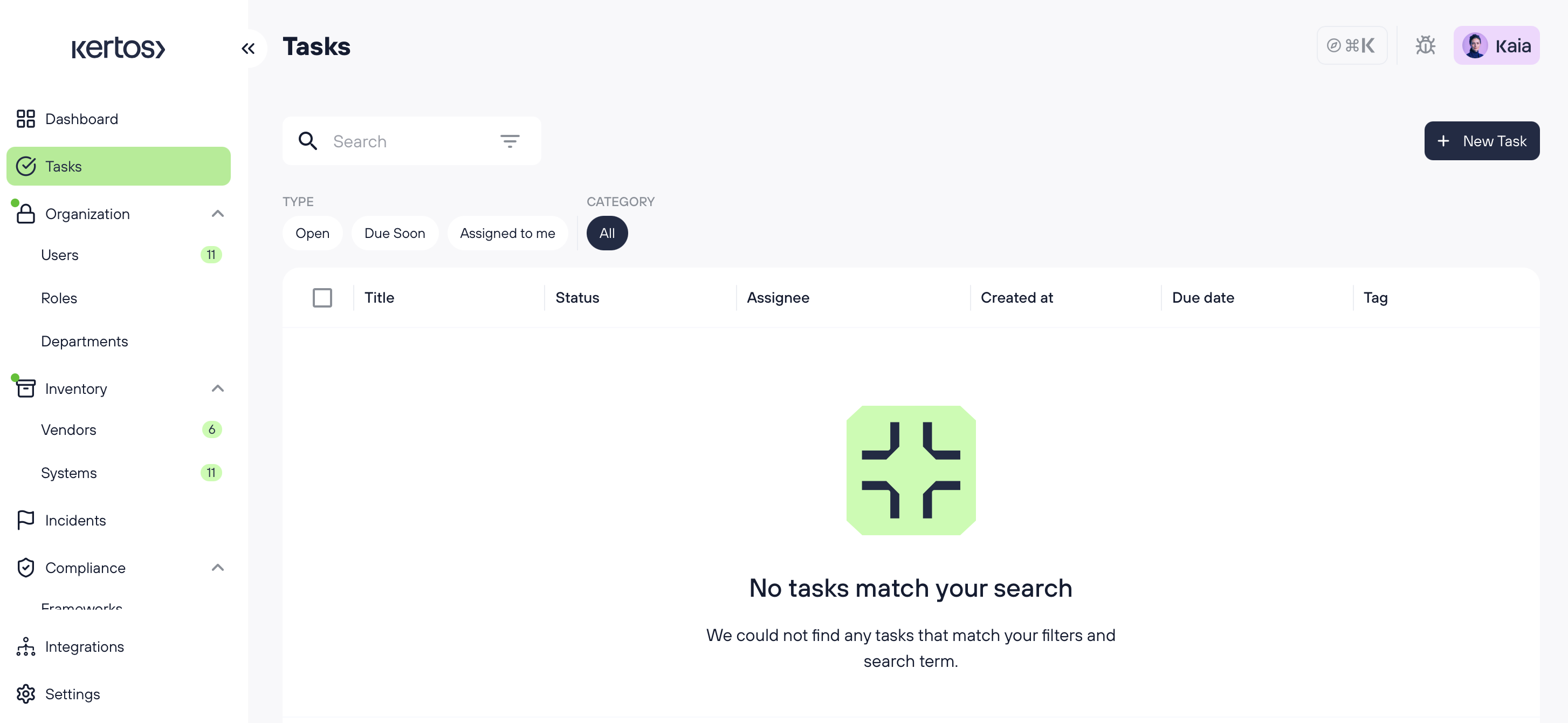
On the overview, you can filter tasks by Type and Category:
Type filters: Open, Due Soon, Assigned to me
Category filter: All (and further category options)
Use the Search bar at the top to find specific tasks by keyword. Additional filter options are available via the filter icon next to the search bar.
To create a new task, click the + New Task button in the top right corner.
Task Detail View
You can click into a task on the Task overview page to open its detail view.
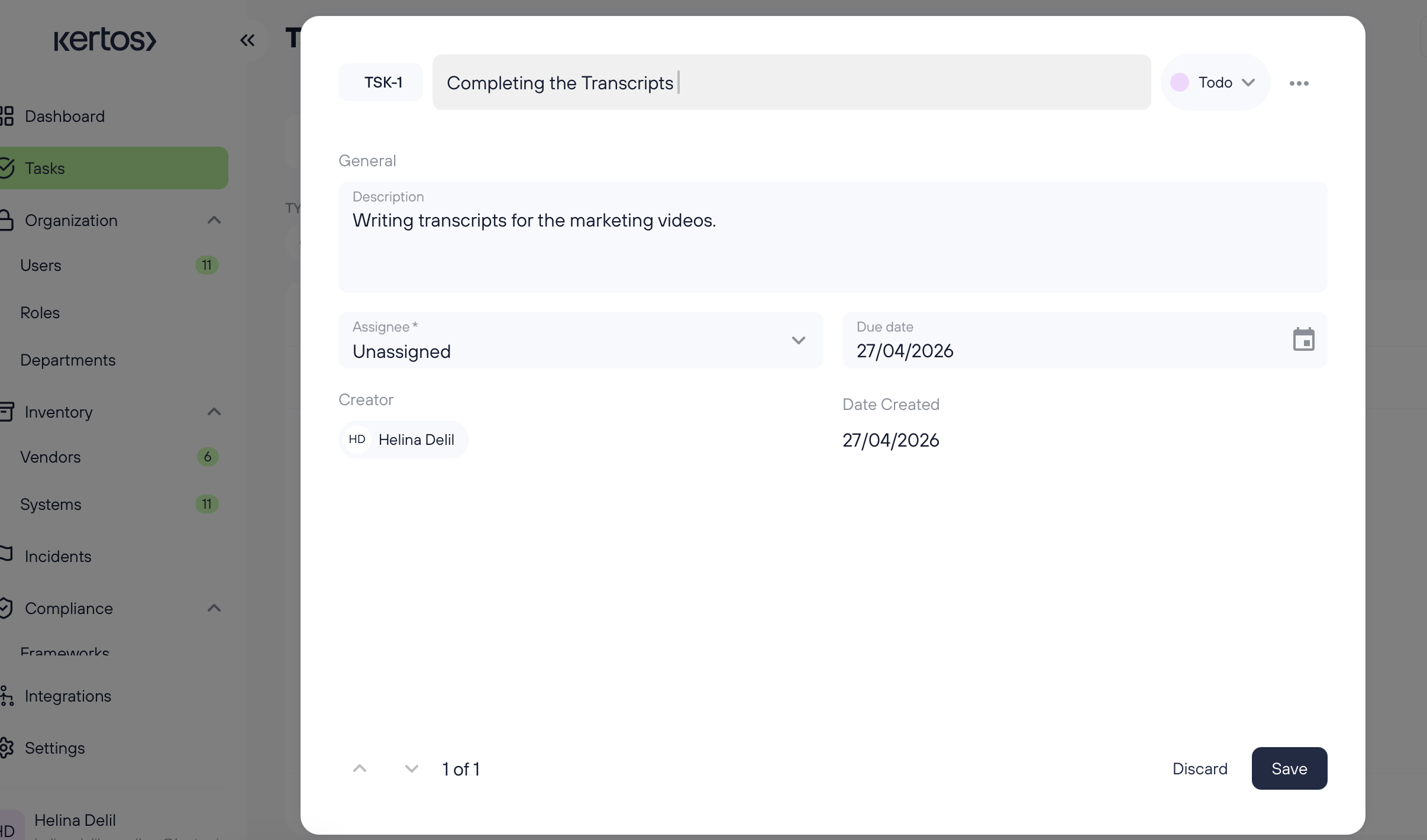
The Task detail view gives you the following information:
Task ID: Kertos automatically gives every Task a unique ID that you can see in the top left corner of the detail view (e.g. TSK-1).
Task Title: The name of the task, displayed next to its ID. You can edit the title directly in the detail view.
Status: In the top right area of the detail view, you can see and change the current status of the task (e.g. Todo, In Progress, Done).
Options: Click on the three-dot icon (⋯) in the top right corner to access additional options such as deleting the task or copying the link to it.
Description: Further information about the task (e.g. "Writing transcripts for the marketing videos.").
Assignee: Who is responsible for completing the task. You can assign a team member using the dropdown.
Due Date: The deadline of the task, selectable via a date picker.
Creator: Who created the task.
Date Created: When the task was created.
You can navigate between tasks using the arrow buttons at the bottom left of the detail view, which also shows your current position (e.g. "1 of 1"). Use Discard to cancel changes or Save to confirm them.
Integrating with your ticketing tools
Kertos integrates seamlessly with dozens of task management & ticketing tools. Check out this article for Jira to learn how to sync tasks, owners, status, and more in real time from Kertos to streamline your collaborative compliance operations.