Setting up Task Notifications
Last updated: April 28, 2026
To let your team members know that there are topics for them to look into, they can receive a daily update email with all tasks that have been newly assigned to them or that are soon to reach their assigned deadline. If no new tasks are assigned and no tasks are approaching their deadline, no email notification is sent.
Enabling Task Notifications
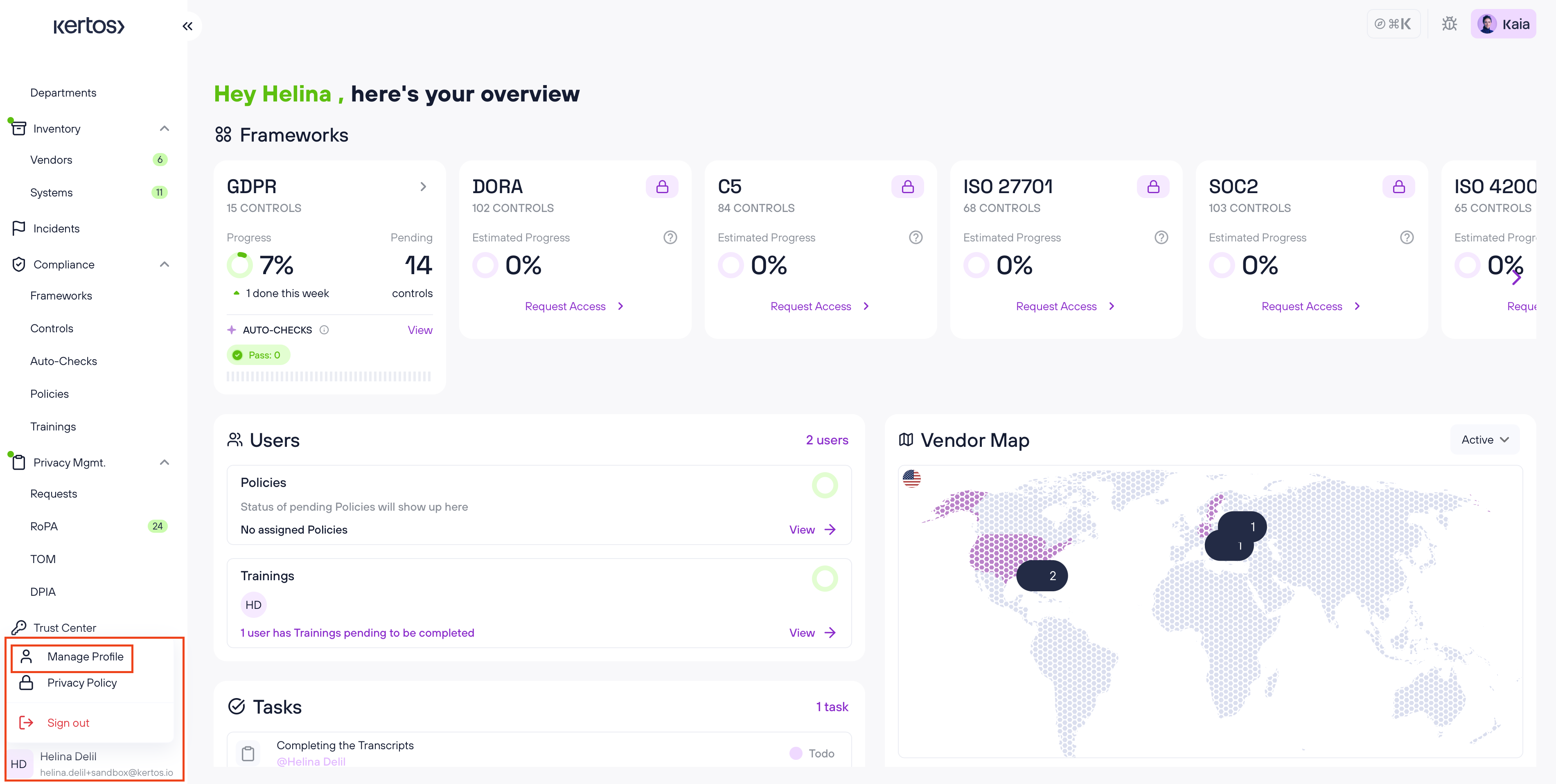
Click on your profile name in the bottom left corner of the navigation sidebar.
Click on “Manage profile”.
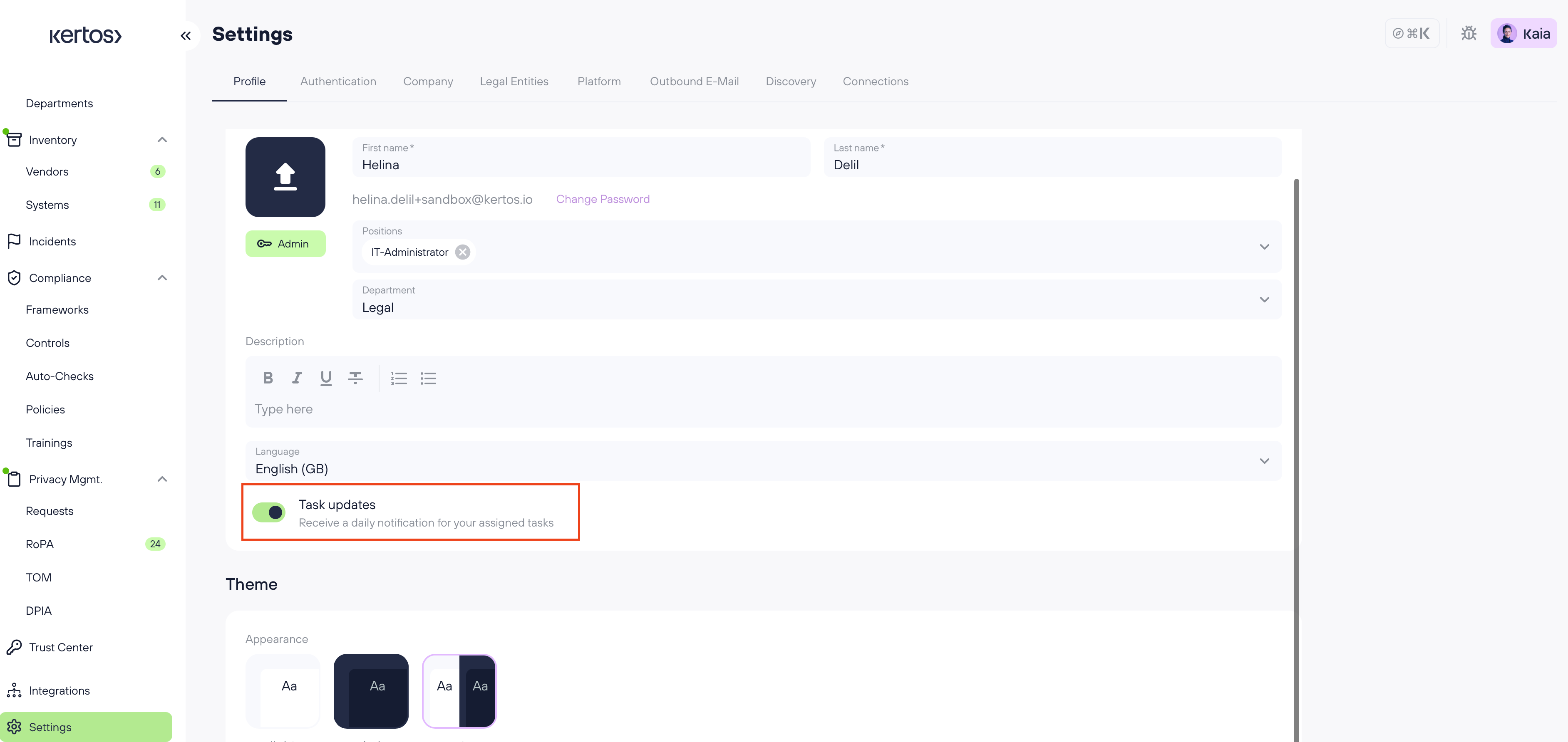
You will be taken to Settings > Profile. Scroll down to the Task updates toggle.
Activate the toggle labelled "Task updates – Receive a daily notification for your assigned tasks".
Save your changes.
Defining when users receive notifications
Admin users can define for their organization when a task is considered "close to its due date" and when reminders should be sent out to the responsible individuals. The default value is 7 days before a task's due date.
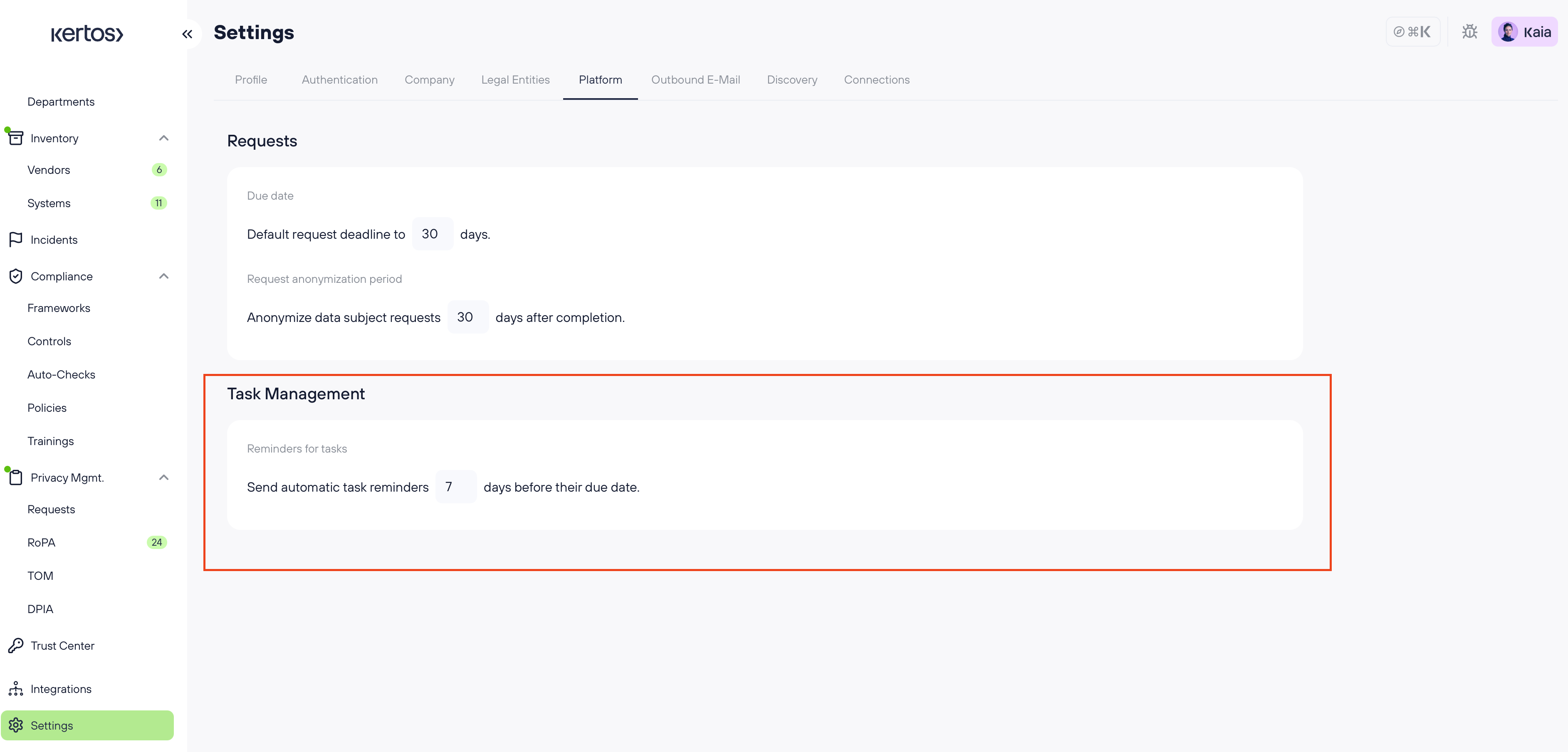
Go to Settings.
Navigate to the Platform tab.
Scroll down to the Task Management section.
Set the desired value for "Send automatic task reminders X days before their due date".
Save your changes.