Auditor View
Last updated: June 29, 2026
Overview
Auditor View gives external auditors read-only access to your compliance records and evidence in Kertos. Instead of granting an auditor full admin access (which also lets them change your data), you can invite them as an Auditor: they can review everything relevant to an audit, but they cannot create, edit, or delete anything.
Use this whenever an external auditor or information security assessor needs to inspect your evidence during an audit.
Inviting an auditor
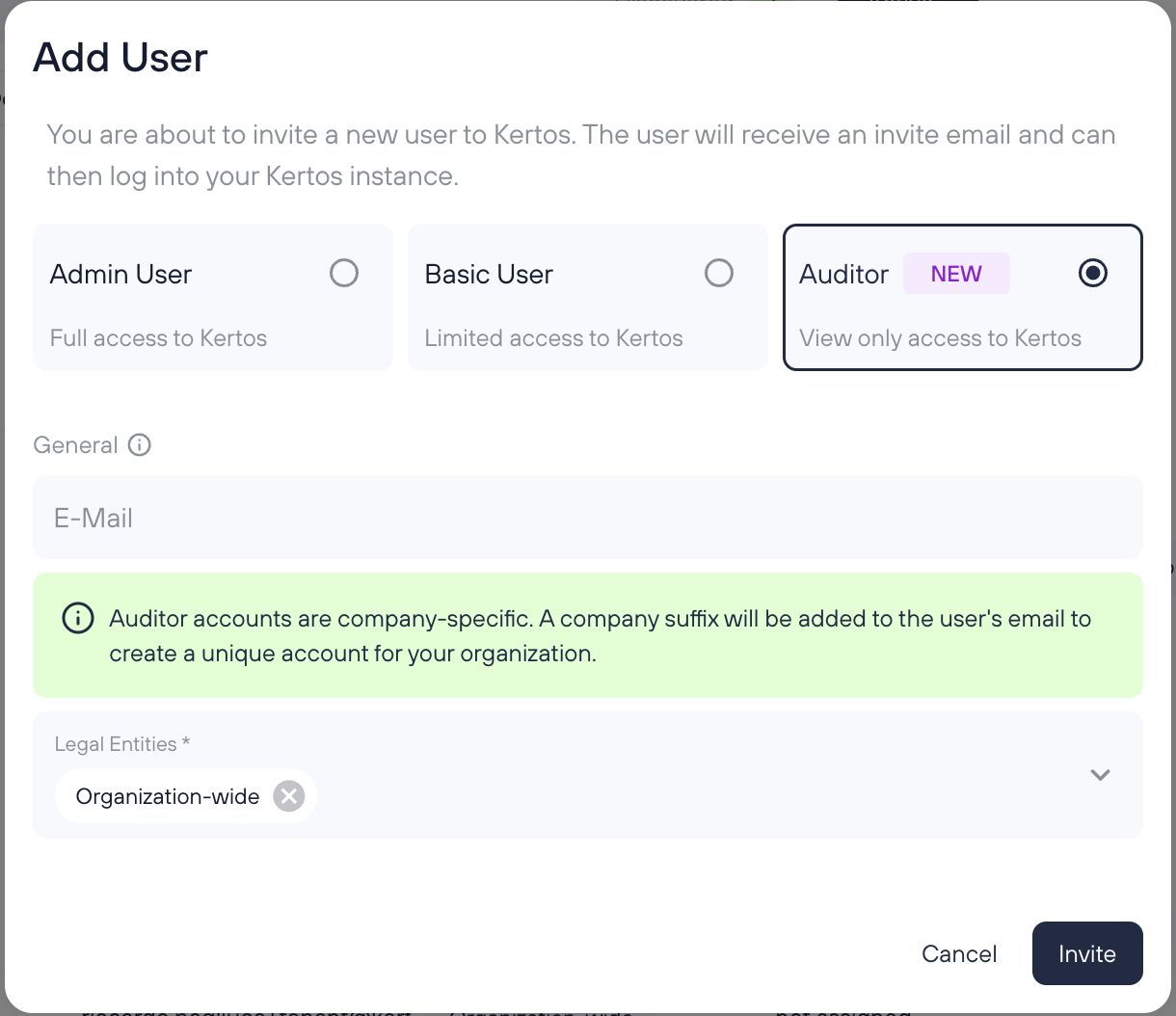
Open the Users page from the sidebar.
Click Add user.
In the role selection, choose the Auditor tile.
Enter the auditor's email address.
Send the invitation.
The auditor receives an email invitation. When they accept it, they set up their account and land directly in the read-only Auditor experience.
If your auditor already uses Kertos at another company
Auditor accounts are company-specific, and every email on the Kertos platform must be unique. If the same auditor reviews several companies, Kertos automatically creates a company-specific alias for their account by adding a suffix to their email, for example jane+yourcompany@auditfirm.com.
This matters at login: the auditor signs in with the aliased email shown on their invitation acceptance page, not their plain address. The acceptance page highlights this address so it is easy to spot. Each company alias is a separate account with access only to that company's data.
What an auditor can see
Auditors get the same broad visibility as an admin, in read-only mode. They can review:
Inventory: Systems, Vendors, Assets, AI Inventory
Compliance: Frameworks, Controls, Documents and Auto-Checks
Privacy management: Trainings, Records of Processing Activities (RoPA), TOMs, DPIAs, Data Subject Requests, Incidents
Risk: Risk register and Business Impact Analysis (BIA)
Organization: Departments, Users
Trust Center and Integrations overview
Tasks
Policies and Trainings open in the full administrative view, so auditors see the complete record rather than the end-user "my assignments" view.
In Settings, auditors can view the Profile, Company, and Legal Entities tabs.
What an auditor cannot do or see
No write access. Auditors cannot create, edit, or delete records anywhere in the platform. The role is review-only.
They do not have access to KAIA (the Kertos AI assistant) or Guidance.
Configuration and setup areas are hidden, including the Risks, RoPA, and TOMs catalogs and Integrations configuration.
The following Settings tabs are hidden: Connections, Discovery, Outbound Email, Platform, and Authentication.
Good to know
Auditors stay out of your workflows. An auditor is never shown as an option when you assign owners, approvers, policy acceptors, training recipients, or task assignees. They also are not auto-assigned trainings or policies, so adding an auditor will not affect your assignment numbers or completion rates.
Least privilege by design. Because the auditor only ever holds view permissions, there is no risk of an auditor accidentally changing operational or compliance data during a review.
For the auditor: getting started
Open the invitation email from Kertos and click the setup link.
On the acceptance page, note the highlighted email address. This is your login for this company. If you already have a Kertos account elsewhere, this address will include a company-specific suffix.
Finish setting up your account.
You are taken to the platform in read-only mode. Use the left-hand navigation to browse the evidence and records you need to review.