Outbound E-Mail settings
Manage your Outbound E-Mail settings
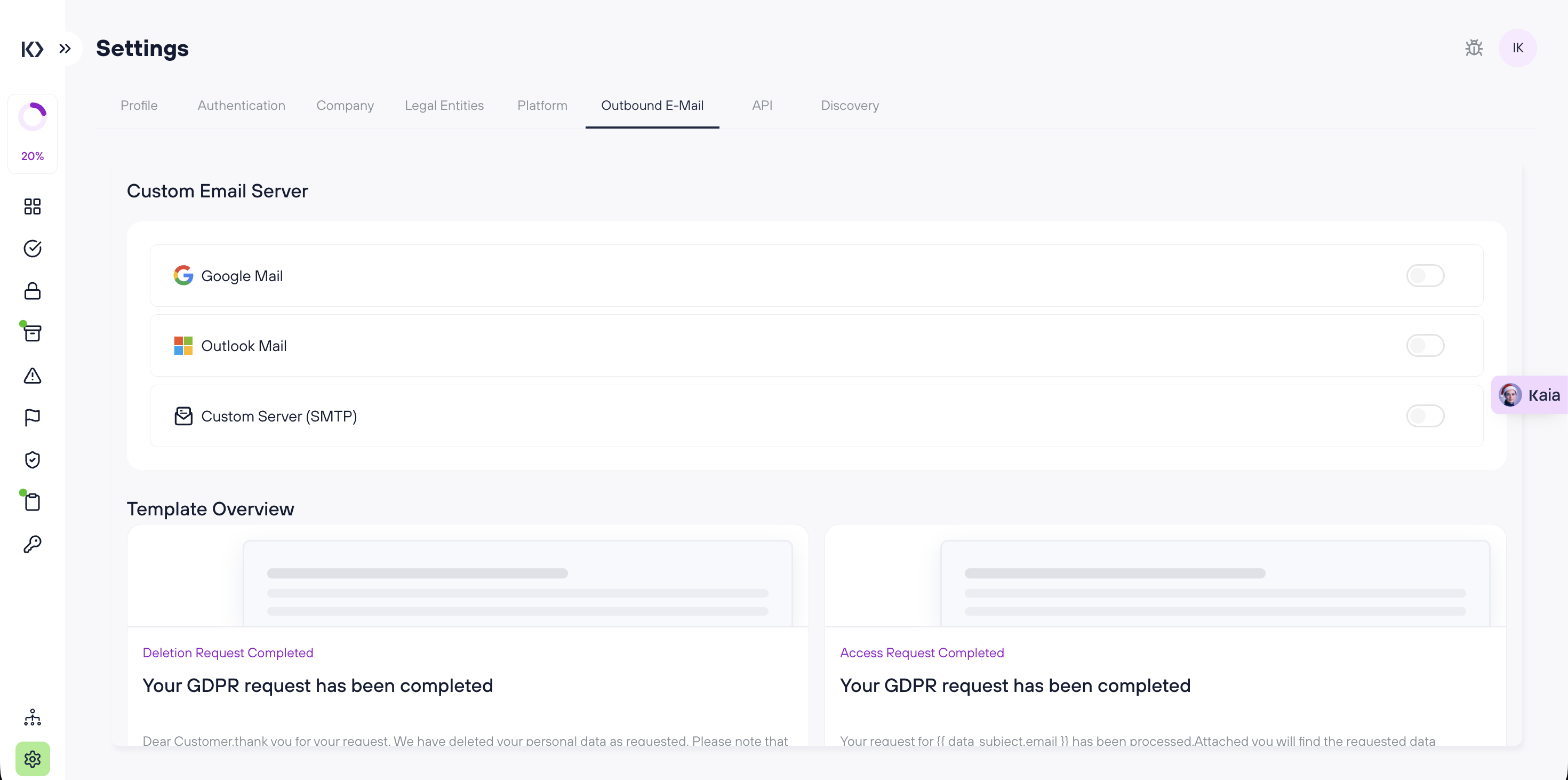
Custom Email Server
In Custom Email Server, you can choose which email provider Kertos uses to send outbound emails:
- Google Mail
- Outlook Mail
- Custom Server (SMTP)
Each option has its own toggle on the right. Enable the option you want to use for sending emails from Kertos.
Tip: Use Custom Server (SMTP) if you need to route emails through your own infrastructure or require custom mail server settings.
Template Overview
The Template Overview section shows the available email templates used by Kertos for request communications.
Each template card provides a quick preview (subject + a snippet of the message body). Click a template to open and edit it.
Edit an email template
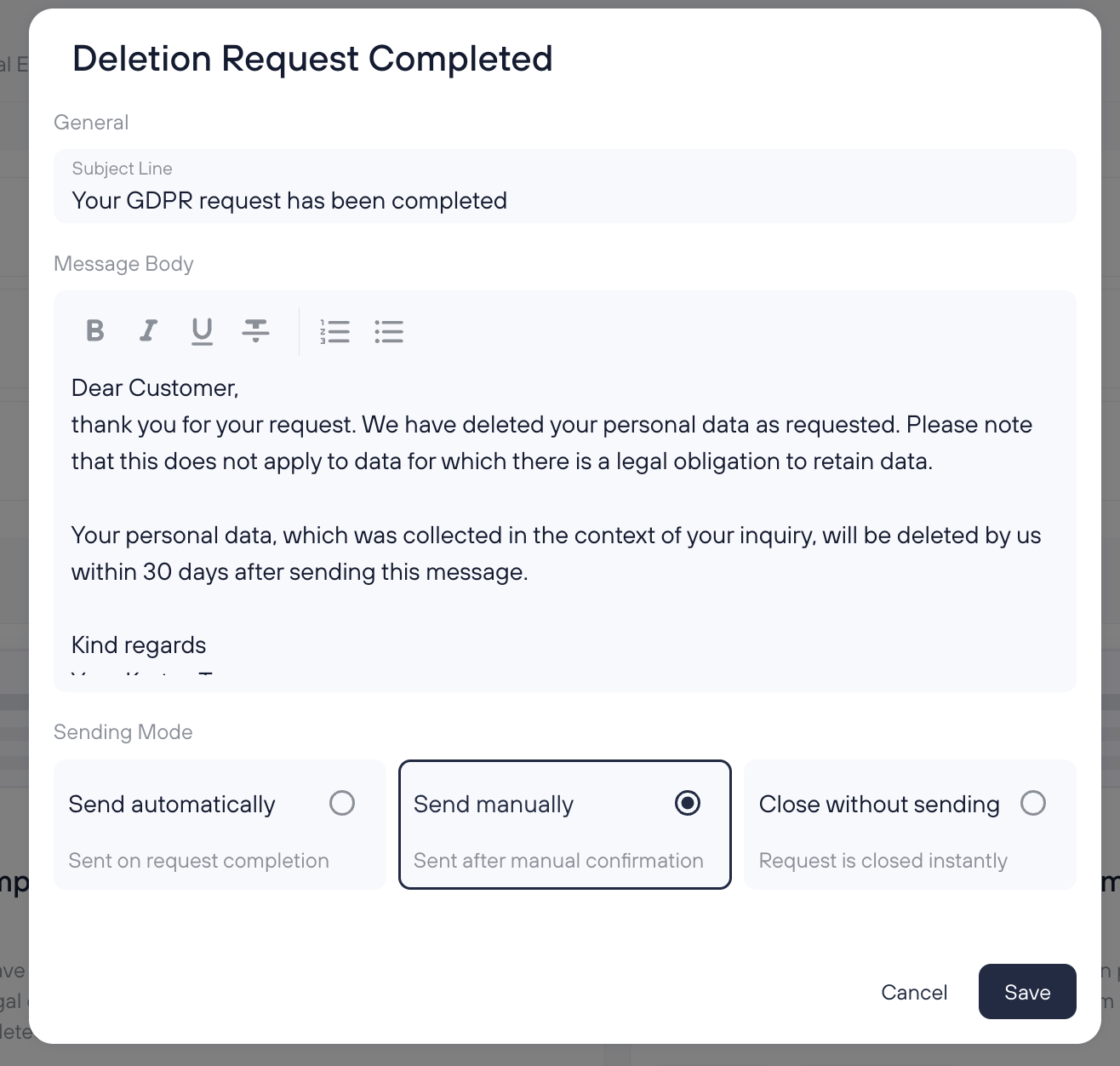
When you open a template (e.g., Deletion Request Completed), you can configure:
General
Subject Line
Edit the subject line that recipients will see in their inbox.
Message Body
Edit the email content using the rich-text editor (with basic formatting like bold/italic/underline, lists, etc.).
Sending Mode
Choose what should happen when the request reaches the relevant step (e.g., completion):
- Send automatically
The email is sent automatically (e.g., when the request is completed). - Send manually
The email is only sent after a user manually confirms sending. - Close without sending
No email is sent; the request is closed instantly.
Click Save to apply your changes, or Cancel to discard them.
Frequently Asked Questions (FAQs)
Do I have to use Google or Outlook?
No. You can also use Custom Server (SMTP) if you prefer to send emails through your own mail server.
Where do these templates get used?
They’re used for request-related communication (for example, when a request is completed).
What’s the difference between “Send automatically” and “Send manually”?
Automatic sends the email as soon as the triggering event happens (e.g., completion). Manual requires a confirmation step before sending.