Profile settings
Manage your Profile settings
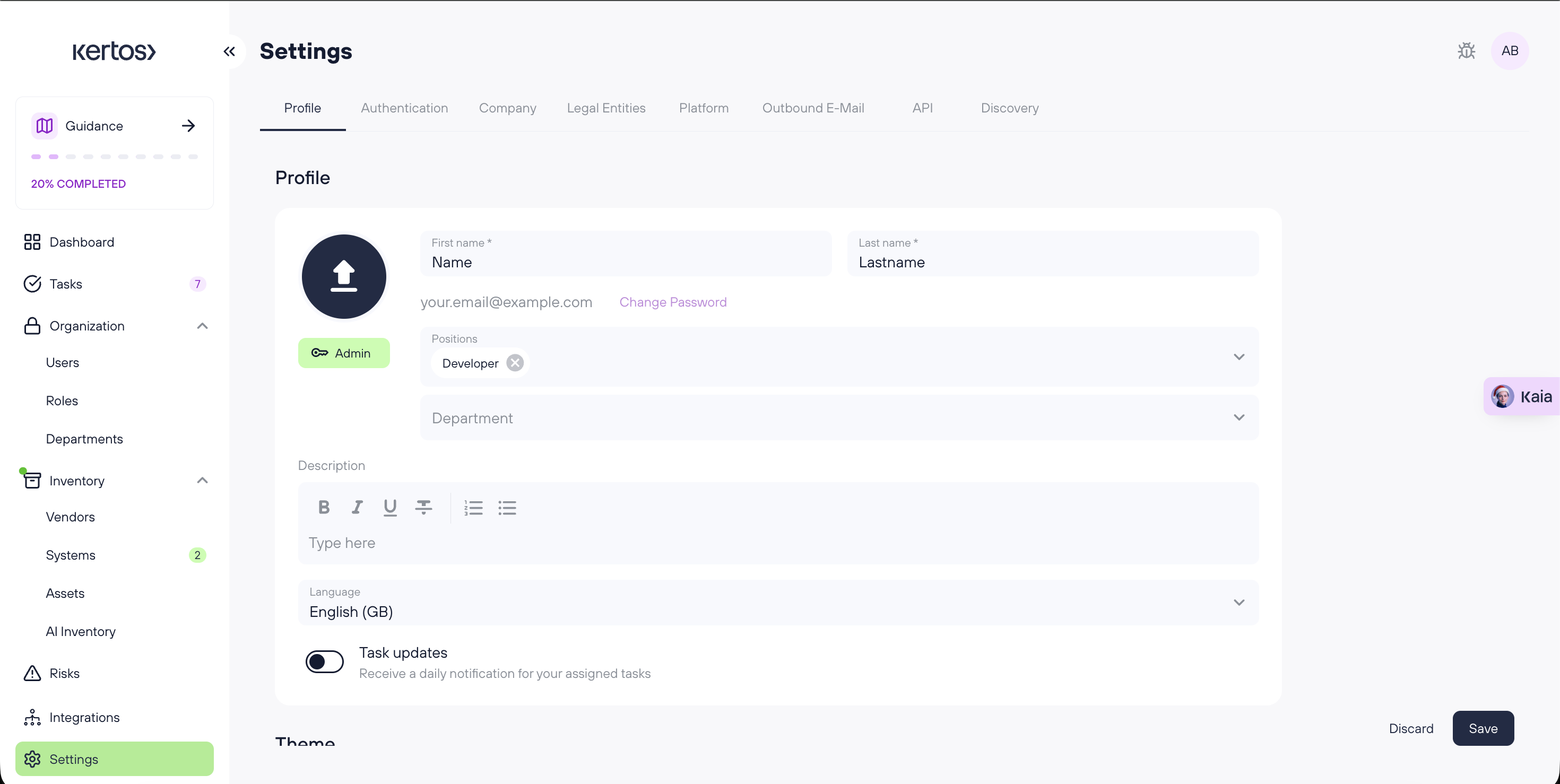
The Profile tab contains your account information and personalization settings. Changes here affect how your account appears and how Kertos behaves for you (for example, platform language, daily task emails, and theme).
Profile
First name / Last name
Update the name shown across Kertos (e.g., in your user profile and collaboration areas).
Profile picture
Upload a profile image to make your account easier to recognize.
Change password
Use the Change password link to update your login password.
Positions
Add one or more positions (job titles) to your profile.
- You can select an existing position from the list, or
- Click + Add new position to enter a custom position manually.
Department
Select your department from the existing department list.
They are managed in the Departments section. More info can be found here:
https://docs.kertos.io/en/article/adding-departments
Description
Add free-text information about your role or responsibilities (optional).
Language
Choose the language used throughout Kertos. This setting changes:
- The overall platform interface language
- The content of catalog templates (such as Policies, Risks and RoPA)
- The language of the training modules
- and more!
Task updates (toggle)
Enable to receive a daily email notification about tasks assigned to you.
Theme
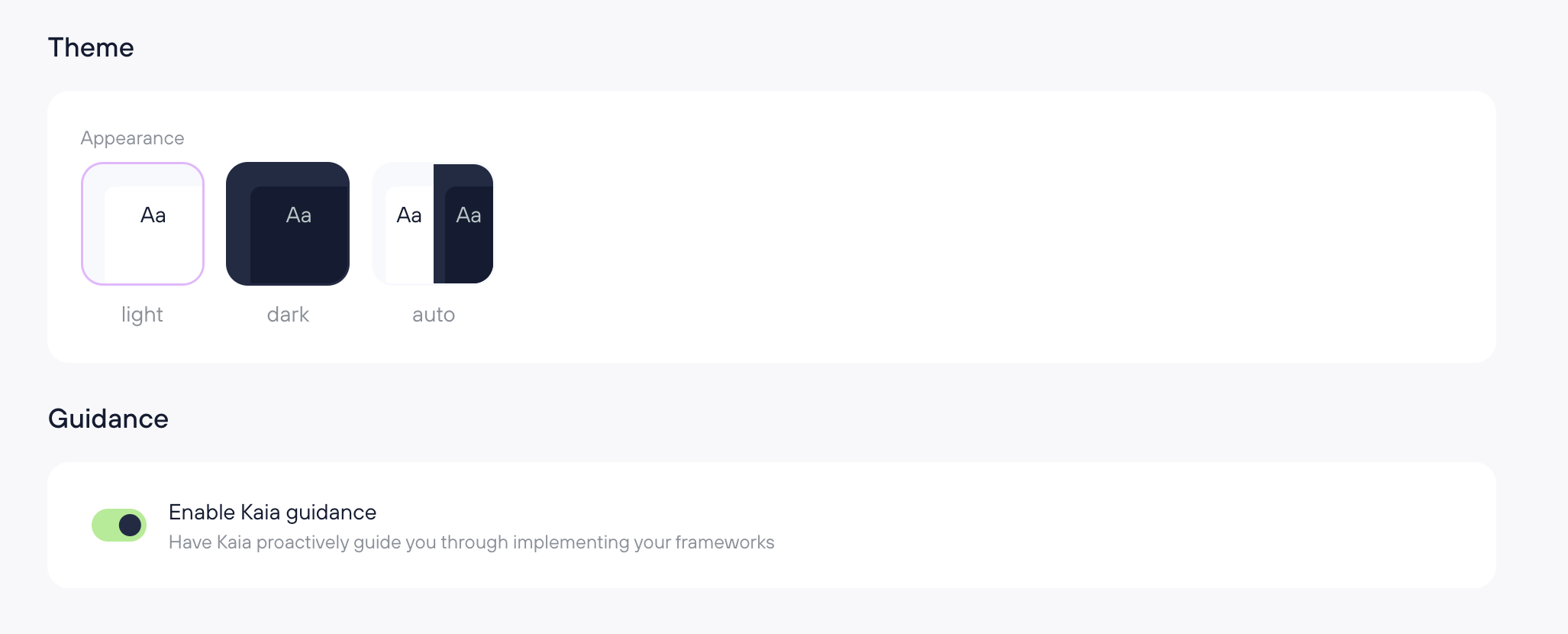
Theme (Light / Dark / Auto)
Choose how Kertos looks:
- Light: always light theme
- Dark: always dark theme
- Auto: follows your system/device appearance setting
Guidance
Enable KAIA Guidance (toggle)
Turn on KAIA Guidance (see: https://docs.kertos.io/en/article/guidance). When enabled, KAIA can show small pop-ups with tips and guidance steps within the platform.
Frequently Asked Questions (FAQs)
Where can I change the account language?
You can change the language on the Profile settings tab. The language selected here will affect interface, catalog templates, trainings and more.
Will “Task updates” email me about all tasks in the workspace?
No, it will only notify you about tasks assigned to you, in a daily email.
Why can’t I create a new Department from the Profile tab?
Departments are created and managed in Organization > Departments section of the platform. In Profile, you can only select from existing departments.