
Kertos SlackBot: Setup Guide & Overview
What you get
- Weekly Digest (Channel notification)
A weekly summary posted to your chosen Slack channel with an overview of open policies, pending trainings, failed auto checks, and more. - Direct Messages
Automatic DMs sent to individual users when their action is required: - Policy assigned for acceptance — sign off directly from Slack
- Policy assigned for review — approve or request changes
- Training assigned for completion — complete without opening Kertos
- Trust Center request received — reviewer notified instantly
Requirements & additional information
You need to have administrator access in Kertos.
You also need permission to install apps in your Slack workspace.
Step-by-Step Setup
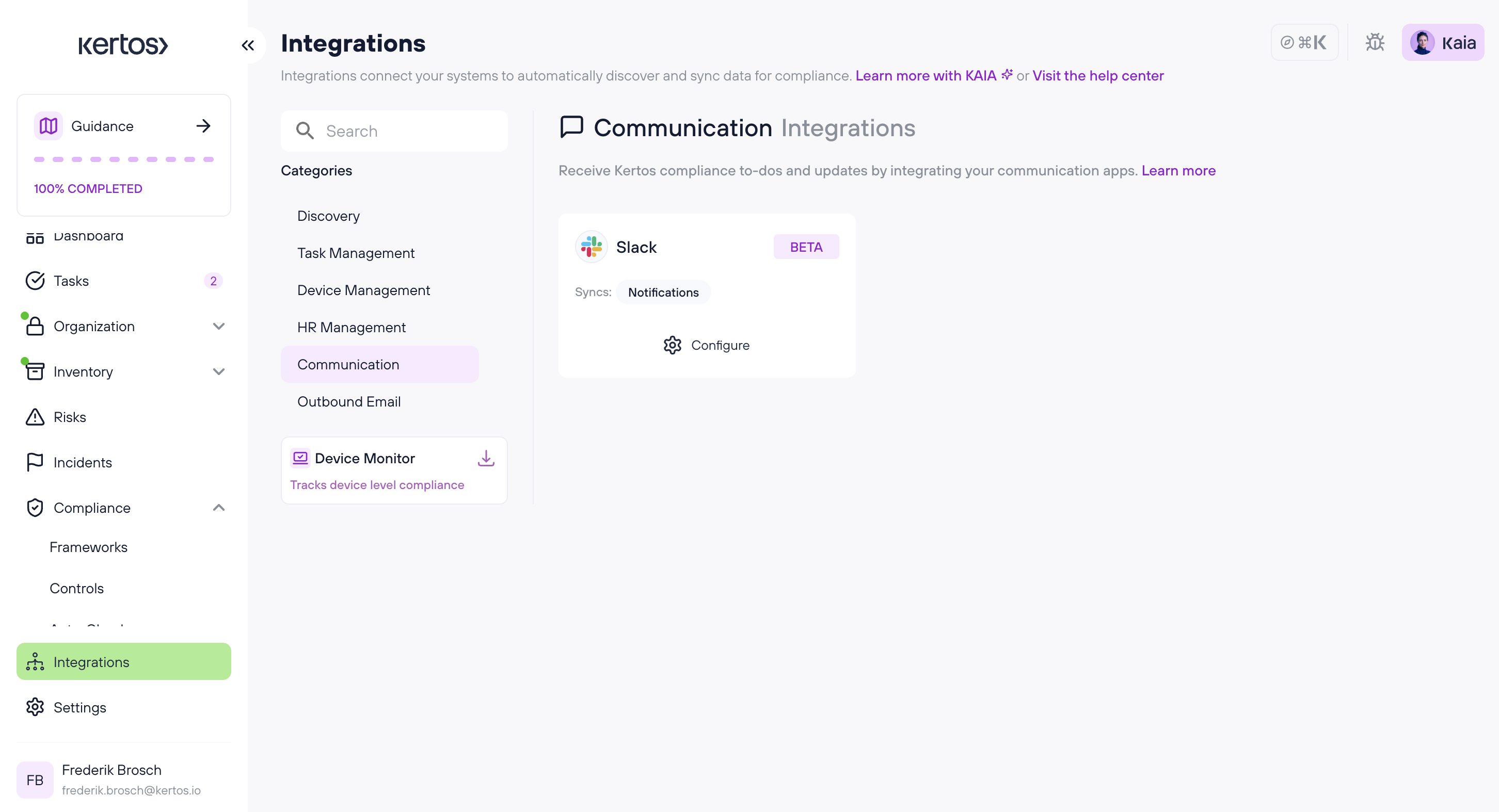
Step 1: Install the Slack App in Kertos
- Log in to your Kertos account as an Admin.
- Navigate to Integrations.
- Locate Slack and click Install App.
Step 2: Authorize Slack
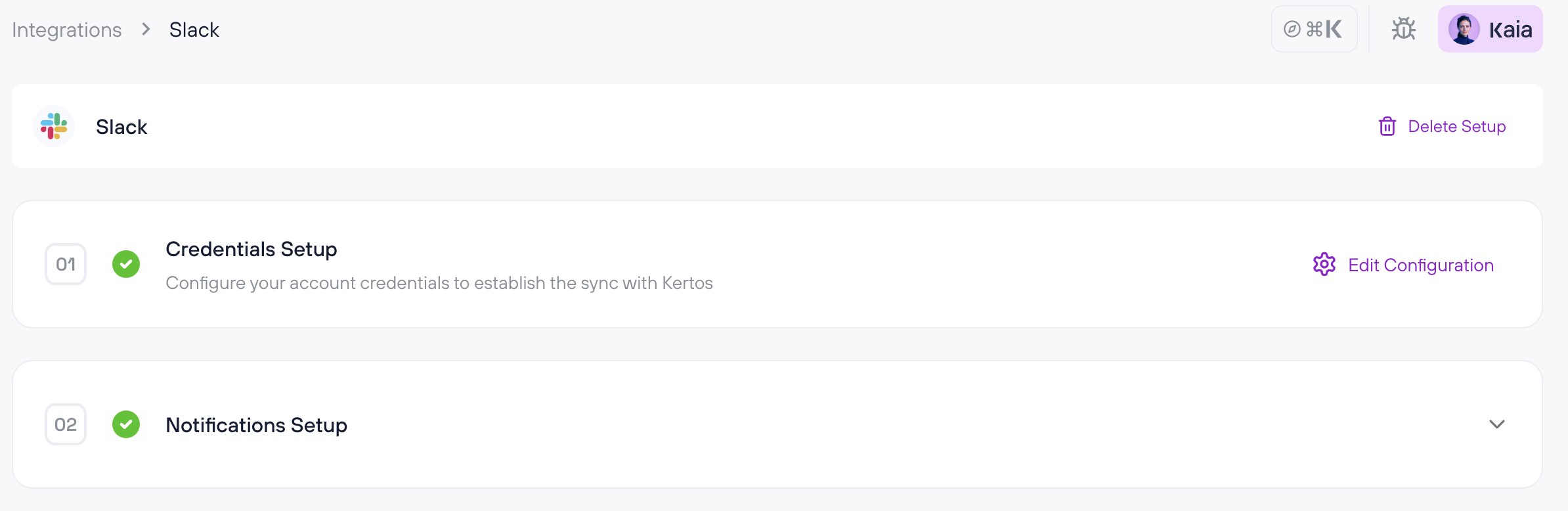
- Click on Configure Slack.
- Complete the OAuth flow by authorizing Kertos in your Slack workspace.
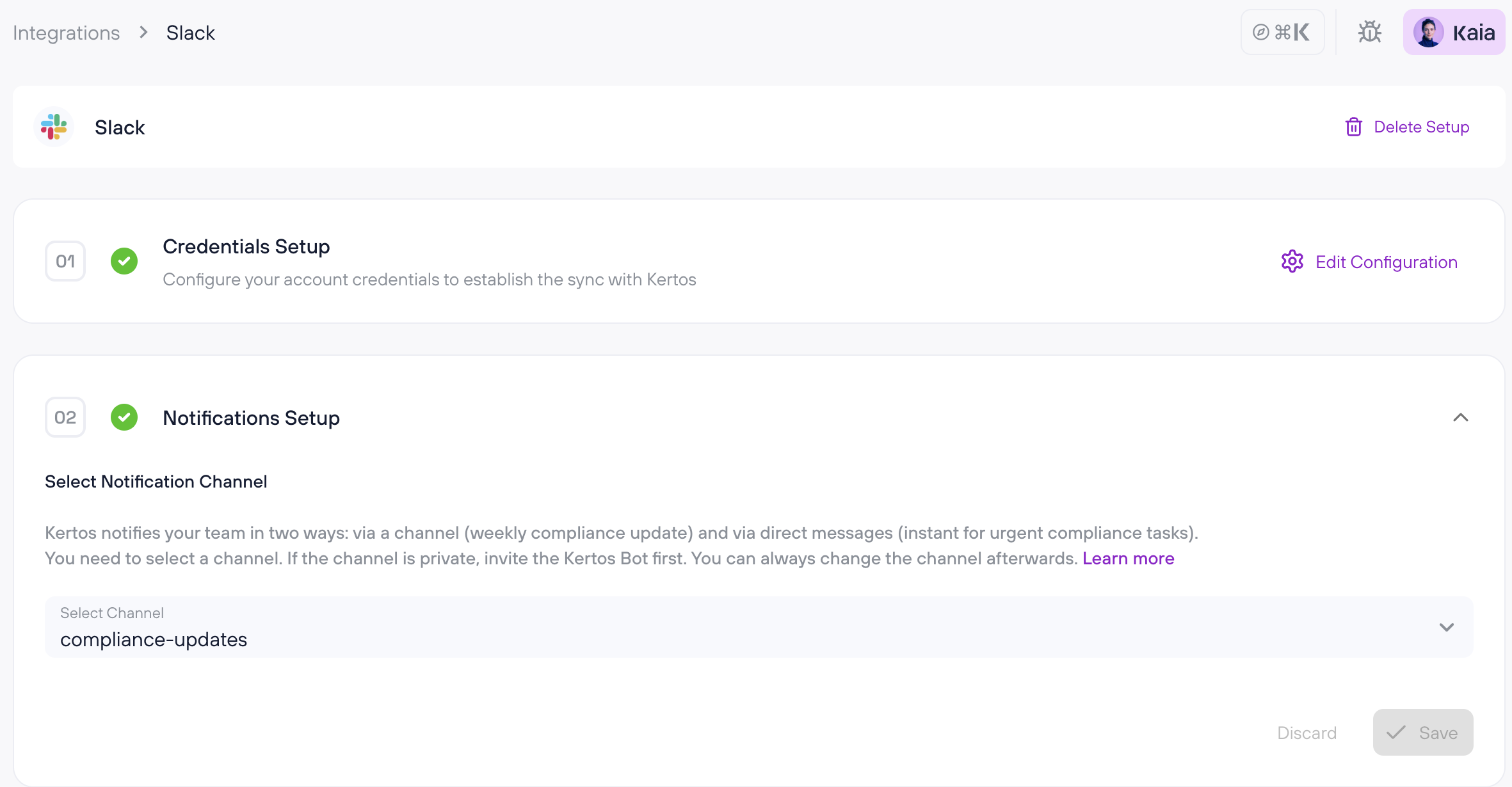
Step 3: Configure the Integration
- Select the channel where the Weekly Digest should be posted.
- Click Save to complete the setup.
Permissions requested
The Kertos SlackBot requests the following Slack scopes:
- channels:read — View basic information about public channels in a workspace. Used to list available channels for the Weekly Digest configuration.
- chat:write — Send messages as @Kertos. Used to send direct message notifications about assigned tasks, due dates, reminders, and compliance-related updates.
- chat:write.public — Send messages to channels that @Kertos isn't a member of. Required to post the Weekly Digest and compliance notifications to configured public channels without needing to be manually
invited.
- im:read — View basic information about direct messages that Kertos has been added to. Used to correctly manage and deliver user-specific compliance notifications in Slack.
- im:write — Start direct messages with people. Required to open a DM conversation with an assignee when a compliance task is assigned or due.
- team:read — View the name, email domain, and icon for the connected workspace. Used to identify and display the correct customer workspace during setup.
- users:read — View people in a workspace. Used to look up Slack users when routing notifications via the Slack lookupByEmail API.
- users:read.email — View email addresses of people in a workspace. Used to match Kertos platform users with their Slack accounts by email address in order to send them direct message notifications.
Uninstalling
To fully remove the Kertos SlackBot:
Step 1 — Disconnect in Kertos
1. Log in to Kertos as an Admin.
2. Navigate to Integrations.
3. Locate the Slack integration and click Delete Setup (top right).
This disconnects the integration from Kertos but does not uninstall the app from your Slack workspace.
Step 2 — Remove from Slack workspace
1. In Slack, go to Settings & administration → Manage apps.
2. Find Kertos and click Remove.
Both steps are required for a complete removal.